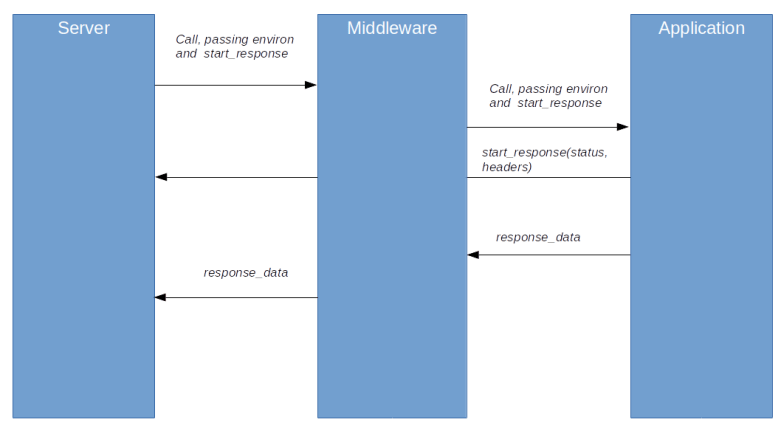
OpenStack Nova – deep-dive into the provisioning process

In the last post, we did go through the installation process and the high-level architecture of Nova, talking about the Nova API server, the Nova scheduler and the Nova agent. Today, we will make this a bit more tangible by observing how a typical request to provision an instance flows through this architecture.

The use case we are going to consider is the creation of a virtual server, triggered by a POST request to the /servers/ API endpoint. This is a long and complicated process, and we try to focus on the main path through the code without diving into every possible detail. This implies that we will skim over some points very briefly, but the understanding of the overall process should put us in a position to dig into other parts of the code if needed.

Roughly speaking, the processing of the request will start in the Nova API server which will perform validations and enrichments and populate the database. Then, the request is forwarded to the Nova conductor which will invoke the scheduler and eventually the Nova compute agent on the compute nodes. We will go through each of these phases in a bit more detail in the following sections.

Part I – the Nova API server

Being triggered by an API request, the process of course starts in the Nova API server. We have already seen in the previous post that the request is dispatched to a controller based on a set of hard-wired routes. For the endpoint in question, we find that the request is routed to the method create of the server controller.

This method first assembles some information like the user data which needs to be passed to the instance or the name of the SSH key to be placed in the instance. Then, authorization is carried out be calling the can method on the context (which, behind the scenes, will eventually invoke the Oslo policy rule engine that we have studied in our previous deep dive). Then the request data for networks, block devices and the requested image is processed before we eventually call the create method of the compute API. Finally, we parse the result and use a view builder to assemble a response.

Let us now see follow the call into the compute API. Here, all input parameters are validated and normalized, for instance by adding defaults. Then the method _provision_instances is invoked, which builds a request specification and the actual instance object and stores these objects in the database.

At this point, the Nova API server is almost done. We now call the method schedule_and_build_instances of the compute task API. From here, the call will simply be delegated to the corresponding method of the client side of the conductor RPC API which will send a corresponding RPC message to the conductor. At this point, we leave the Nova API server and enter the conductor. The flow through the code up to this point is summarized in the diagram below.

NovaProvisioningPartI

Part II – the conductor

In the last post, we have already seen that RPC calls are accepted by the Nova conductor service and are passed on to the Nova conductor manager. The corresponding method is schedule_and_build_instances

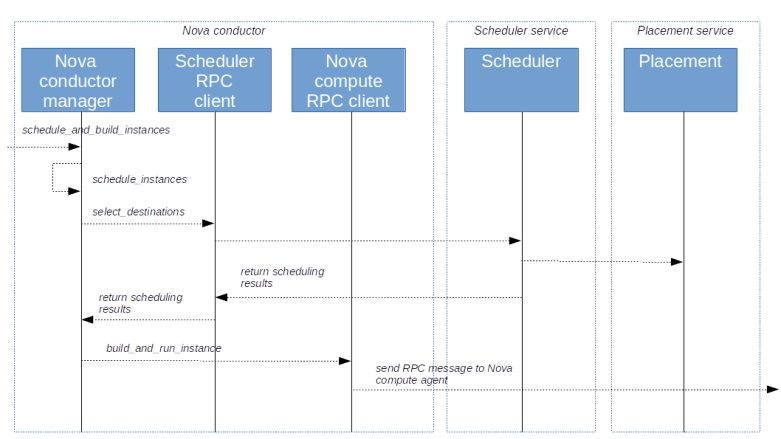
This method first retrieves the UUIDs of the instances from the request. Then, for each instance, the private method self._schedule_instances is called. Here, the class SchedulerQueryClient is used to submit an RPC call to the scheduler, which is being processed by the schedulers select_destinations method.

We will not go into the details of the scheduling process here, but simply note that this will in turn make a call to the placement service to retrieve allocation candidates and then calls the scheduler driver to actually select a target host.

Back in the conductor, we check whether the scheduling was successful. It not, the instance is moved into the cell0. If yes, we determine the cell in which the selected host is living, update some status information and eventually, at the end of the method, invoke the method build_and_run_instance of the RPC client for the Nova compute service. At this point, we leave the Nova conductor service and the processing continues in the Nova compute service running on the selected host.

InstanceCreationPartII

Part III – the processing on the compute node

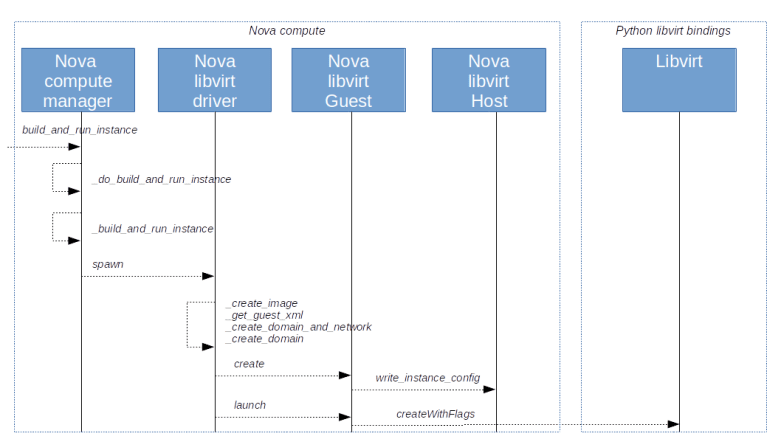
We have now reached the Nova compute agent running on the selected compute node, more precisely the method build_and_run_instance of the Nova compute manager. Here we spawn a separate worker thread which runs the private method _do_build_and_run_instance.

This method updates the VM state to BUILDING and calls _build_and_run_instance. Within this method, we first invoke _build_resources which triggers the creation of resources like networks and storage devices, and then move on to the spawn method of the compute driver from nova.virt. Note that this is again a pluggable driver mechanism – in fact the compute driver class is an abstract class, and needs to be implemented by each compute driver.

Now let us see how the processing works in our specific case of the libvirt driver library. First, we create an image for the VM by calling the private method _create_image. Next, we create the XML descriptor for the guest, i.e. we retrieve the required configuration data and turn it into the XML structure that libvirt expects. Finally, we call _create_domain_and_network and finally set a timer to periodically check the state of the instance until the boot process is complete.

In _create_domain_and_network, we plug in the virtual network interfaces, set up the firewall (in our installation, this is the point where we use the No-OP firewall driver as firewall functionality is taken over by Neutron) and then call _create_domain which creates the actual guest (called a domain in libvirt).

This delegates the call to nova.virt.libvirt.Guest.create()and then powers on the guest using the launch method on the newly created guest. Let us take a short look at each of these methods in turn.

In nova.virt.libvirt.Guest.create(), we use the write_instance_config method of the host class to create the libvirt guest without starting it.

In the launch method in nova/virt/libvirt/guest.py, we now call createWithFlags on the domain. This is actually a call into the libvirt library itself and will launch the previously defined guest.

InstanceCreationPartIII

At this point, our newly created instance will start to boot. The timer which we have created earlier will check in periodic intervalls whether the boot process is complete and update the status of the instance in the database accordingly.

This completes our short tour through the instance creation process. There are a few points which we have deliberately skipped, for instance the details of the scheduling process, the image creation and image caching on the compute nodes or the network configuration, but the information in this post might be a good starting point for further deep dives.

OpenStack Nova – installation and overview

In this post, we will look into Nova, the cloud fabric component of OpenStack. We will see how Nova is installed and go briefly through the individual components and Nova services.

Overview

Before getting into the installation process, let us briefly discuss the various components of Nova on the controller and compute nodes.

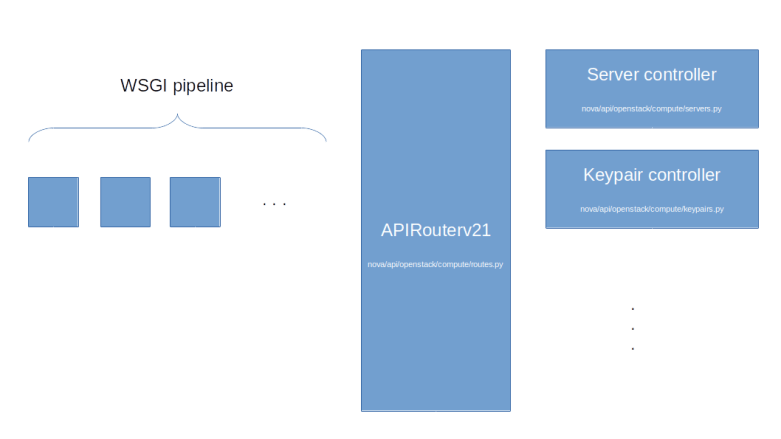
First, there is the Nova API server which runs on the controller node. The Nova service will register itself as a systemd service with entry point /usr/bin/nova-api. Similar to Glance, invoking this script will bring up an WSGI server which uses PasteDeploy to build a pipeline with the actual Nova API endpoint (an instance of nova.api.openstack.compute.APIRouterV21) being the last element of the pipeline. This component will then distribute incoming API requests to various controllers which are part of the nova.api.openstack.compute module. The routing rules themselves are actually hardcoded in the ROUTE_LIST which is part of the Router class and maps request paths to controller objects and their methods.

NovaAPIComponents

When you browse the source code, you will find that Nova offers some APIs like the image API or the bare metal API which are simply proxies to other OpenStack services like Glance or Ironic. These APIs are deprecated, but still present for backwards compatibility. Nova also has a network API which, depending on the value of the configuration item use_neutron will either acts as proxy to Neutron or will present the legacy Nova networking API.

The second Nova component on the controller node is the Nova conductor. The Nova conductor does not expose a REST API, but communicates with the other Nova components via RPC calls (based on RabbitMQ). The conductor is used to handle long-running tasks like building an instance or performing a live migration.

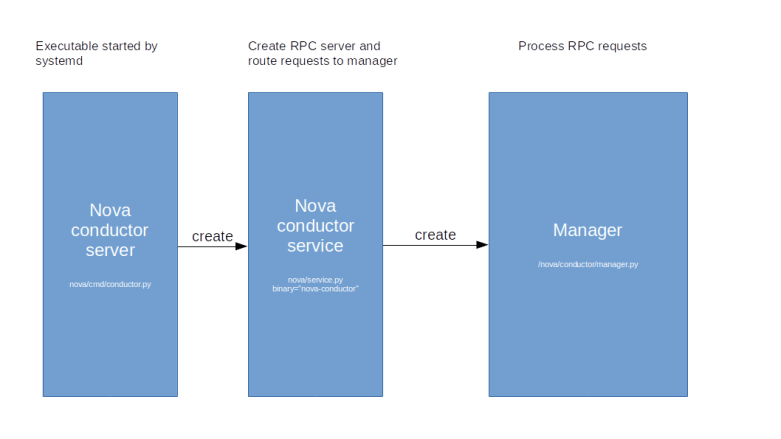
Similar to the Nova API server, the conductor has a tiered architecture. The actual binary which is started by the systemd mechanism creates a so called service object. In Nova, a service objects represents an RPC API endpoint. When a service object is created, it starts up an RPC service that handles the actual communication via RabbitMQ and forwards incoming requests to an associated service manager object.

NovaRPCAPI

Again, the mapping between binaries and manager classes is hardcoded and, for the Stein release, is as follows.

SERVICE_MANAGERS = {
  'nova-compute': 'nova.compute.manager.ComputeManager',
  'nova-console': 'nova.console.manager.ConsoleProxyManager',
  'nova-conductor': 'nova.conductor.manager.ConductorManager',
  'nova-metadata': 'nova.api.manager.MetadataManager',
  'nova-scheduler': 'nova.scheduler.manager.SchedulerManager',
}

Apart from the conductor service, this list contains one more component that runs on the controller node and use the same mechanism to handle RPC requests (the nova-console binary is deprecated and we use the noVNC proxy, see the section below, the nova-compute binary is running on the compute node, and the nova-metadata binary is the old metadata service used with the legacy Nova networking API). This is the the Nova scheduler.

The scheduler receives and maintains information on the instances running on the individual hosts and, upon request, uses the Placement API that we have looked at in the previous post to take a decision where a new instance should be placed. The actual scheduling is carried out by a pluggable instance of the nova.scheduler.Scheduler base class. The default scheduler is the filter scheduler which first applies a set of filters to filter out individual hosts which are candidates for hosting the instance, and then computes a score using a set of weights to take a final decision. Details on the scheduling algorithm are described here.

The last service which we have not yet discussed is Nova compute. One instance of the Nova compute service runs on each compute node. The manager class behind this service is the ComputeManager which itself invokes various APIs like the networking API or the Cinder API to manage the instances on this node. The compute service interacts with the underlying hypervisor via a compute driver. Nova comes with compute driver for the most commonly used hypervisors, including KVM (via libvirt), VMWare, HyperV or the Xen hypervisor. In a later post, we will go once through the call chain when provisioning a new instance to see how the Nova API, the Nova conductor service, the Nova compute service and the compute driver interact to bring up the machine.

The Nova compute service itself does not have a connection to the database. However, in some cases, the compute service needs to access information stored in the database, for instance when the Nova compute service initializes on a specific host and needs to retrieve a list of instances running on this host from the database. To make this possible, Nova uses remotable objects provided by the Oslo versioned objects library. This library provides decorators like remotable_classmethod to mark methods of a class or an object as remotable. These decorators point to the conductor API (indirection_api within Oslo) and delegate the actual method invocation to a remote copy via an RPC call to the conductor API. In this way, only the conductor needs access to the database and Nova compute offloads all database access to the conductor.

Nova cells

In a large OpenStack installation, access to the instance data stored in the MariaDB database can easily become a bottleneck. To avoid this, OpenStack provides a sharding mechanism for the database known as cells.

The idea behind this is that the set of your compute nodes are partitioned into cells. Every compute node is part of a cell, and in addition to these regular cells, there is a cell called cell0 (which is usually not used and only holds instances which could not be scheduled to a node). The Nova database schema is split into a global part which is stored in a database called the API database and a cell-local part. This cell-local database is different for each cell, so each cell can use a different database running (potentially) on a different host. A similar sharding applies to message queues. When you set up a compute node, the configuration of the database connection and the connection to the RabbitMQ service determine to which cell the node belongs. The compute node will then use this database connection to register itself with the corresponding cell database, and a special script (nova-manage) needs to be run to make these hosts visible in the API database as well so that they can be used by the scheduler.

Cells themselves are stored in a database table cell_mappings in the API database. Here each cell is set up with a dedicated RabbitMQ connection string (called the transport URL) and a DB connection string. Our setup will have two cells – the special cell0 which is always present and a cell1. Therefore, our installation will required three databases.

Database Description
nova_api Nova API database
nova_cell0 Database for cell0
nova Database for cell1

In a deployment with more than one real cell, each cell will have its own Nova conductor service, in addition to a “super conductor” running across cells, as explained here and in diagram below which is part of the OpenStack documentation.

The Nova VNC proxy

Usually, you will use SSH to access your instances. However, sometimes, for instance if the SSHD is not coming up properly or the network configuration is broken, it would be very helpful to have a way to connect to the instance directly. For that purpose, OpenStack offers a VNC console access to running instances. Several VNC clients can be used, but the default is to use the noVNC browser based client embedded directly into the Horizon dashboard.

How exactly does this work? First, there is KVM. The KVM hypervisor has the option to export the content of the emulated graphics card of the instance as a VNC server. Obviously, this VNC server is running on the compute node on which the instance is located. The server for the first instance will listen on port 5900, the server for the second instance will listen on port 5901 and so forth. The server_listen configuration option determines the IP address to which the server will bind.

Now theoretically a VNC client like noVNC could connect directly to the VNC server. However, in most setups, the network interfaces of the compute node are not directly reachable from a browser in which the Horizon GUI is running. To solve this, Nova comes with a dedicated proxy for noVNC. This proxy is typically running on the controller node. The IP address and port number on which this proxy is listening can again be configured using the novncproxy_host and novncproxy_port configuration items. The default port is 6080.

When a client like the Horizon dashboard wants to get access to the proxy, it can use the Nova API path /servers/{server_id}/remote-consoles. This call will be forwarded to the Nova compute method get_vnc_console on the compute node. This method will return an URL, consisting of the base URL (which can again be configured using the novncproxy_base_url configuration item), and a token which is stored in the database as well. When the client uses this URL to connect to the proxy, the token is used to verify that the call is authorized.

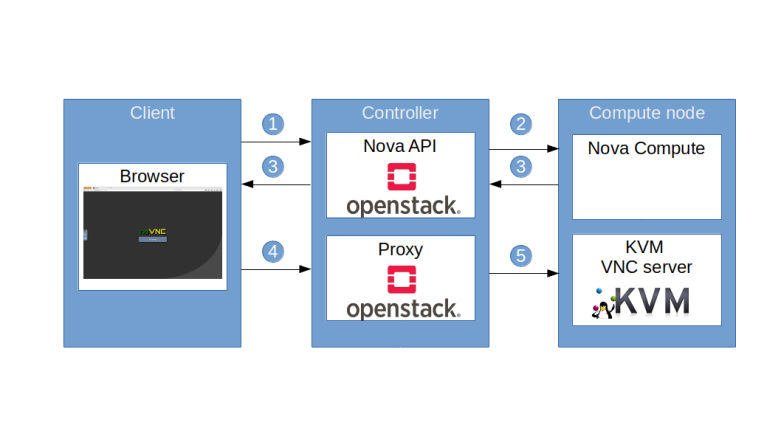
The following diagram summarizes the process to connect to the VNC console of an instance from a browser running noVNC.

NoVNCProxy

  1. Client uses Nova API /servers/{server_id}/remote-consoles to retrieve the URL of a proxy
  2. Nova API delegates the request to Nova Compute on the compute node
  3. Nova Compute assembles the URL, which points to the proxy, and creates a token, containing the ID of the instance as well as additional information, and the URL including the token is handed out to the client
  4. Client uses the URL to connect to the proxy
  5. The proxy validates the token, extracts the target compute node and port information, establishes the connection to the actual VNC server and starts to service the session

Installing Nova on the controller node

Armed with the knowledge from the previous discussions, we can now almost guess what steps we need to take in order to install Nova on the controller node.

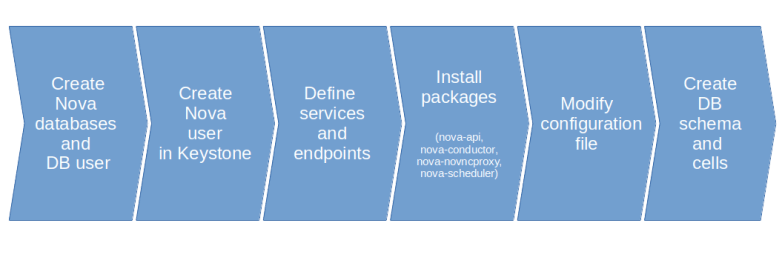
NovaInstallation

First, we need to create the Nova databases – the Nova API database (nova_api), the Nova database for cell0 (nova_cell0) and the Nova database for our only real cell cell1 (nova). We also need to create a user which has the necessary grants on these databases.

Next, we create a user in Keystone representing the Nova service, register the Nova API service with Keystone and define endpoints.

We then install the Ubuntu packages corresponding to the four components that we will install on the controller node – the Nova API service, the Nova conductor, the Nova scheduler and the VNC proxy.

Finally, we adapt the configuration file /etc/nova/nova.conf. The first change is easy – we set the value my_ip to the IP of the controller management interface.

We then need to set up the networking part. To enforce the use of Neutron instead of the built-in legacy Nova networking, we set the configuration option use_neutron that we already discussed above to True. We also set the firewall driver to the No-OP driver nova.virt.firewall.NoopFirewallDriver.

The next information we need to provide is the connection information to RabbitMQ and the database. Recall that we need to configure two database connections, one for the API database and one for the database for cell 1 (Nova will automatically append _cell0 to this database name to obtain the database connection for cell 0).

We also need to provide some information that Nova needs to communicate with other Nova services. In the glance section, we need to define the URL to reach the Glance API server. In the neutron section, we need to set up the necessary credentials to connect to Neutron. Here we use a Keystone user neutron which we will set up when installing Neutron in a later post, and we also define some data needed for the metadata proxy that we will discuss in a later post. And finally Nova needs to connect to the Placement service for which we have to provide credentials as well, this time using the placement user created earlier.

To set up the communication with Keystone, we need to set the authorization strategy to Keystone (which will also select the PasteDeploy Pipeline containing the Keystone authtoken middleware) and provide the credentials that the authtoken middleware needs. And finally, we set the path that the Oslo concurrency library will use to create temporary files.

Once all this has been done, we need to prepare the database for use. As with the other services, we need to sync the database schema to the latest version which, in our case, will simply create the database schema from scratch. We also need to establish our cell 1 in the database using the nova-manage utility.

Installing Nova on the compute nodes

Let us now turn to the installation of Nova on the compute nodes. Recall that on the compute nodes, only nova-compute needs to be running. There is no database connection needed, so the only installation step is to install the nova-compute package and to adapt the configuration file.

The configuration file nova.conf on the compute node is very similar to the configuration file on the controller node, with a few differences.

As there is no database connection, we can comment out the DB connection string. In the light of our above discussion of the VNC proxy mechanism, we also need to provide some configuration items for the proxy mechanism.

  • The configuration item server_proxyclient_address is evaluated by the get_vnc_console of the compute driver and used to return the IP and port number on which the actual VNC server is running and can be reached from the controller node (this is the address to which the proxy will connect)
  • The server_listen configuration item is the IP address to which the KVM VNC server will bind on the compute host and should be reachable via the server_proxyclient_address from the controller node
  • the novncproxy_base_url is the URL which is handed out by the compute node for use by the proxy

Finally, there is a second configuration file nova-compute.conf specific to the compute nodes. This file determines the compute driver used (in our case, we use libvirt) and the virtualization type. With libvirt, we can either use KVM or QEMU. KVM will only work if the CPU supports virtualization (i.e. offers the VT-X extension for Intel or AMD-V for AMD). In our setup, the virtual machines will run on top of another virtual machine (Virtualbox), which does only pass through these features for AMD CPUs. We will therefore set the virtualization type to QEMU.

Finally, after installing Nova on all compute nodes, we need to run the nova-manage tool once more to make these nodes known and move them into the correct cells.

Run and verify the installation

Let us now run the installation and verify that is has succeeded. Here are the commands to bring up the environment and to obtain and execute the needed playbooks.

git clone https://www.github.com/christianb93/openstack-labs
cd openstack-labs/Lab4
vagrant up
ansible-playbook -i hosts.ini site.yaml

This will run a few minutes, depending on the network connection and the resources available on your machine. Once the installation completes, log into the controller and source the admin credentials.

vagrant ssh controller
source admin-openrc

First, we verify that all components are running on the controller. To do this, enter

systemctl | grep "nova"

The output should contain four lines, corresponding to the four services nova-api, nova-conductor, nova-scheduler and nova-novncproxy running on the controller node. Next, let us inspect the Nova database to see which compute services have registered with Nova.

openstack compute service list

The output should be similar to the sample output below, listing the scheduler, the conductor and two compute instances, corresponding to the two compute nodes that our installation has.

+----+----------------+------------+----------+---------+-------+----------------------------+
| ID | Binary         | Host       | Zone     | Status  | State | Updated At                 |
+----+----------------+------------+----------+---------+-------+----------------------------+
|  1 | nova-scheduler | controller | internal | enabled | up    | 2019-11-18T08:35:04.000000 |
|  6 | nova-conductor | controller | internal | enabled | up    | 2019-11-18T08:34:56.000000 |
|  7 | nova-compute   | compute1   | nova     | enabled | up    | 2019-11-18T08:34:56.000000 |
|  8 | nova-compute   | compute2   | nova     | enabled | up    | 2019-11-18T08:34:57.000000 |
+----+----------------+------------+----------+---------+-------+----------------------------+

Finally, the command sudo nova-status upgrade check will run some checks meant to be executed after an update that can be used to further verify the installation.

OpenStack supporting services – Glance and Placement

Apart from Keystone, Glance and Placement are two additional infrastructure services that are part of every OpenStack installation. While Glance is responsible for storing and maintaining disk images, Placement (formerly part of Nova) is keeping track of resources and allocation in a cluster.

Glance installation

Before we get into the actual installation process, let us take a short look at the Glance runtime environment. Different from Keystone, but similar to most other OpenStack services, Glance is not running inside Apache, but is an independent process using a standalone WSGI server.

To understand the startup process, let us start with the setup.cfg file. This file contains an entry point glance-api which, via the usual mechanism provided by Pythons setuptools, will provide a Python executable which runs glance/cmd/api.py. This in turn uses the simple WSGI server implemented in glance/common/wsgi.py. This server is then started in the line

server.start(config.load_paste_app('glance-api'), default_port=9292)

Here we see that the actual WSGI app is created and passed to the server using the PasteDeploy Python library. If you have read my previous post on WSGI and WSGI middleware, you will know that this is a library which uses configuration data to plumb together a WSGI application and middleware. The actual call of the PasteDeploy library is delegated to a helper library in glance/common and happens in the function load_past_app defined here.

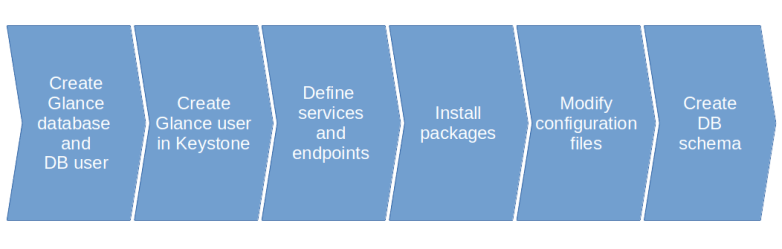
Armed with this understanding, let us now dive right into the installation process. We will spend a bit more time with this process, as it contains some recurring elements which are relevant for most of the OpenStack services that we will install and use. Here is a graphical overview of the various steps that we will go through.

GlanceInstallationProcess

The first thing we have to take care of is the database. Almost all OpenStack services require some sort of database access, thus we have to create one or more databases in our MariaDB database server. In the case of Glance, we create a database called glance. To allow Glance to access this database, we also need to set up a corresponding MariaDB user and grant the necessary access rights on our newly created database.

Next, Glance of course needs access to Keystone to authenticate users and authorize API requests. For that purpose, we create a new user glance in Keystone. Following the recommended installation process, we will in fact create one Keystone user for every OpenStack service, which is of course not strictly necessary.

With this, we have set up the necessary identities in Keystone. However, recall that Keystone is also used as a service catalog to decouple services from endpoints. An API user will typically not access Glance directly, but first get a list of service endpoints from Keystone, select an appropriate endpoint and then use this endpoint. To support this pattern, we need to register Glance with the Keystone service catalog. Thus, we create a Keystone service and API endpoints. Note that the port provided needs to match the actual port on which the Glance service is listening (using the default unless overridden explicitly in the configuration).

OpenStack services typically expose more than one endpoint – a public endpoint, an internal endpoint and an admin endpoint. As described here, there does not seem to be fully consistent configuration scheme that allows an administrator to easily define which endpoint type the services will use. Following the installation guideline, we will install all our services with all three endpoint types.

Next, we can install Glance by simply installing the corresponding APT package. Similar to Keystone, this package comes with a set of configuration files that we now have to adapt.

The first change which is again standard across all OpenStack components is to change the database connection string so that Glance is able to find our previously created database. Note that this string needs to contain the credentials for the Glance database user that we have created.

Next, we need to configure the Glance WSGI middleware chain. As discussed above, Glance uses the PasteDeploy mechanism to create a WSGI application. When you take a look at the corresponding configuration, however, you will see that it contains a variety of different pipeline definitions. To select the pipeline that will actually be deployed, Glance has a configuration option called deployment flavor. This is a short form for the name of the pipeline to be selected, and when the actual pipeline is assembled here, the name of the pipeline is put together by combining the flavor with the string “glance-api”. We use the flavor “keystone” which will result in the pipeline “glance-api-keystone” being loaded.

This pipeline contains the Keystone auth token middleware which (as discussed in our deep dive into tokens and policies) extracts and validates the token data in a request. This middleware components needs access to the Keystone API, and therefore we need to add the required credentials to our configuration in the section [keystone_authtoken].

To complete the installation, we still have to create the actual database schema that Glance expects. Like most other OpenStack services, Glance is able to automatically create this schema and to synchronize an existing database with the current version of the existing schema by automatically running the necessary migration routines. This is done by the helper script glance-manage.

The actual installation process is now completed, and we can restart the Glance service so that the changes in our configuration files are picked up.

Note that the current version of the OpenStack install guide for Stein will instruct you to start two Glance services – glance-api and glance-registry. We only start the glance-api service, for the following reason.

Internally, Glance is structured into a database access layer and the actual Glance API server, plus of course a couple of other components like common services. Historically, Glance used the first of todays three access layers called the Glance registry. Essentially, the Glance registry is a service sitting between the Glance API service and the database, and contains the code for the actual database layer which uses SQLAlchemy. In this setup, the Glance API service is reachable via the REST API, whereas the Glance registry server is only reachable via RPC calls (using the RabbitMQ message queue). This will add an additional layer of security, as the database credentials need to be stored in the configuration of the Glance registry service only, and makes it easier to scale Glance across several nodes. Later, the Glance registry service was deprecated, and the actual configuration instructs Glance to access the database directly (this is the data_api parameter in the Glance configuration file).

As in my previous posts, I will not replicate the exact commands to do all this manually (you can find them in the well-written OpenStack installation guide), but have put together a set of Ansible scripts doing all this. To run them, enter the following commands

git clone https://github.com/christianb93/openstack-labs
cd Lab3
vagrant up
ansible-playbook -i hosts.ini site.yaml

This playbook will not only install and configure the Glance service, but will also download the CirrOS image (which I have mirrored in an S3 bucket as the original location is sometimes a bit slow) and import it into Glance.

Working with Glance images

Let us now play a bit with Glance. The following commands need to be run from the controller node, and we have to source the credentials that we need to connect to the API. So SSH into the controller node and source the credentials by running

vagrant ssh controller
source admin-openrc

First, let us use the CLI to display all existing images.

openstack image list

As we have only loaded one image so far – the CirrOS image – the output will be similar to the following sample output.

+--------------------------------------+--------+--------+
| ID                                   | Name   | Status |
+--------------------------------------+--------+--------+
| f019b225-de62-4782-9206-ed793fbb789f | cirros | active |
+--------------------------------------+--------+--------+

Let us now get some more information on this image. For better readability, we display the output in JSON format.

openstack image show cirros -f json

The output is a bit longer, and we will only discuss a few of the returned attributes. First, there is the file attribute. If you look at this and compare this to the contents of the directory /var/lib/glance/images/, you will see that this is a reference to the actual image stored on the hard disk. Glance delegates the actual storage to a storage backend. Storage backends are provided by the separate glance_store library and include a file store (which simply stores files on the disk as we have observed and is the default), a HTTP store which uses a HTTP GET to retrieve an image, an interface to the RADOS distribute object store and interfaces to Cinder, Swift and VMWare data store.

We also see from the output that images can be active or inactive, belong to a project (the owner field refers to a project), can be tagged and can either be visible for the public (i.e. outside the project to which they belong) or private (i.e. only visible within the project). It is also possible to share images with individual projects by adding these projects as members.

Note that Glance stores image metadata, like visibility, hash values, owner and so forth in the database, while the actual image is stored in one of the storage backends.

Let us now go through the process of adding an additional image. The OpenStack Virtual Machine Image guide contains a few public sources for OpenStack images and explains how adminstrators can create their own images based on the most commonly used Linux distributions. As an example, here are the commands needed to download the latest Ubuntu Bionic cloud image and import it into Glance.

wget http://cloud-images.ubuntu.com/bionic/current/bionic-server-cloudimg-amd64.img
openstack image create \
    --disk-format qcow2 \
    --file bionic-server-cloudimg-amd64.img \
    --public \
    --project admin \
    ubuntu-bionic

We will later see how we need to reference an image when creating a virtual machine.

Installing the placement service

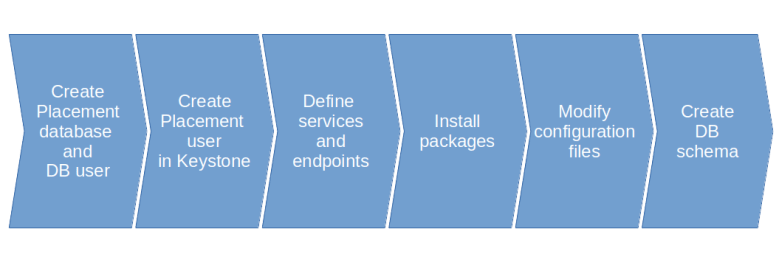
Having discussed the installation process for the Glance service in a bit more detail, let us now quickly go over the steps to install Placement. Structurally, these steps are almost identical to those to install Glance, and we will not go into them in detail.

PlacementInstallation

Also the changes in the configuration file are very similar to those that we had to apply for Glance. Placement again uses the Keystone authtoken plugin, so that we have to supply credentials for Keystone in the keystone_authtoken section of the configuration file. We also have to supply a database connection string. Apart from that, we can take over the default values in the configuration file without any further changes.

Placement overview

Let us now investigate the essential terms and objects that the Placement API uses. As the openstack client does not yet contain full support for placement, we will directly use the API using curl. With each request, we need to include two header parameters.

  • X-Auth-Token needs to contain a valid token that we need to retrieve from Keystone first
  • OpenStack-API-Version needs to be included to define the version of the API (this is the so-called microversion).

Here is an example. We will SSH into the controller, source the credentials, get a token from Keystone and submit a GET request on the URL /resource_classes that we feed into jq for better readability.

vagrant ssh controller
source admin-openrc
sudo apt-get install jq
token=$(openstack token issue -f json | jq -r ".id") 
curl \
  -H "X-Auth-Token: $token" \
  -H "OpenStack-API-Version: placement 1.31"\
  "http://controller:8778/resource_classes" | jq

The resulting list is a list of all resource classes known to Placement. Resource classes are types of resources that Placement manages, like IP addresses, vCPUs, disk space or memory. In a fully installed system, OpenStack services can register as resource providers. Each provider offers a certain set of resource classes, which is called an inventory. A compute node, for instance, would typically provide CPUs, disk space and memory. In our current installation, we cannot yet test this, but in a system with compute nodes, the inventory for a compute node would typically look as follows.

{
  "resource_provider_generation": 3,
  "inventories": {
    "VCPU": {
      "total": 2,
      "reserved": 0,
      "min_unit": 1,
      "max_unit": 2,
      "step_size": 1,
      "allocation_ratio": 16
    },
    "MEMORY_MB": {
      "total": 3944,
      "reserved": 512,
      "min_unit": 1,
      "max_unit": 3944,
      "step_size": 1,
      "allocation_ratio": 1.5
    },
    "DISK_GB": {
      "total": 9,
      "reserved": 0,
      "min_unit": 1,
      "max_unit": 9,
      "step_size": 1,
      "allocation_ratio": 1
    }
  }
}

Here we see that the compute node has two virtual CPUs, roughly 4 GB of memory and 9 GB of disk space available. For each resource provider, Placement also maintains usage data which keeps track of the current usage of the resources. Here is a JSON representation of the usage for a compute node.

{
  "resource_provider_generation": 3,
  "usages": {
    "VCPU": 1,
    "MEMORY_MB": 128,
    "DISK_GB": 1
  }
}

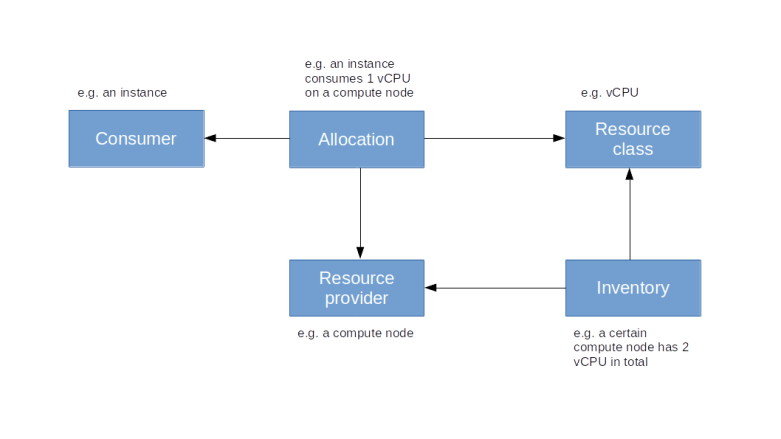
So in this example, one vCPU, 128 MB RAM and 1 GB disk of the compute node are in use. To link consumers and usage information, Placement uses allocations. An allocation represents a usage of resources by a specific consumer, like in the following example.

{
  "allocations": {
    "aaa957ac-c12c-4010-8faf-55520200ed55": {
      "resources": {
        "DISK_GB": 1,
        "MEMORY_MB": 128,
        "VCPU": 1
      },
      "consumer_generation": 1
    }
  },
  "resource_provider_generation": 3
}

In this case, the consumer (represented by the UUID aaa957ac-c12c-4010-8faf-55520200ed55) is actually a compute instance which consumes 1 vCPU, 128 MB memory and 1 GB disk space. Here is a diagram that represents a simplified version of the Placement data model.

PlacementDataModel

Placement offers a few additional features like Traits, which define qualitative properties of resource providers, or aggregates which are groups of resource providers, or the ability to make reservations.

Let us close this post by briefly discussing the relation between Nova and Placement. As we have mentioned above, compute nodes represent resource providers in Placement, so Nova needs to register resource provider records for the compute nodes it manages and providing the inventory information. When a new instance is created, the Nova scheduler will request information on inventories and current usage from Placement to determine the compute node on which the instance will be placed, and will subsequently update the allocations to register itself as a consumer for the resources consumed by the newly created instance.

With this, the installation of Glance and Placement is complete and we have all the ingredients in place to start installing the Nova services in the next post.

OpenStack Keystone – a deep-dive into tokens and policies

In the previous post, we have installed Keystone and provided an overview of its functionality. Today, we will dive in detail into a typical authorization handshake and take you through the Keystone source code to see how it works under the hood.

The overall workflow

Let us first take a look at the overall process before we start to dig into details. As an example, we will use the openstack CLI to list all existing projects. To better see what is going on behind the scenes, we run the openstack client with the -v command line switch which creates a bit more output than usual.

So, log into the controller node and run

source admin-demorc
openstack -vv project list

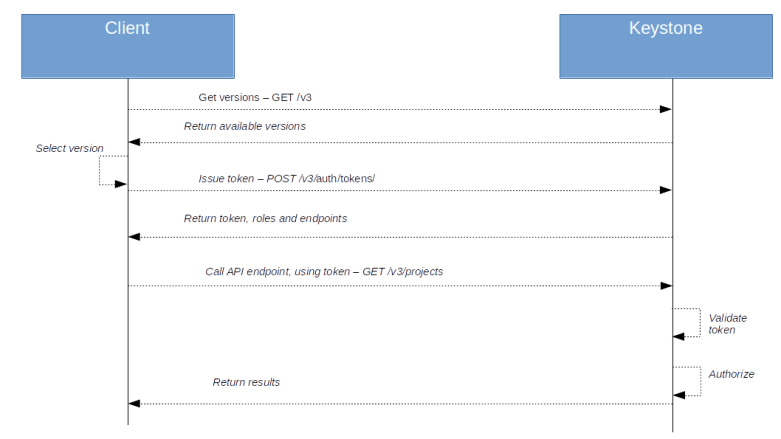
This will give a rather lengthy output, so let us focus on those lines that signal that a requests to the API is made. The first API is a GET request to the URL

http://controller:5000/v3

This request will return a list of available API versions, marked with a status. In our case, the result indicates that the stable version is version v3. Next, the clients submits a POST request to the URL

http://controller:5000/v3/auth/tokens

If we look up this API endpoint in the Keystone Identity API reference, we find that this method is used to create and return a token. When making this request, the client will use the data provided in the environment variables set by our admin-openrc script to authenticate with Keystone, and Keystone will assemble and return a token.

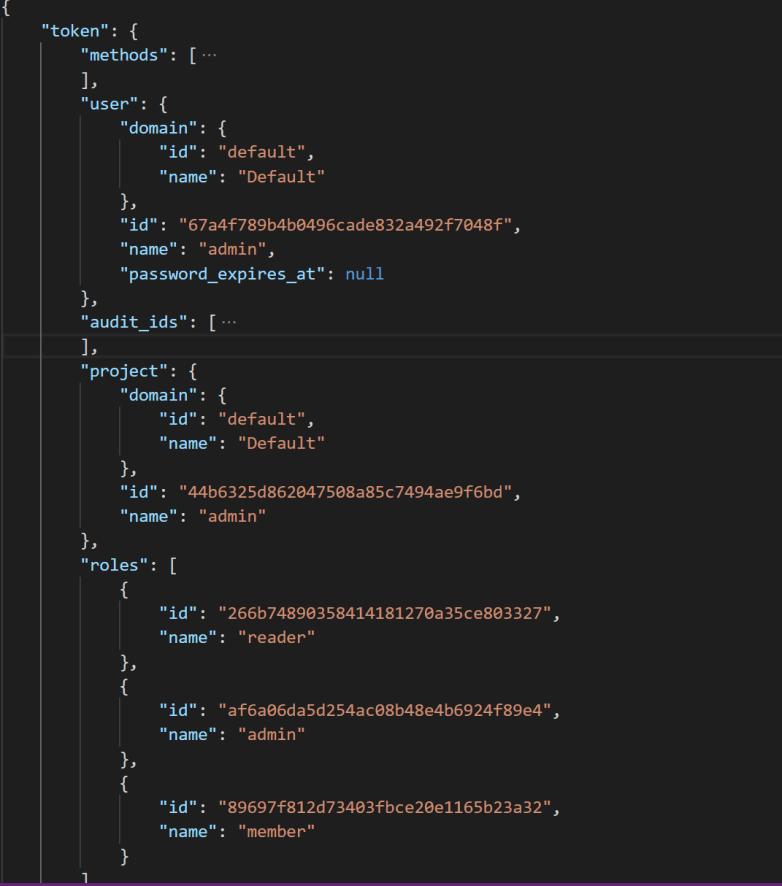
The returned data has actually two parts. First, there is the actual Fernet token, which is provided in the HTTP header instead of the HTTP body. Second, there is a token structure which is returned in the response body. This structure contains the user that owns the token, the date when the token expires and the data when the token has been issued, the project for which the token is valid (for a project scoped token) and the roles that the user has for this project. In addition, it contains a service catalog. Here is an example, where I have collapsed the catalog part for better readibility.

token

Finally, at the bottom of the output, we see that the actual API call to get a list of projects is made, using our newly acquired token and the endpoint

http://controller:5000/v3/projects

So our overall flow looks like this, ignoring some client internal processes like selecting the endpoint (and recovering from failed authorizations, see the last section of this post).

AuthorizationWorkflowGetProjects

Let us now go through these requests step by step and see how tokens and policies interact.

Creating a token

When we submit the API request to create a token, we end up in the method post in the AuthTokenResource class defined in keystone/api/auth.py. Here we find the code.

token=authentication.authenticate_for_token(auth_data)
resp_data=render_token.render_token_response_from_model(
          token, include_catalog=include_catalog
)

The method authenticate_for_token is defined in keystone/api/_shared/authentication.py. Here, we first authenticate the user, using the auth data provided in the request, in our case this is username, password, domain and project as defined in admin-openrc. Then, the actual token generation is triggered by the call

token=PROVIDERS.token_provider_api.issue_token(
          auth_context['user_id'], 
          method_names, 
          expires_at=expires_at,
          system=system, 
          project_id=project_id, 
          domain_id=domain_id,
          auth_context=auth_context, 
          trust_id=trust_id,
          app_cred_id=app_cred_id, 
         parent_audit_id=token_audit_id)

Here we see an additional layer of indirection in action – the ProviderAPIRegistry as defined in keystone/common/provider_api.py. Without getting into details, here is the idea of this approach which is used in a similar way in other OpenStack services.

Keystone itself consists of several components, each of which provide different methods (aka internal APIs). There is, for instance, the code in keystone/identity handling the core identity features, the code in keystone/assignment handling role assigments, the code in keystone/token handling tokens and so forth. Each of these components contains a class typically called Manager which is derived from the base class Manager in keystone/common/manager.py.

When such a class is instantiated, it registers its methods with the static instance ProviderAPI of the class ProviderAPIRegistry defined in keystone/common/provider_api.py. Technically, registering means that the object is added as attribute to the ProviderAPI object. For the token API, for instance, the the Manager class in keystone/token/provider.py registers itself using the name token_provider_api, so that it is added to the provider registry object as the attribute token_provider_api. Thus a method XXX of this manager class can now be invoked using

from keystone.common import provider_api
provider_api.ProviderAPIs.token_provider_api.XXX()

or by

from keystone.common import provider_api
PROVIDERS = provider_api.ProviderAPIs
PROVIDERS.token_provider_api.XXX()

This is exactly what happens here, and this is why the above line will actually take us to the method issue_token of the Manager class defined in keystone/token/provider.py. Here, we build and populate an instance of the Token class defined in keystone/models/token_model.py and populate it with the available data. We then populate the field token.id where we put the actual token, i.e. the encoded string that will end up in the HTTP header of future requests. This is done in the line

token_id, issued_at =
             self.driver.generate_id_and_issued_at(token)

which calls the actual token provider, for instance the Fernet provider. For a Fernet token, this will eventually end up in the line

token_id=self.token_formatter.create_token(
    token.user_id,
    token.expires_at,
    token.audit_ids,
    token_payload_class,
    methods=token.methods,
    system=token.system,
    domain_id=token.domain_id,
    project_id=token.project_id,
    trust_id=token.trust_id,
    federated_group_ids=token.federated_groups,
    identity_provider_id=token.identity_provider_id,
    protocol_id=token.protocol_id,
    access_token_id=token.access_token_id,
    app_cred_id=token.application_credential_id
)

calling the token formatter which will do the low level work of actually creating and encrypting the token. The token ID will then be added to the token data structure, along with the creation time (a process known as minting) before the token is returned up the call chain.

At this point, the token does not yet contain any role information and no service catalog. To enrich the token by this information, it is rendered by calling render_token defined in keystone/common/render_token.py. Here, a dictionary is built and populated with data including information on role, scope and endpoints.

Note that the role information in the token is dynamic, in fact, in the Token class, the property decoration is used to divert access to the roles property to a method call. Here, we receive the scope information and select and return only these roles which are bound to the respective domain or project if the token is domain scoped or project scoped. When we render the token, we access the roles attribute and retrieve the role information from the method bound to it.

Within this method, an additional piece of logic is implemented which is relevant for the later authorization process. Keystone allows an administrator to define a so-called admin project. Any user who authenticates with a token scoped to this special project is called a cloud admin, a special role which can be referenced in policies. When rendering the token, the project to which the token refers (if it its project scoped) is compared to this special project, and if they match, an additional attribute is_admin_project is added to the token dictionary.

Finally, back in the post method, we build the response body from the token structure and add the actual token to the response header in the line

response.headers['X-Subject-Token'] = token.id

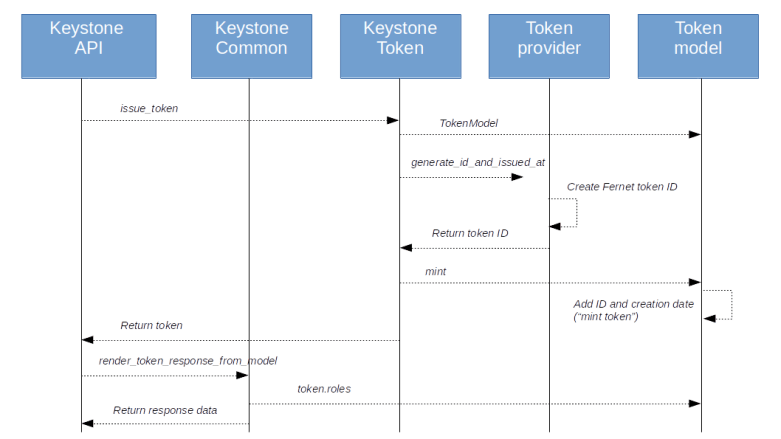
Here is a graphical overview on the process as we have discussed it so far.

IssueToken

The key learnings from the code that we can deduce so far are

  • The actual Fernet token contains a minimum of information, like the user for whom the token is issued and – depending on the scope – the Ids of the project or domain to which the token is scoped
  • When a token is requested, the actual Fernet token (the token ID) is returned in the response header, and an enriched version of the token is added in the response body
  • This enrichment is done dynamically using the Keystone database, and the enrichment will only add the roles to the token data that are relevant for the token scope
  • There is a special admin project, and a token scoped to this project implies the cloud administrator role

Using the token to authorize a request

Let us now see what happens when a client uses this token to actually make a request to the API – in our example, this happens when the openstack client makes the actual API call to the endpoint http://controller:5000/v3/projects.

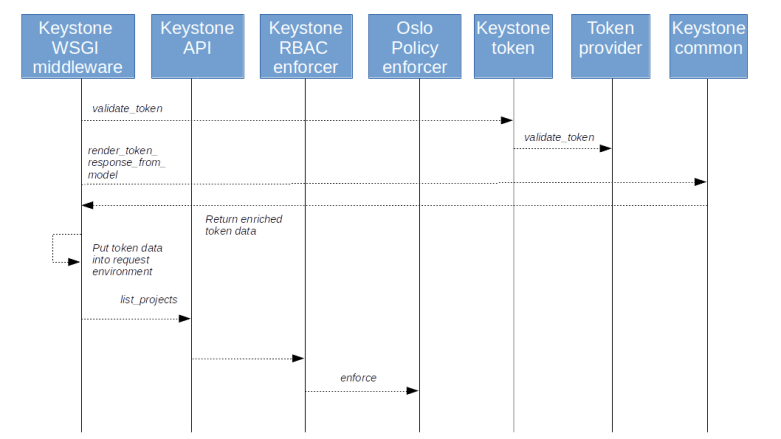
Before this request is actually dispatched to the business logic, it passes through the WSGI middleware. Here, more precisely in the class method AuthContextMiddleware.process_request defined in the file keystone/server/flask/request_processing/middleware/auth_context.py, the token is retrieved from the field X-Auth-Token in the HTTP header of the request (here we also put the marker field is_admin into the context when an admin_token is defined in the configuration and equal to the actual token). Then the process_request method of the superclass is called which invokes fetch_token (of the derived class!). Here, the validate_token method of the token provider is called which performs the actual token validation. Finally, the token is again rendered as above, thereby adding the relevant roles dynamically, and put as token_reference in the request context (this happens in the method fill_context respectively _keystone_specific_values of the middleware class).

At this point, it is instructive to take a closer look at the method that actually selects the relevant roles – the method roles of the token class defined in keystone/models/token_model.py. If you follow the call chain, you will find that, to obtain for instance all project roles, the internal API of the assignment component is used. This API returns the effective roles of the user, i.e. roles that include those roles that the user has due to group membership and roles that are inherited, for instance from the domain-level to the project level or down a tree of subprojects. Effective roles also include implied roles. It is important to understand (and reasonable) that it is the effective roles that enter a token and are therefore evaluated during the authorization process.

Once the entire chain of middleware has been processed, we finally reach the method _list_projects in keystone/api/projects.py. Close to the start of this method, the enforce_call method of the class RBACEnforcer in keystone/common/rbac_enforcer/enforcer.py. When making this call, the action identity:list_projects is passed as a parameter. In addition, a parameter called target is passed, a dictionary which contains some information on the objects to which the API request refers. In our example, as long as we do not specify any filters, this dictionary will be empty. If, however, we specify a domain ID as a filter, it will contain the ID of this domain. As we will see later, this allows us to define policies that allow a user to see projects in a specific domain, but not globally.

The enforce_call method will first make a couple of validations before it checks whether the request context contains the attribute is_admin. If yes, the token validation is skipped and the request is always allowed- this is to support the ADMIN_TOKEN bootstrapping mechanism. Then, close to the bottom of the method, we retrieve the request context, instantiate a new object and calls its _enforce method which essentially delegates the call to the Oslo policy rules engine and its Enforcer class, more precisely to the enforce method of this class.

As input, this method receives the action (identity:list_projects in our case), the target of the action, and the credentials, in the form of the Oslo request context, and the processing of the rules starts.

InvokePolicyEngine

Again, let us quickly summarize what the key take aways from this discussion should be – these points actually apply to most other OpenStack services as well.

  • When a request is received, the WSGI middleware is responsible for validating the token, retrieving the additional information like role data and placing it in the request context
  • Again, only those roles are stored in the context which the user has for the scope of the token (i.e. on project level for project-scoped token, on the domain level for domain-scoped token and on the system level for system-scoped token)
  • The roles in the token are effective roles, i.e. taking inheritance into account
  • The actual check against the policy is done by the Oslo policy rule engine

The Oslo policy rule engine

Before getting into the details of the rule engine, let us quickly summarize what data the rule engine has at its disposal. First, we have seen that it receives the action, which is simply a string, identity:list_projects in our case. Then, it has information on the target, which, generally speaking, is the object on which the action should be performed (this is less relevant in our example, but becomes important when we modify data). Finally, it has the credentials, including the token and role information which was part of the token and is now stored in the request context which the rule engine receives.

The engine will now run this data through all rules which are defined in the policy. Within the engine, a rule (or check) is simply an object with a __call__ method, so that they can be treated and invoked like a function. In the module _checks.py, a few basic checks are defined. There are, for instance, simple checks that always return true or false, and their checks like AndCheck and OrCheck which can be used to build more complex rules from basic building blocks. And there are other checks like the RoleCheck which checks whether a certain role is present in the credentials, which, as we know from the discussion above, is the case if the token use to authorize contains this role, i..e if the user who is owning the token has this role with respect to the scope of the token.

Where do the rules come from that are processed? First, note that the parameter rule to the enforce method does, in our case at least, contain a string, namely the action (identity:list_projects). To load the actual rules, the method enforce will first call load_rules which loads rules from a policy file, at which we will take a look in a second. Loading the policy file will create a new instance of the Rules class, which is a container class to hold a set of rules.

After loading all rules, the following line in enforce identifies the actual rule to be processed.

to_check = self.rules[rule]

This looks a bit confusing, but recall that here, rule actually contains the action identity:list_projects, so we look up the rule associated with this action. Finally, the actual rule checking is done by invoking the _check methods of the _checks module.

Let us now take a closer look at the policy files themselves. These files are typically located in the /etc/XXX subdirectory, where XXX is the OpenStack component in question. Samples files are maintained by the OpenStack team. To see an example, let us take a look at the sample policy file for Keystone which was distributed with the Rocky release. Here, we find a line

identity:list_projects": "rule:cloud_admin or rule:admin_and_matching_domain_id",

This file is in JSON syntax, and this line defines a dictionary entry with the action identity:list_projects and the rule rule:cloud_admin or rule:admin_and_matching_domain_id. The full syntax of the rule is explained nicely here or in the comments at the start of policy.py. In essence, in our example, the rule says that the action is allowed if either the user is a cloud administrator (i.e. an administrator the the special admin project or admin domain which can be configured in the Keystone configuration file) or is an admin for the requested domain.

When I first looked at the policy files in my test installation, however, which uses the Stein release, I was more than confused. Here, the rule for the action identity:list_projects is as follows.

"identity:list_projects": "rule:identity:list_projects"

Here we define a rule called identity:list_projects for the action with the same name, but where is this rule defined?

The answer is that there is a second source of rules, namely software defined rules (which the OpenStack documentation calls policy-in-code) which are registered when the enforcer object is created. This happens in the _enforcer method of the RBACEnforcer when a new enforcer is created. Here we call register_rules which creates a list of rules by calling the function list_rules define in the keystone/common/policies module which returns a list of sofware-defined rules, and registers these rules with the Oslo policy enforcer. The rule we are looking for, for instance, is defined in keystone/common/policies/project.py and looks as follows.

policy.DocumentedRuleDefault(
        name=base.IDENTITY % 'list_projects',
        check_str=SYSTEM_READER_OR_DOMAIN_READER,
        scope_types=['system', 'domain'],
        description='List projects.',
        operations=[{'path': '/v3/projects',
                     'method': 'GET'}],
        deprecated_rule=deprecated_list_projects,
        deprecated_reason=DEPRECATED_REASON,
        deprecated_since=versionutils.deprecated.STEIN),

Here we see that the actual rule (in the attribute check_str) has now changed compared to the Rocky release, and allows access if either the user has the reader role on the system level or has the reader role for the requested domain. In addition, there is a deprecated rule for backwards compatibility which is OR’ed with the actual rule. So the rule that really gets evaluated in our case is

(role:reader and system_scope:all) or (role:reader and domain_id:%(target.domain_id)s) or rule:admin_required

In our case, asking OpenStack to list all projects, there is a further piece of magic involved. This becomes visible if you try a different user. For instance, we can create a new project demo with a user demo who has the reader role for this project. If you now run the OpenStack client again to get all projects, you will only see those projects for which the user has a role. This is again a bit confusing, because by what we have discussed above, the authorization should fail.

In fact, it does, but the client is smart enough to have a plan B. If you look at the output of the OpenStack CLI with the -vvv flag, you will that a first request is made to list all projects which fails, as expected. The client then tries a second request, this time using the URL /users//projects to get all projects for that specific user. This call ends up in the method get of the class UserProjectsResource defined in keystone/api/users.py which will list all projects for which a specifc user has a role. Here, a call is made with a different action called identity:list_user_projects, and the rule for this action allows access if the user making the request (i.e. the user data from the token) is equal to target user (i.e. the user ID specified in the request). Thus this final call succeeds.

These examples are hopefully sufficient to demonstrate that policies can be a tricky topic. It is actually very instructive to add debugging output to the involved classes (the Python source code is on the controller node in /usr/lib/python3/dist-packages, do not forget to restart Apache if you have made changes to the code) to print out the various structures and trace the flow through the code. Happy hacking!

Openstack Keystone – installation and overview

Today we will dive into OpenStack Keystone, the part of OpenStack that provides services like management of users, roles and projects, authentication and a service catalog to the other OpenStack components. We will first install Keystone and then take a closer look at each of these areas.

Installing Keystone

As in the previous lab, I have put together a couple of scripts that automatically install Keystone in a virtual environment. To run them, issue the following commands (assuming, of course, that you did go through the basic setup steps from the previous post to set up the environment)

pwd
# you should be in the directory into which 
# you did clone the repository
cd openstack-samples/Lab2
vagrant up
ansible-playbook -i hosts.ini site.yaml

While the scripts are running, let us discuss the installation steps. First, we need to prepare the database. Keystone uses its own database schema called (well, you might guess …) keystone that needs to be added to the MariaDB instance. We will also have to create a new database user keystone with the necessary privileges on the keystone database.

Then, we install the Keystone packages via APT. This will put default configuration files into /etc/keystone which we need to adapt. Actually, there is only one change that we need to make at this point – we need to change the connection key to contain a proper connection string to reach our MariaDB with the database credentials just established.

Next, the keystone database needs to be created. To do this, we use the keystone-manage db_sync command that actually performs an upgrade of the Keystone DB schema to the latest version. We then again utilize the keystone-manage tool to create symmetric keys for the Fernet token mechanism and to encrypt credentials in the SQL backend.

Now we need to add a minimum set of domains, project and users to Keystone. Here, however, we face a chicken-and-egg problem. To be able to add a user, we need the authorization to do this, so we need a user, but there is no user yet.

There are two solutions to this problem. First, it is possible to define an admin token in the Keystone configuration file. When this token is used for a request, the entire authorization mechanism is bypassed, which we could use to create our initial admin user. This method, however, is a bit dangerous. The admin token is contained in the configuration file in clear text and never expires, so anyone who has access to the file can perform every action in Keystone and then OpenStack.

The second approach is to again the keystone-manage tool which has a command bootstrap which will access the database directly (more precisely, via the keystone code base) and will create a default domain, a default project, an admin user and three roles (admin, member, reader). The admin user is set up to have the admin role for the admin project and on system level. In addition, the bootstrap process will create a region and catalog entries for the identity services (we will discuss these terms later on).

Users, projects, roles and domains

Of course, users are the central object in Keystone. A user can either represent an actual human user or a service account which is used to define access rights for the OpenStack services with respect to other services.

In a typical cloud environment, just having a global set of users, however, is not enough. Instead, you will typically have several organizations or tenants that use the same cloud platform, but require a certain degree of separation. In OpenStack, tenants are modeled as projects (even though the term tenant is sometimes used as well to refer to the same thing). Projects and users, in turn, are both grouped into domains.

To actually define which user has which access rights in the system, Keystone allows you to define roles and assign roles to users. In fact, when you assign a role, you always do this for a project or a domain. You would, for instance, assign the role reader to user bob for the project test or for a domain. So role assignments always refer to a user and either a role or a project.
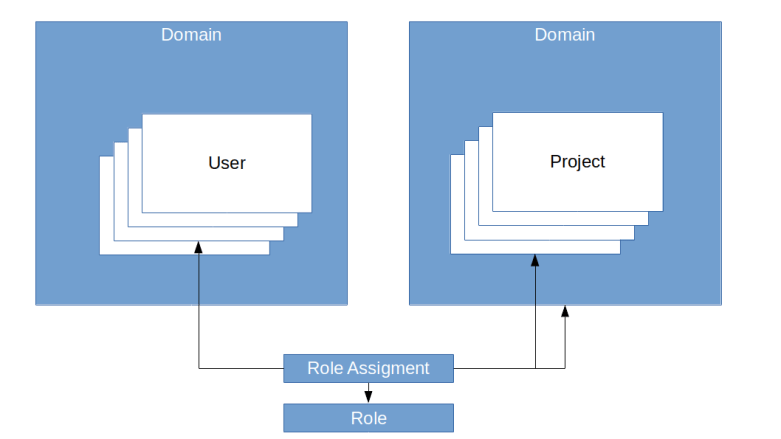
DomainsUserRolesProjects

Note that it is possible to assign a role to a user in a domain for a project living in a different domain (though you will probably have a good reason to do this).

In fact, the full picture is even a bit more complicated than this. First, roles can imply other roles. In the default installation, the admin role implies the member role, and the member role implies the reader role. Second, the above diagram suggests that a role is not part of a domain. This is true in most cases, but it is in fact possible to create domain-specific roles. These roles do not appear in a token and are therefore not directly relevant to authorization, but are intended to be used as prior roles to map domain specific role logic onto the overall role logic of an installation.

It is also not entirely true that roles always refer to either a domain or a project. In fact, Keystone allows for so-called system roles which are supposed to be used to restrict access to operations that are system wide, for instance the configuration of API endpoints.

Finally, there are also groups. Groups are just collections of users, and instead of assigning a role to a user, you can assign a role to a group which then effectively is valid for all users in that group.

And, yes, there are also subprojects.. but let us stop here, you see that the Keystone data structures are complicated and have been growing significantly over time.

To better understand the terms discussed so far, let us take a look at our sample installation. First, establish an SSH connection to some of the nodes, say the controller node.

vagrant ssh controller

On this node, we will use the OpenStack Python client to explore users, projects and domains. To run it, we will need credentials. When you work with the OpenStack CLI, there are several methods to supply credentials. The option we will use is to provide credentials in environment variables. To be able to quickly set up these variables, the installation script creates a bash script admin-openrc that sets these credentials. So let us source this script and then submit an OpenStack API request to list all existing users.

source admin-openrc
openstack user list

At this point, this should only give you one user – the admin user created during the installation process. To display more details for this user, you can use openstack user show admin, and you should obtain an output similar to the one below.

+---------------------+----------------------------------+
| Field               | Value                            |
+---------------------+----------------------------------+
| domain_id           | default                          |
| enabled             | True                             |
| id                  | 67a4f789b4b0496cade832a492f7048f |
| name                | admin                            |
| options             | {}                               |
| password_expires_at | None                             |
+---------------------+----------------------------------+

We see that the user admin is part of the default domain, which is the standard domain used in OpenStack as long as no other domain is specified.

Let us now see which role assignments this user has. To do this, let us list all assigments for the user admin, using JSON output for better readability.

openstack role assignment list --user admin -f json

This will yield the following output.

[
  {
    "Role": "18307c8c97a34d799d965f38b5aecc37",
    "User": "92f953a349304d48a989635b627e1cb3",
    "Group": "",
    "Project": "5b634876aa9a422c83591632a281ad59",
    "Domain": "",
    "System": "",
    "Inherited": false
  },
  {
    "Role": "18307c8c97a34d799d965f38b5aecc37",
    "User": "92f953a349304d48a989635b627e1cb3",
    "Group": "",
    "Project": "",
    "Domain": "",
    "System": "all",
    "Inherited": false
  }
]

Here we see that there are two role assignments for this user. As the output only contains the UUIDs of the role and the project, we will have to list all projects and all roles to be able to interpret the output.

openstack project list 
openstack role list

So we see that for both assignments, the role is the admin role. For the first assignment, the project is the admin project, and for the second assignment, there is no project (and no domain), but the system field is filled. Thus the first assignment assigns the admin role for the admin project to our user, whereas the second one assigns the admin role on system level.

So far, we have not specified anywhere what these roles actually imply. To understand how roles lead to authorizations, there are still two missing pieces. First, OpenStack has a concept of implied roles. These are roles that a user has which are implied by explicitly defined roles. To see implied roles in action, run

openstack implied role list 

The resulting table will list the prior roles on the left and the implied role on the right. So we see that having the admin role implies to also have the member role, and having the member role in turn implies to also have the reader role.

The second concept that we have not touched upon are policies. Policies actually define what a user having a specific role is allowed to do. Whenever you submit an API request, this request targets a certain action. Actions more or less correspond to API endpoints, so an action could be “list all projects” or “create a user”. A policy defines a rule for this action which is evaluated to determine whether that request is allowed. A simple rule could be “user needs to have the admin role”, but the rule engine is rather powerful and we can define much more elaborated rules – more on this in the next post.

The important point to understand here is that policies are not defined by the admin via APIs, but are predefined either in the code or in specific policy files that are part of the configuration of each OpenStack service. Policies refer to roles by name, and it does not make sense to define and use a role that this is not referenced by policies (even though you can technically do this). Thus you will rarely need to create roles beyond the standard roles admin, member and reader unless you also change the policy files.

Service catalogs

Apart from managing users (the Identity part of Keystone), project, roles and domains (the Resources part of Keystone), Keystone also acts as a service registry. OpenStack services register themselves and their API endpoints with Keystone, and OpenStack clients can use this information to obtain the URL of service endpoints.

Let us take a look at the services that are currently registered with Keystone. This can be done by running the following commands on the controller.

source admin-openrc
openstack service list -f json

At this point in the installation, before installing any other OpenStack services, there is only one service – Keystone itself. The corresponding output is

[
  {
    "ID": "3acb257f823c4ecea6cf0a9e94ce67b9",
    "Name": "keystone",
    "Type": "identity"
  },
]

We see that a service has a name which identifies the actual service, in addition to a type which defines the type of service delivered. Given the type of a service, we can now use Keystone to retrieve a list of service API endpoints. In our example, enter

openstack endpoint list --service identity -f json

which should yield the following output.

[
  {
    "ID": "062975c2758f4112b5d6568fe068aa6f",
    "Region": "RegionOne",
    "Service Name": "keystone",
    "Service Type": "identity",
    "Enabled": true,
    "Interface": "public",
    "URL": "http://controller:5000/v3/"
  },
  {
    "ID": "207708ecb77e40e5abf9de28e4932913",
    "Region": "RegionOne",
    "Service Name": "keystone",
    "Service Type": "identity",
    "Enabled": true,
    "Interface": "admin",
    "URL": "http://controller:5000/v3/"
  },
  {
    "ID": "781c147d02604f109eef1f55248f335c",
    "Region": "RegionOne",
    "Service Name": "keystone",
    "Service Type": "identity",
    "Enabled": true,
    "Interface": "internal",
    "URL": "http://controller:5000/v3/"
  }
]

Here, we see that every service typically offers different types of endpoints. There are public endpoints, which are supposed to be reachable from an external network, internal endpoints for users in the internal network and admin endpoints for administrative access. This, however, is not enforced by Keystone but by the network layout you have chosen. In our simple test installation, all three endpoints for a service will be identical.

When we install more OpenStack services later, you will see that as part of this installation, we will always register a new service and corresponding endpoints with Keystone.

Token authorization

So far, we have not yet discussed how an OpenStack service actually authenticates a user. There are several ways to do this. First, you can authorize using passwords. When using the OpenStack CLI, for instance, you can put username and password into environment variables which will then be used to make API requests (for ease of use, the Ansible playbooks that we use to bring up our environment will create a file admin-openrc which you can source to set these variables and that we have already used in the examples above).

In most cases, however, subsequent authorizations will use a token. A token is essentially a short string which is issued once by Keystone and then put into the X-Auth-Token field in the HTTP header of subsequent requests. If a token is present, Keystone will validate this token and, if it is valid, be able to derive all informations it needs to authenticate the user and authorize a request.

Keystone is able to use different token formats. The default token format with recent releases of Keystone is the Fernet token format.

It is important to understand that tokens are scoped objects. The scope of a token determines which roles are taken into account for the authorization process. If a token is project scoped, only those roles of a user that target a project are considered. If a token is domain scoped, only the roles that are defined on domain level are considered. And finally, a system scope token implies that only roles at system level are relevant for the authorization process.

Earlier versions of Keystone supported a token type called PKI token that contained a large amount of information directly, including role information and service endpoints. The advantage of this approach was that once a token had been issued, it could be processed without any further access to Keystone. The disadvantage, however, was that the tokens generated in this way tended to be huge, and soon reached a point where they could no longer be put into a HTTP header. The Fernet token format handles things differently. A Fernet token is an encrypted token which contains only a limited amount of information. To use it, a service will, in most cases, need to run additional calls agains Keystone to retrieve additional data like roles and services. For a project scoped token, for instance, the following diagram displays the information that is stored in a token on the left hand side.
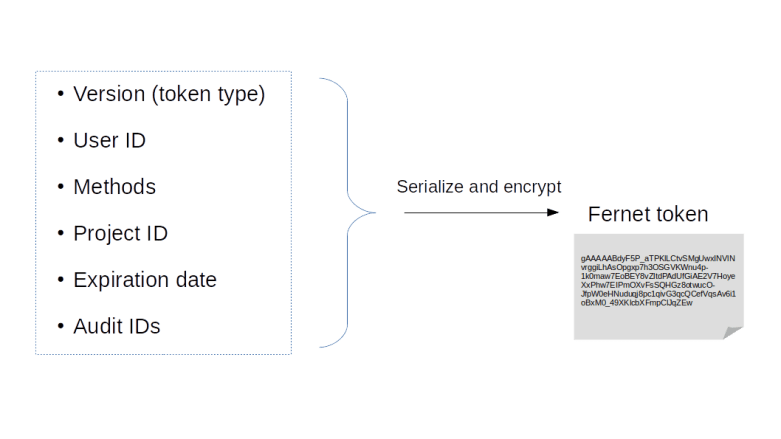
FernetToken

First, there is a version number which encodes the information on the scope of the token. Then, there is the ID of the user for whom the token is issued, the methods that the user has used to authenticate, the ID of the project for which the token is valid, and the expiration date. Finally, there is an audit ID which is simply a randomly generated string that can be put into logfiles (in contrast to the token itself, which should be kept secret) and can be used to trace the usage of this token. All these fields are serialized and encrypted using a symmetric key stored by Keystone, typically on disk. A domain scoped token contains a domain ID instead of the project ID and so forth.

Equipped with this understanding, we can now take a look at the overall authorization process. Suppose a client wants to request an action via the API, say from Nova. First, the client would then use password-based authorization to obtain a token from Keystone. Keystone returns the token along with an enriched version containing roles and endpoints as well. The client would use the endpoint information to determine the URL of the Nova service. Using the token, it would then try to submit an API request to the Nova API.

The Nova service will take the token, validate it and ask Keystone again to enrich the token, i.e to add the missing information on roles and endpoints (in fact, this happens in the Keystone middleware). It is then able to use the role information and its policies to determine whether the user is authorized for the request.
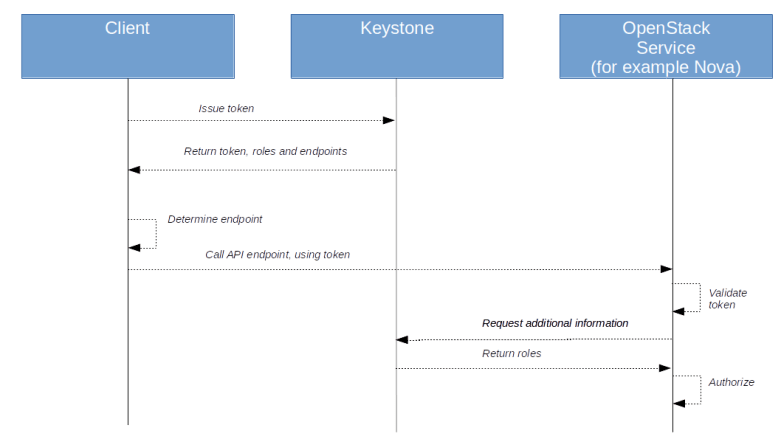
OpenStackAuthorization

Using Keystone with LDAP and other authentication mechanisms

So far, we have stored user identities and group inside the MariaDB database, i.e. local. In most production setups, however, you will want to connect to an existing identity store, which is typically exposed via the LDAP protocol. Fortunately, Keystone can be integrated with LDAP. This integration is read-only, and Keystone will use LDAP for authentication, but still store projects, domains and role information in the MariaDB database.

When using this feature, you will have to add various data to the Keystone configuration file. First, of course, you need to add basic connectivity information like credentials, host and port so that Keystone can connect to an LDAP server. In addition, you need to define how the fields of a user entity in LDAP map onto the corresponding fields in Keystone. Optionally, TLS can be configured to secure the connection to an LDAP server.

In addition to LDAP, Keystone also supports a variety of alternative methods for authentication. First, Keystone supports federation, i.e. the ability to share authentication data between different identity providers. Typically, Keystone will act as a service provider, i.e. when a user tries to connect to Keystone, the user is redirected to an identity provider, authenticates with this provider and Keystone receives and accepts the user data from this provider. Keystone supports both the OpenID Connect and the SAML standard to exchange authentication data with an identity provider.

As an alternative mechanism, Keystone can delegate the process of authentication to the Apache webserver in which Keystone is running – this is called external authentication in Keystone. In this case, Apache will handle the authentication, using whatever mechanisms the administrator has configured in Apache, and pass the resulting user identity as part of the request context down to Keystone. Keystone will then look up this user in its backend and use it for further processing.

Finally, Keystone offers a mechanism called application credentials to allow applications to use the API on behalf of a Keystone user without having to reveal the users password to the application. In this scenario, a user creates an application credential, passing in a secret and (optionally) a subset of roles and endpoints to which the credential grants access. Keystone will then create a credential and pass its ID back to the user. The user can then store the credential ID and the secret in the applications configuration. When the application wants to access an OpenStack service, it uses a POST request on the /auth/tokens endpoint to request a token, and Keystone will generate a token that the application can use to connect to OpenStack services.

This completes our post today. Before moving on to install additional services like Placement, Glance and Nova, we will – in the next post – go on a guided tour through a part of the Keystone source code to see how tokens and policies work under the hood.

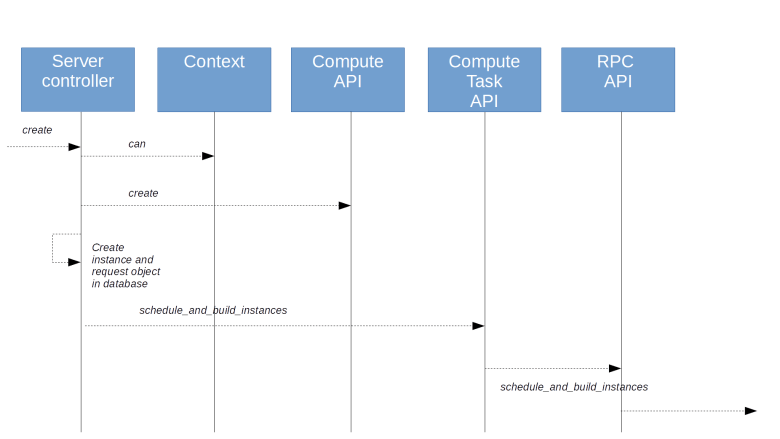
Understanding TLS certificates with Ansible and NGINX – part II

In the first part of this short series, we have seen how Ansible can be used to easily generate self-signed certificates. Today, we will turn to more complicated set-ups and learn how to act as a CA, build chains of certificates and create client-certificates.

Creating CA and intermediate CA certificates

Having looked at the creation of a single, self-signed certificate for which issuer and subject are identical, let us now turn to a more realistic situation – using one certificate, a CA certificate, to sign another certificate. If this second certificate is directly used to authorize an entity, for instance by being deployed into a web server, it is usually called an end-entity certificate. If, however, this certificate is used to in turn sign a third certificate, it is called an intermediate CA certificate.

In the first post, we have looked at the example of the certificate presented by github.com, which is signed by a certificate with the CN “DigiCert SHA2 Extended Validation Server CA” (more precisely, of course, by the private key associated with the public key verified by this certificate), which in turn is issued by “DigiCert High Assurance EV Root CA”, the root CA. Here, the second certificate is the intermediate CA certificate, and the certificate presented by github.com is the end-entity certificate.

Let us now try to create a similar chain in Ansible. First, we need a root CA. This will again be a self-signed certificate (which is the case for all root CA certificates). In addition, root CA certificates typically contain a set of extensions. To understand these extensions, the easiest approach is to look a few examples. You can either use openssl x509 to inspect some of the root certificates that come with your operating system, or use your browser certificate management tab to look at some of the certificates there. Doing this, you will find that root CA certificates typically contain three extensions as specified by X509v3, which are also defined in RFC 3280.

  • Basic Constraints: CA: True – this marks the certificate as a CA certificate
  • Key Usage: Digital Signature, Certificate Sign, CRL Sign – this entitles the certificate to be used to sign other certificates, perform digital signatures and sign CRLs (certificate revocation lists)
  • Subject Key identifier: this is an extension which needs to be present for a CA according to RFC 3280 and allows the usage of a hash key of the public key to easily identify certificates for a specific public key

All these requirements can easily be met using our Ansible modules. We essentially proceed as in the previous post and use the openssl_csr to create a CSR from which we then generate a certificate using the openssl_certificate module. The full playbook (also containing the code for the following sections) can be found here. A few points are worth being noted.

  • when creating the CSR, we need to add the fields key_usage and key_usage_critical to the parameters of the Ansible module. The same holds for basic_constraints and basic_constraints_critical
  • The module will by default put the common name into the subject alternative name extension (SAN). To turn this off, we need to set use_common_name_for_san to false.
  • When creating the certificate using openssl_certificate, we need the flag selfsigned_create_subject_key_identifier to instruct the module to add a subject key identifier extension to the certificate. This feature is only available since Ansible version 2.9. So in case you have an older version, you need to use pip3 install ansible to upgrade to the latest version (you might want to run this in a virtual environment)

Having this CA in place, we can now repeat the procedure to create an intermediate CA certificate. This will again be a CA certificate, with the difference that its issuer will be the root certificate that we have just created. So we do no longer use the selfsigned provider when calling the Ansible openssl_certificate module, but the ownca provider. This requires a few additional parameters, most notably of course the root CA and the private key of the root CA. So the corresponding task in the playbook will look like this.

- name: Create certificate for intermediate CA
  openssl_certificate:
    csr_path: "{{playbook_dir}}/intermediate-ca.csr"
    path: "{{playbook_dir}}/etc/certs/intermediate-ca.crt"
    provider: ownca
    ownca_path: "{{playbook_dir}}/etc/certs/ca.crt"
    ownca_create_subject_key_identifier: always_create
    ownca_privatekey_path: "{{playbook_dir}}/etc/certs/ca.rsa" 

When creating the CSR, we also modify the basic constraints field a bit and add the second key/value-pair pathlen:0. This specifies that the resulting certificate cannot be used to create any additional CA certificates, but only to create the final, end-entity certificate.

This is what we will do next. The code for this is more or less the same as that for creating the intermediate CA, but this time, we use the intermediate CA instead of the root CA for signing and we also change the extensions again to create a classical service certificate.

Let us now put all this together and verify that our setup works. To create all certificates, enter the following commands.

git clone https://github.com/christianb93/tls-certificates
cd tls-certificates/lab2
ansible-playbook site.yaml

When the script completes, you should see a couple of certificates created in etc/certs. We can use OpenSSL to inspect them.

for cert in server.crt intermediate-ca.crt ca.crt; do
  openssl x509 -in etc/certs/$cert -noout -text
done

This should display all three certificates in the order listed. Looking at the common names and e-mail addresses (all other attributes of the distinguished name are identical), you should now nicely see that these certificates really form a chain, with the issuer of one element in the chain being the subject of the next one, up to the last one, which is self-signed.

Now let us see how we need to configure NGINX to use our new server certificate when establishing a TLS connection. At the first glance, you might think that we simply replace the server certificate from the last lab with our new one. But there is an additional twist. A client will typically have a copy of the root CA, but it is not clear that a client will have a copy of the intermediate CA as well. Therefore, instead of using just the server certificate, we point NGINX to a file server-chain.crt which contains both the server certificate and the intermediate CA, in this order. So run

cp etc/certs/server.crt etc/certs/server-chain.crt
cat etc/certs/intermediate-ca.crt >> etc/certs/server-chain.crt
docker run -d --rm \
       -p 443:443 \
       -v $(pwd)/etc/conf.d:/etc/nginx/conf.d \
       -v $(pwd)/etc/certs:/etc/nginx/certs \
       nginx

Once the NGINX server is running, we should now be able to build a connection for testing using OpenSSL. As the certificates that the server presents are not self-signed, we also need to tell OpenSSL where the root CA needed to verify the chain of certificates is stored.

openssl s_client \
  --connect localhost:443 \
  -CAfile etc/certs/ca.crt
GET /index.html HTTP/1.0

You should again see the NGINX welcome page. It is also instructive to look at the output that OpenSSL produces and which, right at the beginning, also contains a representation of the certificate chain as received and verified by OpenSSL.

Creating and using client certificates

So far, our certificates have been server certificates – a certificate presented by a server to prove that the public key that the server presents us is actually owned by the entity operating the server. Very often, for instance when securing REST APIs like that of Kubernetes, however, the TLS protocol is used to also authenticate a user.

Let us take the Kubernetes API as an example. The Kubernetes API is a REST API using HTTPS and listening (by default) on port 6443. When a user connects to this URL, a server certificate is used so that the user can verify that the server is really owned by whoever provides the cluster. When a user makes a request to the API server, then, in addition to that, the server would also like to know that the user is a trusted user, and will have to authenticate the user, i.e. associate a certain identity with the request.

For that purpose, Kubernetes can be configured to ask the user for a client certificate during the TLS handshake. The server will then try to verify this certificate against a configured CA certificate. If that verification is successful, i.e. if the server can build a chain of certificates from the certificate that the client presents – the so-called client certificate – then the server will extract the common name and the organization from that certificate and use it as user and group to process the API request.

Let us now see how these client certificates can be created. First, of course, we need to understand what properties of a certificate turn it into a client certificate. Finding a proper definition of the term “client certificate” is not that straightforward as you might expect. There are several recommendations describing a reasonable set of extensions for client certificates (RFC 3279, RFC 5246 and the man page of the OpenSSL X509 tool. Combining these recommendations, we use the following set of extension:

  • keyUsage is present and contains the bits digitalSignature and keyEncipherment
  • extend usage is present and contains the clientAuth key

The Ansible code to generate this certificate is almost identical to the code in the previous section, with the differences due to the different extensions that we request. Thus we again create a self-signed root CA certificate, use this certificate to sign a certificate for an intermediate CA, and then use the intermediate CA certificate to issue certificates for client and server.

We also have to adjust our NGINX setup by adding the following two lines to the configuration of the virtual server.

ssl_verify_client       on;
ssl_client_certificate  /etc/nginx/certs/ca.crt;

With the first line, we instruct NGINX to ask a client for a TLS certificate during the handshake. With the second line, we specify the CA that NGINX will use to verify these client certificates. In fact, as you will see immediately when running our example, the server will even tell the client which CAs it will accept as issuer, this is part of the certificate request specified here.

Time to see all this in action again. To download, run and test the playbook enter the following commands (do not forget to stop the container created in the previous section).

git clone https://github.com/christianb93/tls-certificates
cd tls-certificates/lab3
ansible-playbook site.yaml
openssl s_client \
  --connect localhost:443 \
  -CAfile etc/certs/ca.crt \
  -cert etc/certs/client.crt \
  -cert_chain etc/certs/intermediate-ca.crt \
  -key etc/certs/client.rsa
GET /index.html HTTP/1.0


Note the additional switches to the OpenSSL client command. With the -cert switch, we tell OpenSSL to submit a client certificate when requested and point it to the file containing this certificate. With the -cert_chain parameter, we specify additional certificates (if any) that the client will send in order to complete the certificate chain between the client certificate and the root certificate. In our case, this is the intermediate CA certificate (this would not be needed if we had used the intermediate CA certificate in the server configuration). Finally, the last switch -key contains the location of the private RSA key matching the presented certificate.

This closes our post (and the two-part mini series) on TLS certificates. We have seen that Ansible can be used to automate the generation of self-signed certificates and to build entire chains-of-trust involving end-entity certificates, intermediate CAs and private root CAs. Of course, you could also reach out to a provider to do this for you, but is (maybe) a topic for another post.

Understanding TLS certificates with NGINX and Ansible – part I

If you read technical posts like this one, chances are that you have already had some exposure to TLS certificates, for instance because you have deployed a service that uses TLS and needed to create and deploy certificates for the servers and potentially for clients. Dealing with certificates can be a challenge, and a sound understanding of what certificates actually do is more than helpful for this. In this and the next post, we will play with NGINX and Ansible to learn what certificates are, how they are generated and how they are used.

What is a certificate?

To understand the structure of a certificate, let us first try to understand the problem that certificates try to solve. Suppose you are communicating with some other party over an encrypted channel, using some type of asymmetric cryptosystem like RSA. To send an encrypted message to your peer, you will need the peers public key as a prerequisite. Obviously, you could simply ask the peer to send you the public key before establishing a connection, but then you need to mitigate the risk that someone uses a technique like IP address spoofing to pretend to be the peer you want to connect with, and is sending you a fake public key. Thus you need a way to verify that the public key that is presented to you is actually the public key owned by the party to which you want to establish a connection.

One approach could be to establish a third, trusted and publicly known party and ask that trusted party to digitally sign the public key, using a digital signature algorithm like ECDSA. With that party in place, your peer would then present you the signed public key, you would retrieve the public key of the trusted party, use that key to verify the signature and proceed if this verification is successful.

CertificatesI

So what your peer will present you when you establish a secure connection is a signed public key – and this is, in essence, what a certificate really is. More precisely, a certificate according to the X509 v3 standard consists of the following components (see also RFC 52809.

  • A version number which refers to a version of the X509 specification, currently version 3 is what is mostly used
  • A serial number which the third party (called the issuer) assigns to the certificate
  • a valid-from and a valid-to date
  • The public key that the certificate is supposed to certify, along with some information on the underlying algorithm, for instance RSA
  • The subject, i.e. the party owning the key
  • The issuer, i.e. the party – also called certificate authority (CA) – signing the certificate
  • Some extensions which are additional, optional pieces of data that a certificate can contain – more on this later
  • And finally, a digital signature signing all the data described above

Let us take a look at an example. Here is a certificate from github.com that I have extracted using OpenSSL (we will learn how to do this later), from which I have removed some details and added some line breaks to make the output a bit more readable.

Certificate:
    Data:
        Version: 3 (0x2)
        Serial Number:
            0a:06:30:42:7f:5b:bc:ed:69:57:39:65:93:b6:45:1f
        Signature Algorithm: sha256WithRSAEncryption
        Issuer: C = US, O = DigiCert Inc, OU = www.digicert.com, 
                CN = DigiCert SHA2 Extended Validation Server CA
        Validity
            Not Before: May  8 00:00:00 2018 GMT
            Not After : Jun  3 12:00:00 2020 GMT
        Subject: businessCategory = Private Organization, 
                jurisdictionC = US, 
                jurisdictionST = Delaware, 
                serialNumber = 5157550, 
                C = US, ST = California, L = San Francisco, 
                O = "GitHub, Inc.", CN = github.com
        Subject Public Key Info:
            Public Key Algorithm: rsaEncryption
                RSA Public-Key: (2048 bit)
                Modulus:
                    SNIP --- SNIP
                Exponent: 65537 (0x10001)
        X509v3 extensions:
            SNIP --- SNIP
    Signature Algorithm: sha256WithRSAEncryption
         70:0f:5a:96:a7:58:e5:bf:8a:9d:a8:27:98:2b:00:7f:26:a9:
         SNIP ----- SNIP
         af:ed:7a:29

We clearly recognize the components just discussed. At the top, there are the version number and the serial number (in hex). Then we see the signature algorithm and, at the bottom, the signature, the issuer (DigiCert), the validity, the subject (GitHub Inc.) and, last but not least, the full public key. Note that both, issuer and subject, are identified using distinguished names as you might known them from LDAP and similar directory services.

If we now wanted to verify this certificate, we would need to get the public key of the issuer, DigiCert. Of course, this is a bit of a chicken-egg problem, as we would need another certificate to verify the authenticity of this key as well. So we would need a certificate with subject DigiCert, signed by some other party, and then another certificate signed by yet another certificate authority, and so forth. This chain obviously has to end somewhere, and it does – the last certificate in such a chain (the root CA certificate) is typically a self-signed certificate. These are certificates for which issuer and subject are identical, i.e certificates where no further verification is possible and in which we simply have to trust.

How, then, do we obtain these root certificates? The answer is that root certificates are either distributed inside an organization or are bundled with operating systems and browsers. In our example, the DigiCert certificate that we see here is itself signed by another DigiCert unit called “DigiCert High Assurance EV Root CA”, and a certificate for this CA is part of the Ubuntu distribution that I use and stored in /etc/ssl/certs/DigiCert_High_Assurance_EV_Root_CA.pem which is a self-signed root certificate.

CertificatesII

In this situation, the last element of the chain is called the root CA, the first element the end-entity and any element in between an intermediate CA.

To obtain a certificate, the owner of the server github.com would turn to the intermediate CA and submit file, a so-called certificate signing request (CSR), containing the public key to be signed. The format for CSRs is standardized in RFC 2986 which, among things, specifies that a CSR be itself signed with the private key of the requestor, which also proves to the intermediate CA that the requestor possesses the private key corresponding to the public key to be signed. The intermediate CA will then issue a certificate. To establish the intermediate CA, the intermediate CA has, at some point in the past, filed a similar CSR with the root CA and that root CA has issued a corresponding certificate to the intermediate CA.

The TLS handshake

Let us now see how certificates are applied in practice to secure a communication. Our example is the transport layer security protocol TLS, formerly known as SSL, which is underlying the HTTPS protocol (which is nothing but HTTP sitting on top of TLS).

In a very basic scenario, a TLS communication roughly works as follows. First, the clients send a “hello” message to the server, containing information like the version of TLS supported and a list of supported ciphers. The server answers with a similar message, immediately followed by the servers certificate. This certificate contains the name of the server (either as fully-qualified domain name, or including wildcards like *.domain.com in which case the certificate is called a wildcard certificat) and, of course, the public key of the server. Client and server can now use this key to agree on a secret key which is then used to encrypt the further communication. This phase of the protocol which prepares the actual encrypted connection is known as the TLS handshake.

To successfully conclude this handshake, the server therefore needs a certificate called the server certificate which it will present to the client and, of course, the matching private key, called the server private key. The client needs to verify the server certificate and therefore needs access to the certificate of the (intermediate or root) CA that signed the server certificate. This CA certificate is known as the server CA certificate. Instead of just presenting a single certificate, a server can also present an entire chain of certificates which must end with the server CA certificate that the client knowns. In practice, these certificates are often the root certificates distributed with operating systems and browsers to which the client will have access.

Now suppose that you are a system administrator aiming to set up a TLS secured service, say a HTTPS-based reverse proxy with NGINX. How would you obtain the required certificates? First, or course, you would create a key pair for the server. Once you have that, you need to obtain a certificate for the public key. Basically, you have three options to obtain a valid certificate.

First, you could turn to an independent CA and ask the CA to issue a certificate, based on a CSR that you provide. Most professional CAs will charge for this. There are, however, a few providers like let’s encrypt or Cloudflare that offer free certificates.

Alternatively, you could create your own, self-signed CA certificate using OpenSSL or Ansible, this is what we will do today in this post. And finally, as we will see in the next post, you could even build your own “micro-CA” to issue intermediate CA certificates which you can then use to issue end-entity certificates within your organization.

Using NGINX with self-signed certificates

Let us now see how self-signed certificates can be created and used in practice. As an example, we will secure NGINX (running in a Docker container, of course) using self-signed certificates. We will first do this using OpenSSL and the command line, and then see how the entire process can be automated using Ansible.

The setup we are aiming at is NGINX acting as TLS server, i.e. we will ask NGINX to provide content via HTTPS which is based on TLS. We already know that in order to do this, the NGINX server will need an RSA key pair and a valid server certificate.

To create the key pair, we will use OpenSSL. OpenSSL is composed of a variety of different commands. The command that we will use first is the genrsa command that is responsible for creating RSA keys. The man page – available via man genrsa – is quite comprehensive, and we can easily figure out that we need the following command to create a 2048 bit RSA key, stored in the file server.rsa.

openssl genrsa \
  -out server.rsa

As a side note, the created file does not only contain the private key, but also the public key components (i.e. the public exponent), as you can see by using openssl rsa -in server.rsa -noout -text to dump the generated key.

Now we need to create the server certificate. If we wanted to ask a CA to create a certificate for us, we would first create a CSR, and the CA would then create a matching certificate. When we use OpenSSL to create a self-signed certificate, we do this in one step – we use the req command of OpenSSL to create the CSR, and pass the additional switch –x509 which instructs OpenSSL to not create a CSR, but a self-signed certificate.

To be able to do this, OpenSSL will need a few pieces of information from us – the validity, the subject (which will also be the issuer), the public key to be signed, any extensions that we want to include and finally the output file name. Some of these options will be passed on the command line, but other options are usually kept in a configuration file.

OpenSSL configuration files are plain-text files in the INI-format. There is one section for each command, and there can be additional sections which are then referenced in the command-specific section. In addition, there is a default section with settings which apply for all commands. Again, the man page (run man config for the general structure of the configuration file and man req for the part specific to the req command) – is quite good and readable. Here is a minimal configuration file for our purposes.

[req]
prompt = no
distinguished_name = dn
x509_extensions = v3_ext

[dn]
CN = Leftasexercise
emailAddress = me@leftasexercise.com
O = Leftasexercise blog
L = Big city
C = DE

[v3_ext]
subjectAltName=DNS:*.leftasexercise.local,DNS:leftasexercise.local

We see that the file has three sections. The first section is specific for the req command. It contains a setting that instructs OpenSSL to not prompt us for information, and then two references to other sections. The first of these sections contains the distinguished name of the subject, the second section contains the extensions that we want to include.

There are many different extensions that were introduced with version 3 of the X509 format, and this is not the right place to discuss all of them. The one that we use for now is the subject alternative name extension which allows us to specify a couple of alias names for the subject. Often, these are DNS names for servers for which the certificate should be valid, and browsers will typically check these DNS names and try to match them with the name of the server. As shown here, we can either use a fully-qualified domain name, or we can use a wildcard – these certificates are often called wildcard certificates (which are disputed as they give rise to security concerns, see for instance this discussion). This extension is typical for server certificates.

Let us assume that we have saved this configuration file as server.cnf in the current working directory. We can now invoke OpenSSL to actually create a certificate for us. Here is the command to do this and to print out the resulting certificate.

openssl req \
  -new \
  -config server.cnf \
  -x509 \
  -days 365 \
  -key server.rsa \
  -out server.crt
# Take a look at the certificate
openssl x509 \
  -text \
  -in server.crt -noout

If you scroll through the output, you will be able to identify all components of a certificate discussed so far. You will also find that the subject and the issuer of the certificate are identical, as we expect it from a self-signed certificate.

Let us now turn to the configuration of NGINX needed to serve HTTPS requests presenting our newly created certificate as server certificate. Recall that an NGINX configuration file contains a context called server which contains the configuration for a specific virtual server. To instruct NGINX to use TLS for this server, we need to add a few lines to this section. Here is a full configuration file containing these lines.

server {
    listen               443 ssl;
    ssl_certificate      /etc/nginx/certs/server.crt;
    ssl_certificate_key  /etc/nginx/certs/server.rsa;

    location / {
        root   /usr/share/nginx/html;
        index  index.html index.htm;
    }
}

In the line starting with listen, specifically the ssl keyword, we ask NGINX to use TLS for port 443, which is the default HTTPS port. In the next line, we tell NGINX which file it should use as a server certificate, presented to a client during the TLS handshake. And finally, in the third line, we point NGINX to the location of the key matching this certificate.

To try this out, let us bring up an an NGINX container with that configuration. Ẃe will mount two directories into this container – one directory containing our certificates, and one directory containing the configuration file. So create the following directories in your current working directory.

mkdir ./etc
mkdir ./etc/conf.d
mkdir ./etc/certs

Then place a configuration file default.conf with the content shown above in ./etc/conf.d and the server certificate and server private key that we have created in the directory ./etc/certs.d. Now we start the container and map these directories into the container.

docker run -d --rm \
       -p 443:443 \
       -v $(pwd)/etc/conf.d:/etc/nginx/conf.d \
       -v $(pwd)/etc/certs:/etc/nginx/certs \
       nginx

Note that we map port 443 inside the container into the same port number on the host, so this will only work if you do not yet have a server running on this port, in this case, pick a different port. Once the container is up, we can test our connection using the s_client command of the OpenSSL package.

openssl s_client --connect 127.0.0.1:443

This will produce a lengthy output that details the TLS handshake protocol and will then stop. Now enter a HTTP GET request like

GET /index.html HTTP/1.0

The HTML code for the standard NGINX welcome page should now be printed, demonstrating that the setup works.

When you go through the output produced by OpenSSL, you will see that the client displays the full certificate chain from the certificate presented by the server up to the root CA. In our case, this chain has only one element, as we are using a self-signed certificate (which the client detects and reports as error – we will see how to get rid of this in the next post).

Automating certificate generation with Ansible

So far, we have created keys and certificates manually. Let us now see how this can be automated using Ansible. Fortunately, Ansible comes with modules to manage TLS certificates.

The first module that we will need is the openssl_csr module. With this module, we will create a CSR which we will then, in a second step, present to the module openssl_certificate to perform the actual signing process. A third module, openssl_privatekey, will be used to create a key pair.

Let us start with the key generation. Here, the only parameters that we need are the length of the key (we again use 2048 bits) and the path to the location of the generated key. The algorithm will be RSA, which is the default, and the key file will by default be created with the permissions 0600, i.e. only readable and writable by the owner.

- name: Create key pair for the server
  openssl_privatekey:
    path: "{{playbook_dir}}/etc/certs/server.rsa"
    size: 2048

Next, we create the certificate signing request. To use the openssl_csr module to do this, we need to specificy the following parameters:

  • The components of the distinguished name of the subject, i.e. common name, organization, locality, e-mail address and country
  • Again the path of the file into which the generated CSR will be written
  • The parameters for the requested subject alternative name extension
  • And, of course, the path to the private key used to sign the request
- name: Create certificate signing request
  openssl_csr:
    common_name: "Leftasexercise"
    country_name: "DE"
    email_address: "me@leftasexercise.com"
    locality_name: "Big city"
    organization_name: "Leftasexercise blog"
    path: "{{playbook_dir}}/server.csr"
    subject_alt_name: 
      - "DNS:*.leftasexercise.local"
      - "DNS:leftasexercise.local"
    privatekey_path: "{{playbook_dir}}/etc/certs/server.rsa"

Finally, we can now invoke the openssl_certificate module to create a certificate from the CSR. This module is able to operate using different backends, the so-called provider. The provider that we will use for the time being is the self-signed provider which generates self-signed certificates. Apart from the path to the CSR and the path to the created certificate, we therefore need to specify this provider and the private key to use (which, of course, should be that of the server), and can otherwise rely on the default values.

- name: Create self-signed certificate
  openssl_certificate:
    csr_path: "{{playbook_dir}}/server.csr"
    path: "{{playbook_dir}}/etc/certs/server.crt"
    provider: selfsigned
    privatekey_path: "{{playbook_dir}}/etc/certs/server.rsa"

Once this task completes, we are now ready to start our Docker container. This can again be done using Ansible, of course, which has a Docker module for that purpose. To see and run the full code, you might want to clone my GitHub repository.

git clone http://github.com/christianb93/tls-certificates
cd tls-certificates/lab1
ansible-playbook site.yaml

This completes our post for today. In the next post, we will look into more complex setups involving our own local certificate authority and learn how to generate and use client certificates.

Setting up our OpenStack playground

In this post, we will describe the setup of our Lab environment and install the basic infrastructure services that OpenStack uses.

Environment setup

In a real world setup, OpenStack runs on a collection of physical servers on which the virtual machines provided by the cloud run. Now most of us will probably not have a rack in their basement, so that using four or five physical servers for our labs is not a realistic option. Instead, we will use virtual machines for that purpose.

To avoid confusion, let us first fix some terms. First, there is the actual physical machine on which the labs will run, most likely a desktop PC or a laptop, and most likely the PC you are using to read this post. Let us call this machine the lab host.

On this host, we will run Virtualbox to create virtual machines. These virtual machines will be called the nodes, and they will play the role that in a real world setup, the physical servers would play. We will be using one controller node on which most of the OpenStack components will run, and two compute nodes.

Inside the compute nodes, the Nova compute service will then provision virtual machines which we call VMs. So effectively, we use nested virtualization – the VM is itself running inside a virtual machine (the node).

To run the labs, your host will need to have a certain minimum amount of RAM. When I tested the setup, I found that the controller node and the compute nodes in total consume at least 7-8 GB of RAM, which will increase depending on the number of VMs you run. To still be able to work on the machine, you will therefore need at least 16 GB of RAM. If you have more – even better. If you have less, you might also want to use a cloud based setup. In this case, the host could itself be a virtual machine in the cloud, or you could use a bare-metal provider like Packet to get access to a physical host with the necessary memory.

Not every cloud will work, though, as it needs to support nested virtualization. I have tested the setup on DigitalOcean and found that it works, but other cloud providers might yield different results.

Networking

Let us now take a look at the network configuration that we will use for our hosts. If you run OpenStack, there will be different categories of traffic between the nodes. First, there is management traffic, i.e. communication between the different components of the platform, like messages exchanged via RabbitMQ or API calls. For security and availability reasons, this traffic is typically handled via a dedicated management network. The management network is configured by the administrator and used by the OpenStack components.

Then, there is traffic between the VMs, or, more precisely, between the guests running inside the VMs. The network which is supporting this traffic is called the guest network. Note that we are not yet talking about a virtual network here, but about the network connecting the various nodes which eventually will be used for this traffic.

Sometimes, additional network types need to be considered, there could for instance be a dedicated API network to allow end users and administrators access to the API without depending on any of the other networks, or a dedicated external network that connects the network node to a physical route to provide internet access for guests, but for this setup, we will only use a two networks – a management network and a guest network. Note that the guest network needs to be provided by an adminstrator, but is controlled by Openstack (which, for instance, will add the interfaces that make up the network to virtual bridges so that they can no longer be used for other traffic).

In our case, both networks, the management network and the guest network, will be set up as Virtualbox host-only networks, connecting our nodes. Here is a diagram that summarizes the network topology we will use.

OpenStackEnvironment

Setting up your host and first steps

Let us now roll up our sleeves and dive right into the first lab. Today, we will bring up our environment, and, on each node, install the required infrastructure like MySQL, RabbitMQ and so forth.

First, however, we need to prepare our host. Obviously, we need some tools installed – Vagrant, Virtualbox and Ansible. We will also use pwgen to create credentials. How exactly these tool need to be installed depends on your Linux distribution, on Ubuntu, you would run

sudo apt-get install python3-pip
pip3 install 'ansible==v2.8.6' 
sudo apt-get install pwgen
sudo apt-get install virtualbox
sudo apt-get install vagrant

The Ansible version is important. I found that there is at least oneissue which breaks network creation in OpenStack with Ansible with some 2.9.x versions of Ansible.

When we set up our labs, we will sometimes have to throw away our environment and rebuild it. This will be fully automated, but it implies that we need to download packages into the nodes over and over again. To speed up this process, we install a local APT cache. I use APT-Cacher-NG for that purpose. Installing it is very easy, simply run

sudo apt-get install apt-cacher-ng

This will install a proxy, listening on port 3142, which will create local copies of packages that you install. Later, we will instruct the apt processes running in our virtual machines to use this cache.

Now we are ready to start. First, you will have to clone my repository to get a copy of the scripts that we will use.

git clone https://github.com/christianb93/openstack-labs
cd openstack-labs/Lab1

Next, we will bring up our virtual machines. There is, however, a little twist when it comes to networking. As mentioned above, we will use Virtualbox host networking. As you might know when you have read my previous post on this topic, Virtualbox will create two virtual devices to support this, one for each network. These devices will be called vboxnet0 and vboxnet1. However, if these devices already exist, Virtualbox will use them and take over parts of the existing network configuration. This can lead to problems later, if, for instance, Virtualbox runs a DHCP server on this device, this will conflict with the OpenStack DHCP agent and your VMs will get incorrect IP addresses and will not be reachable. To avoid this, we will delete any existing interfaces (which of course requires that you stop all other virtual machines) and recreate them before we bring up our machines. The repository contains a shells script to do this. To run it and start the machines, enter

../scripts/createVBoxNetworks.sh
vagrant up

We are now ready to run our playbook. Before doing this, let us first discuss what the scripts will actually do.

First, we need a set of credentials. These credentials consist of a set of randomly generated passwords that we use to set up the various users that the installation needs (database users, RabbitMQ users, Keystone users and so forth) and an SSH key pair that we will use later to access our virtual machines. These credentials will be created automatically and stored in ~/.os_credentials.

Next, we need a basic setup within each of the nodes – we will need the Python OpenStack modules, we will need to bring up all network interfaces, and we will update the /etc/hosts configuration files in each of the nodes to be able to resolve all other nodes.

We will also change the configuration of the APT package manager. We will point APT to the APT cache running on the host and we will add the Ubuntu OpenStack Cloud Archive repository to the repository list from which we will pull the OpenStack packages.

Next, we need to make sure that the time on all nodes is synchronized. To achieve this, we install a network of NTP daemons. We use Chrony and set up the controller as Chrony server and the compute nodes as clients. We then install MySQL, Memcached and RabbitMQ on the controller node and create the required users.

All this is done by the playbook site.yaml, and you can simply run it by typing

ansible-playbook -i hosts.ini site.yaml

Once the script completes, we can run a few checks to see that everything worked. First, log into the controller node using vagrant ssh controller and verify that Chrony is running and that we have network connectivity to the other nodes.

sudo systemctl | grep "chrony"
ping compute1
ping compute2

Then, verify that you can log into MySQL locally and that the root user has a non-empty password (we can still log in locally as root without a password) by running sudo mysql and then, on the SQL prompt, typing

select * from mysql.user;

Finally, let us verify that RabbitMQ is running and has a new user openstack.

sudo rabbitmqctl list_users
sudo rabbitmqctl node_health_check
sudo rabbitmqctl status

A final note on versions. This post and most upcoming posts in this series have been created with a lab PC running Python 3.6 and Ansible 2.8.9. After upgrading my lab PC to Ubuntu 20.04 today, I continued to use Ansible 2.8.9 because I had experienced problems with newer versions earlier on, but upgraded to Python 3.8. After doing this, I hit upon this bug that requires this fix which I reconciled manually into my local Ansible version.

We are now ready to install our first OpenStack services. In the next post, we will install Keystone and learn more about domains, users, projects and services in OpenStack.

WSGI, middleware, PasteDeploy and all that

When you are a Python programmer or study open source software written in Python, you will sooner or later be exposed to the WSGI standard and to related concepts like WSGI middleware. In this post, I will give you a short overview of this technology and point you to some additional references.

What is WSGI?

WSGI stands for “Web Server Gateway Interface” and is a standard that defines how Python applications can run inside a web container (“server”), quite similar to Java servlets running in a servlet container. The WSGI standard is defined in PEP 333 (and, for Python3, in PEP 3333) and describes the interface between the application and the server.

In essence, the standard is quite simple. First, an application needs to provide a callable object (that can be a function, an instance of a class with a __call__ method or a method of a class or object) to the server which accepts two arguments. The first argument, traditionally called environ, is a dictionary that plays the role of a request context. The standard defines a set of fields in that object that a server needs to populate, including

Field Description
REQUEST_METHOD The HTTP request method (GET, POST, ..)
HTTP_* Variables corresponding to the various components of the HTTP request header
QUERY_STRING The part of the request strings after the ?
wsgi.input A stream from which the response body can be read, using methods like read(), readline() or __iter__
wsgi.errors A stream to which the application can write error logs

The second argument that is passed to the application is actually a function, with the signature

start_response(status, response_headers)

This function is supposed to return a stream-like object implementing the write method. The application can call use this object to write the response into it (which, however, is not the preferred way, in general, the application should simpyl return the response data). The argument status is a HTTP status code along with the respective string, like “200 OK”. The response_headers is a list of tuples of the form (name, value) which are added to the HTTP header of the response. The idea of this function is to give the server a chance to prepare the HTTP header of the response before the actual response body is written.

In fact, there is a third, optional argument to this method, which is an expection information as returned by sys.exc_info, which can be used to ask the server to re-raise an exception caught by the application and which we will ignore here.

The application function is supposed to return the response data, i.e. the data should go into the HTTP response body. Note that with Python3, this is supposed to be a bytes object, so text needs to be converted to bytes first.

Armed with this information, let us now write our first WSGI application. Of course, we need a WSGI server, and for our tests, we will use a very simple embedded WSGI server that comes as part of the wsgiref module. Here is the code.


from wsgiref.simple_server import make_server
def application(environ, start_response):
start_response(
'200 OK',
[('Content-type', 'text/html')]
)
response = "<html><body><p><b>Environment data:</b></p>"
response += "<table><tr><th>Key</th><th>Value</th></tr>"
for key, value in environ.items():
response += "<tr><td>%s</td><td>%s</td></tr>" % ( key, value)
response = response + "</table></body></html>"
return [bytes(response, 'utf-8')]
print("Starting up")
httpd = make_server('', 8800, application)
httpd.serve_forever()

view raw

wsgi.py

hosted with ❤ by GitHub

Let us see what this application does. First, there is the application function with the signature defined by the standard. We see that we call start_response and then create a response string. The response string contains an HTML table with one entry for each key/value pair in the environ dictionary. Finally we convert this to a byte object and return it to the server.

In the main processing, we create a wsgiref.simple_server that points to our application and start it.

To run the example, simply save the above code as wsgi.py (or whatever name you prefer) and run it with

python3 wsgi.py

When you now point your browser to 127.0.0.1:8800, you should see a table containing your environment values (the simple_server includes all currently defined OS level environment variables, so you will have to scroll down to see the WSGI specific parts).

Let us now try something else. Our application actually returns a sequence of byte objects. The server is supposed to iterate over this sequence and assemble the results to obtain the entire response. Thus the only thing that matters is that our application is something that can be called and returns something that has a method __iter__. Instead of using a function which returns a sequence, we can therefore as well use a class that has an __iter__ method as in the example below.


from wsgiref.simple_server import make_server
class Application:
def __init__(self, environ, start_response):
self.environ = environ
self.start_response = start_response
def __iter__(self):
self.start_response(
'200 OK',
[('Content-type', 'text/html')]
)
yield b'Hello!'
httpd = make_server('', 8800, Application)
httpd.serve_forever()

view raw

wsgi.py

hosted with ❤ by GitHub

When the server receives a request, it will call the “thing called application”, i.e. it will do something like Application(). This will create a new instance of the application object, i.e. call the __init__ method, which simply stores the parameters for later use. Then, the server will iterate over this object, i.e. call __iter__, where the actual result is assembled and returned.

Finally, we could also pass an instance of a class instead of a class to make_server. This instance than needs a __call__ method so that it can be invoked like a function.

WSGI middleware

As we have seen, the WSGI specification has two parts. First, it defines how an application should behave (call start_response and return response data) and it defines how a server should behave (call the application), as displayed below.

WSGIInterface

A WSGI middleware is simply a piece of Python code that implements both behaviours – it can act as a server and as an application. This allows middleware components to be chained: the server calls the middleware, the middleware performs whatever action it wishes, for instance manipulating the environment variable, and then invokes the application, and the application prepares the actual response.

WSGIMiddleware

Of course, instead of just passing through the start_response function to the application, a middleware could also pass in a different function and then call the original start_response function itself.

A nice feature of middleware is that it can be chained. You could for instance have a middleware which performs authorization, followed by a middleware to rewrite URLs and so forth, until finally the application is invoked. Here is a simple example.


from wsgiref.simple_server import make_server
class Middleware:
def __init__(self, app):
self.app = app
def __call__(self, environ, start_response):
environ['added_by_middleware'] = 1
return self.app(environ, start_response)
def application(environ, start_response):
start_response(
'200 OK',
[('Content-type', 'text/html')]
)
response = "<html><body><p><b>Environment data:</b></p>"
response += "<table><tr><th>Key</th><th>Value</th></tr>"
for key, value in environ.items():
response += "<tr><td>%s</td><td>%s</td></tr>" % ( key, value)
response = response + "</table></body></html>"
return [bytes(response, 'utf-8')]
httpd = make_server('', 8800, Middleware(application))
httpd.serve_forever()

view raw

wsgi.py

hosted with ❤ by GitHub

If you run this example as before, you will see that in addition to the environment variables produced by our first example, there is the additional key added_by_middleware which has been added by the middleware. In this example, the full call chain is as follows.

  • When the server starts, it creates an instance of the class Middleware that points to the function application
  • This instance is passed as argument to make_server
  • The server gets the request from the browser
  • The server makes a call on the “thing” supplied with make_server, i.e. the middleware instance
  • The server calls the middleware instance, i.e. it invokes its __call__ function
  • The __call__ function adds the additional key to the environment and then delegates the request to the function application

Building middleware chains with PasteDeploy

So far, we have chained middleware programmatically, but in real life, it is often much more flexible to do this via a configuration. Enter PasteDeploy, a Python module that allows you to build chains of middleware components from a configuration. To make sure that you have this installed, run

pip3 install PasteDeploy

before proceeding.

PasteDeploy is able to parse configuration files and to dynamically pipe together WSGI applications and WSGI middleware. To understand how this works, let us first consider an example. Suppose that in our working directory, we have the following code, stored in a file wsgi.py


from paste.deploy import loadapp
from wsgiref.simple_server import make_server
#
# This is our application, as usual
#
def application(environ, start_response):
start_response(
'200 OK',
[('Content-type', 'text/html')]
)
response = "<html><body><p><b>Environment data:</b></p>"
response += "<table><tr><th>Key</th><th>Value</th></tr>"
for key, value in environ.items():
response += "<tr><td>%s</td><td>%s</td></tr>" % ( key, value)
response = response + "</table></body></html>"
return [bytes(response, 'utf-8')]
#
# This is the factory which is invoked by PasteDeploy, passing
# additional configuration data from the INI file
#
def app_factory(global_config, **local_conf):
return application
#
# This call evaluates the INI file and builds an application
#
wsgi_app = loadapp('config:paste.ini', relative_to=".")
httpd = make_server('', 8800, wsgi_app)
httpd.serve_forever()

view raw

wsgi.py

hosted with ❤ by GitHub

In addition, let us create a configuration file paste.ini in the same directory, with the following content.

[app:main]
use = call:wsgi:app_factory

When we now run wsgi.py, we again get the same server as in our first, basic example. But what is happening behind the scenes?

First, we invoke the PasteDeploy API by calling loadapp. This function will evaluate the INI file passed as argument for different types of objects PasteDeploy knows. In our case, the section name app:main implies that we want to define an application and that this is the main entry point for our WSGI server. The argument that PasteDeploy expects here is the the full path to a factory function (i.e. in our case, the function app_factory in wsgi.py). PasteDeploy will then simply call this factory and return the result of this call as an application. We then start a server using this application as before. Note that PasteDeploy can also pass configuration data in the INI file to the factory.

A second basic object in PasteDeploy are filters. Filters are used to create filtered versions of an application, i.e. the application behind a defined middleware (the filter). In the configuration file, filters are specified in a section starting with the keyword filter, and refer to a filter factory. A filter factory is a callable which is called with the configuration in the INI file as argument, and returns a filter. A filter, in turn, is a function which receives an application as an argument and returns a WSGI application wrapping this application. This sounds a bit confusing, so it might be a good idea to look at an example. Our new code looks as follows


from paste.deploy import loadapp
from wsgiref.simple_server import make_server
#
# A middleware that adds a key to the environment
#
class Middleware:
def __init__(self, app, key="test", value=1):
self._key = key
self._value = value
self._app = app
def __call__(self, environ, status_response):
environ[self._key] = self._value
return self._app(environ, status_response)
#
# This is our application, as usual
#
def application(environ, start_response):
start_response(
'200 OK',
[('Content-type', 'text/html')]
)
response = "<html><body><p><b>Environment data:</b></p>"
response += "<table><tr><th>Key</th><th>Value</th></tr>"
for key, value in environ.items():
response += "<tr><td>%s</td><td>%s</td></tr>" % ( key, value)
response = response + "</table></body></html>"
return [bytes(response, 'utf-8')]
#
# This is the factory which is invoked by PasteDeploy, passing
# additional configuration data from the INI file
#
def app_factory(global_config, **local_conf):
return application
#
# A filter factory. A filter factory returns a filter function
#
def filter_factory(global_conf, key):
# A filter function returns a middleware, wrapping the
# provided app
def filter(app):
return Middleware(app, key)
return filter
#
# This call evaluates the INI file and builds an application
#
wsgi_app = loadapp('config:paste.ini', relative_to=".")
httpd = make_server('', 8800, wsgi_app)
httpd.serve_forever()

view raw

wsgi.py

hosted with ❤ by GitHub

with the following configuration

[app:main]
use = call:wsgi:app_factory
filter-with = filter1 

[filter:filter1]
use = call:wsgi:filter_factory 
key = "abc"

What happens if you run the example? First, PasteDeploy will create an application as before, by calling the app_factory function. Then, it will find the configuration option filter-with that tells the library that we wish to wrap the application. Here, we refer to a filter called filter1 which is defined in the section of the INI file.

When evaluating this section, PasteDeploy will call the provided filter factory filter_factory, passing the additional configuration in the section as parameters. The filter factory returns a function, the filter function. PasteDeploy will now take the application and call the filter function with this application as argument. The return value of this call will then be used as the actual application that is returned by loadapp and started using the simple_server (in fact, PasteDeploy will first call the filter factory, then the app factory and then the filter itself).

Of course, you can apply more than one filter to an application. To make this as easy as possible, PasteDeploy offers a third type of objects called pipelines. A pipeline is just a sequence of filters which are applied to an application. The nice thing about pipelines is that they are piped together by PasteDeploy automatically, without any need to write additional factory objects. So our source code remains the same, we only have to change the application.

[pipeline:main]
pipeline = filter1 filter2 myapp

[app:myapp]
use = call:wsgi:app_factory

[filter:filter1]
use = call:wsgi:filter_factory 
key = "abc"

[filter:filter2]
use = call:wsgi:filter_factory 
key = "def"

Here, we define a pipeline which will first apply filter1, then filter2 and then finally pass control to our app. These three objects are created by the same calls to factory functions as before, and PasteDeploy will automatically load the pipeline and plumb the objects together. The result will be that once the application is reached, both keys (abc and def) will be present in the request context.

This is now what we want. We can, of course, have filters in different Python modules, and thus completely decoupled. PasteDeploy will then happily plumb together the final WSGI application according to the configuration, and we can easily add middleware components to the pipelines and remove them, without having to change our code.

Finally, there is another approach to configure a pipeline which is also the one described in the documentation. Here, we realize a pipeline as a composite object. This object again corresponds to a factory function with a specific signature. Part of this signature is a loader object which we can use to load the individual filters by name and apply them step by step to the application. A nice example where this is implemented is the configuration of the OpenStack Nova compute service, with the factory being implemented here. And yes, it was an effort to understand this example which eventually made me carry out some research and write this blog post – expect to see a bit more on OpenStack soon on this blog!

Building your own cloud with OpenStack – overview

Over time, I have worked with a couple of different commercial cloud platforms like AWS, DigitalOcean, GCP, Paperspace or Packet.net. Even though these platforms are rather well documented, there comes a point where you would like to have more insights into the inner workings of a cloud platform. Unfortunately, not too many of use have permission to walk into a Google data center and dive into their setup, but we can install and study one of the most relevant open source cloud platforms – OpenStack.

What is OpenStack?

OpenStack is an open source project (or, more precisely, a collection of projects) aiming at providing a state-of-the-art cloud platform. Essentially, OpenStack contains everything that you need to convert a set of physical servers into a cloud. There are components that interact with a hypervisor like KVM to build and run virtual machines, components to define and operate virtual networks and virtual storage, components to maintain images, a set of APIs to operate your cloud and a web-based graphical user interface.

OpenStack has been launched by Rackspace and NASA in 2010, but is currently supported by a large number of organisations. Some commercially supported OpenStack distributions are available, like RedHat OpenStack, Lenovo Thinkcloud or VMWare Integrated OpenStack. The software is written in Python, which for me was one of the reasons why I have decided to dive into OpenStack instead of one of the other open source cloud platforms like OpenNebula or Apache Cloudstack.

New releases of OpenStack are published every six months. This and the following posts use the Stein release from April 2019 and Ubuntu 18.04 Bionic as the underlying operating system.

OpenStack architecture basics

OpenStack is composed of a large number of components and services which initially can be a bit confusing. However, a minimal OpenStack installation only requires a hand-full of services which are displayed in the diagram below.

OpenStackComponents

At the lowest layer, there are a couple of components that are used by OpenStack but provided by other open source projects. First, as OpenStack is written in Python, it uses the WSGI specification to expose its APIs. Some services come with their own WSGI container, others use Apache2 for that purpose.

Then, of course, OpenStack needs to persist the state of instances, networks and so forth somewhere and therefore relies on a relational database which by default is MariaDB (but could also be PostgreSQL, and in fact, every database that works with SQLAlchemy should do). Next, the different components of an OpenStack service communicate with each other via message queues provided by RabbitMQ and store data temporarily in Memcached. And finally, there is of course the hypervisor which by default is KVM.

On top of these infrastructure components, there are OpenStack services that lay the foundations for the compute, storage and network components. The first of these services is Keystone which provides identity management and a service catalog. All end user and all other services are registered as user with Keystone, and Keystone is handing out tokens so that these users can access the APIs of the various OpenStack services.

Then, there is the Glance image service. Glance allows an administrator to import OS images for use with virtual machines in the cloud, similar to a Docker registry for Docker images. The third of these intermediate services is the placement service which used to be a part of Nova and is providing information on available and used resources so that OpenStack can decide where a virtual machine should be scheduled.

On the upper layer, we have the services that make up the heart of OpenStack. Nova is the compute service, responsible for interacting with the hypervisor to bring up and maintain virtual machines. Neutron is creating virtual networks so that these virtual machines can talk to each other and the outside world. And finally, Cinder (which is not absolutely needed in a minimum installation) is providing block storage.

There are a couple of services that we have not represented in this picture, like the GUI Horizon or the bare-metal service Ironic. We will not discuss Ironic in this series and we will set up Horizon, but mostly use the API.

OpenStack offers quite a bit of flexibility as to how these services are distributed among physical nodes. We can not only distribute these services, but can even split individual services and distribute them across several physical nodes. Neutron, for instance, consists of a server and several agents, and typically these agents are installed on each compute node. Over time, we will look into more complex setups, but for our first steps, we will use a setup where there is a single controller node holding most of the Nova services and one or more compute nodes on which parts of the Nova service and the Neutron service are running.

OpenStackDeployment

In a later lab, we will build up an additional network host that runs a part of the Neutron network services, to demonstrate how this works.

Organisation of the upcoming series

In the remainder of this series, I will walk you through the installation of OpenStack in a virtual environment. But the main purpose of this exercise is not to simply have a working installation of OpenStack – if you want this, you could as well use one of the available installation methods like DevStack. Instead, the idea is to understand a bit what is going on behind the scenes – the architecture, the main configuration options, and here and then a little deep-dive into the source code.

To achieve this, we will discuss each service, its overall architecture, some use cases and the configuration steps, starting with the basic setup and ending with the Neutron networking service (on which I will put a certain focus out of interest). To turn this into a hands-on experience, I will guide you through a sequence of labs. In each lab, we will do some exercises and see OpenStack in action. Here is my current plan how the series will be organized.

As always, the code for this series is available on GitHub. Most of the actual setup will be fully automated using Vagrant and Ansible. We will simulate the individual nodes as virtual machines using VirtualBox, but it should not be difficult to adapt this to the hypervisor of your choice. And finally, the setup is flexible enough to work on a sufficiently well equipped desktop PC as well as in the cloud.

After this general overview, let us now get started. In the next post, we will dive right into our first lab and install the base services that OpenStack needs.