Understanding cloud-init

For a recent project using Ansible to define and run KVM virtual machines, I had to debug an issue with cloud-init. This was a trigger for me to do a bit of research on how cloud-init operates, and I decided to share my findings in this post. Note that this post is not an instruction on how to use cloud-init or how to prepare configuration data, but an introduction into the structure and inner workings of cloud-init which should put you in a position to understand most of the available official documentation.

Overview

Before getting into the details of how cloud-init operates, let us try to understand the problem it is designed to solve. Suppose you are running virtual machines in a cloud environment, booting off a standardized image. In most cases, you will want to apply some instance-specific configuration to your machine, which could be creating users, adding SSH keys, installing packages and so forth. You could of course try to bake this configuration into the image, but this easily leads to a large number of different images you need to maintain.

A more efficient approach would be to write a little script which runs at boot time and pulls instance-specific configuration data from an external source, for instance a little web server or a repository. This data could then contain things like SSH keys or lists of packages to install or even arbitrary scripts that get executed. Most cloud environments have a built-in mechanism to make such data available, either by running a HTTP GET request against a well-known IP or by mapping data as a drive (to dig deeper, you might want to take a look at my recent post on meta-data in OpenStack as an example of how this works). So our script would need to figure out in which cloud environment it is running, get the data from the specific source provided by that environment and then trigger processing based on the retrieved data.

This is exactly what cloud-init is doing. Roughly speaking, cloud-init consists of the following components.

CloudInitOverview

First, there are data sources that contain instance-specific configuration data, like SSH keys, users to be created, scripts to be executed and so forth. Cloud-init comes with data sources for all major cloud platforms, and a special “no-cloud” data source for standalone environments. Typically, data sources provide four different types of data, which are handled as YAML structures, i.e. essentially nested dictionaries, by cloud-init.

  • User data which is defined by the user of the platform, i.e. the person creating a virtual machine
  • Vendor data which is provided by the organization running the cloud platform. Actually, cloud init will merge user data and vendor data before running any modules, so that user data can overwrite vendor data
  • Network configuration which is applied at an early stage to set up networking
  • Meta data which is specific to an instance, like a unique ID of the instance (used by cloud-init to figure out whether it runs the first time after a machine has been created) or a hostname

Cloud-init is able to process different types of data in different formats, like YAML formatted data, shell scripts or even Jinja2 templates. It is also possible to mix data by providing a MIME multipart message to cloud-init.

This data is then processed by several functional blocks in cloud-init. First, cloud-init has some built-in functionality to set up networking, i.e. assigning IP addresses and bringing up interfaces. This runs very early, so that additional data can be pulled in over the network. Then, there are handlers which are code snippets (either built into cloud-init or provided by a user) which run when a certain format of configuration data is detected – more on this below. And finally, there are modules which provide most of the cloud-init functionality and obtain the result of reading from the data sources as input. Examples for cloud-init modules are

  • Bootcmd to run a command during the boot process
  • Growpart which will resize partitions to fit the actual available disk space
  • SSH to configure host keys and authorized keys
  • Users and groups to create or modify users and groups
  • Phone home to make a HTTP POST request to a defined URL, which can for instance be used to inform a config management system that the machine is up

These modules are not executed sequentially, but in four stages. These stages are linked into the boot process at different points, so that a module that, for instance, requires fully mounted file systems and networking can run at a later point than a module that performs an action very early in the boot process. The modules that will be invoked and the stages at which they are invoked are defined in a static configuration file /etc/cloud/cloud.cfg within the virtual machine image.

Having discussed the high-level structure of cloud-init, let us now dig into each of these components in a bit more detail.

The startup procedure

The first thing we have to understand is how cloud-init is integrated into the system startup procedure. Of course this is done using systemd, however there is a little twist. As cloud-init needs to be able to enable and disable itself at runtime, it does not use a static systemd unit file, but a generator, i.e. a little script which runs at an early boot stage and creates systemd units and targets. This script (which you can find here as a Jinja2 template which is evaluated when cloud-init is installed) goes through a couple of checks to see whether cloud-init should run and whether there are any valid data sources. If it finds that cloud-init should be executed, it adds a symlink to make the cloud-init target a precondition for the multi-user target.

When this has happened, the actual cloud-init execution takes place in several stages. Each of these stages corresponds to a systemd unit, and each invokes the same executable (/usr/bin/cloud-init), but with different arguments.

Unit Invocation
cloud-init-local /usr/bin/cloud-init init –local
cloud-init /usr/bin/cloud-init init
cloud-config /usr/bin/cloud-init modules –mode=config
cloud-final /usr/bin/cloud-init modules –mode=final

The purpose of the first stage is to evaluate local data sources and to prepare the networking, so that modules running in later stages can assume a working networking configuration. The second, third and fourth stage then run specific modules, as configured in /etc/cloud/cloud.cfg at several points in the startup process (see this link for a description of the
various networking targets used by systemd).

The cloud-init executable which is invoked here is in fact a Python script, which runs the entry point “cloud-init” which resolves (via the usual mechanism via setup.py) to this function. From here, we then branch into several other functions (main_init for the first and second stage, main_modules for the third and fourth stage) which do the actual work.

The exact processing steps during each stage depend a bit on the configuration and data source as well as on previous executions due to caching. The following diagram shows a typical execution using the no-cloud data source in four stages and indicates the respective processing steps.

CloudInitStages

For other data sources, the processing can be different. On EC2, for instance, the EC2 datasource will itself set up a minimal network configuration to be able to retrieve metadata from the EC2 metadata service.

Data sources

One of the steps that takes place in the functions discussed above is to locate a suitable data source that cloud-init uses to obtain user data, meta data, and potentially vendor data and networking configuration data. A data source is an object providing this data, for instance the EC2 metadata service when running on AWS. Data sources have dependencies on either a file system or a network or both, and these dependencies determine at which stages a data source is available. All existing data sources are kept in the directory cloudinit/sources, and the function find_sources in this package is used to identify all data sources that can be used at a certain stage. These data sources are then probed by invoking their update_metadata method. Note that data sources typically maintain a cache to avoid having to re-read the data several times (the caches are in /run/cloud-init and in /var/lib/cloud/instance/).

The way how the actual data retrieval is done (encoded in the data-source specific method _get_data) is of course depending on the data source. The “NoCloud” data source for instance parses DMI data, the kernel command line, seed directories and information from file systems with a specific label, while the EC2 data sources makes a HTTP GET request to 169.254.169.254.

Network setup

One of the key activities that takes place in the first cloud-init stage is to bring up the network via the method apply_network_config of the Init class. Here, a network configuration can come from various sources, including – depending on the type of data source – an identified data source. Other possible sources are the kernel command line, the initram file system, or a system wide configuration. If no network configuration could be found, a distribution specific fallback configuration is applied which, for most distributions, is define here. An example for such a fallback configuration on an Ubuntu guest looks as follows.

{
  'ethernets': {
     'ens3': {
       'dhcp4': True, 
       'set-name': 'ens3', 
       'match': {
         'macaddress': '52:54:00:28:34:8f'
       }
     }
   }, 
  'version': 2
}

Once a network configuration has been determined, a distribution specific method apply_network_config is invoked to actually apply the configuration. On Ubuntu, for instance, the network configuration is translated into a netplan configuration and stored at /etc/netplan/50-cloud-init.yaml. Note that this only happens if either we are in the first boot cycle for an instance or the data source has changed. This implies, for instance, that if you attach a disk to a different instance with a different MAC address (which is persisted in the netplan configuration), the network setup in the new instance might fail because the instance ID is cached on disk and not refreshed, so that the netplan configuration is not recreated and the stale MAC address is not updated. This is only one example for the subtleties that can be caused by cached instance-specific data – thus if you ever clone a disk, make sure to use a tool like virt-sysprep to remove this sort of data.

Handlers and modules

User data and meta data for cloud-init can be in several different formats, which can actually be mixed in one file or data source. User data can, for instance, be in cloud-config format (starting with #cloud-config), or a shell script which will simply be executed at startup (starting with #!) or even a Jinja2 template. Some of these formats require pre-processing, and doing this is the job of a handler.

To understand handlers, it is useful to take a closer look at how the user data is actually retrieved from a data source and processed. We have mentioned above that in the first cloud-init stage, different data sources are probed by invoking their update_metadata method. When this happens for the first time, a data source will actually pull the data and cache it.

In the second processing state, the method consume_data of the Init object will be invoked. This method will retrieve user data and vendor data from the data source and invoke all handlers. Each handler is called several times – once initially, once for every part of the user data and once at the end. A typical example is the handler for the cloud-config format, which (in its handle_part method) will, when called first, reset its state, then, during the intermediate calls, merge the received data into one big configuration and, in the final call, write this resulting configuration in a file for later use.

Once all handlers are executed, it is time to run all modules. As already mentioned above, modules are executed in one of the defined stages. However, modules are also executed with a specified frequency. This mechanism can be used to make sure that a module executes only once, or until the instance ID changes, or during every boot process. To keep track of the module execution, cloud-init stores special files called semaphore files in the directory /var/lib/cloud/instance/sem and (for modules that should execute independently of an instance) in /var/lib/cloud. When cloud-init runs, it retrieves the instance-ID from the metadata and creates or updates a link from /var/lib/cloud/instance to a directory specific for this instance, to be able to track execution per instance even if a disk is re-mounted to a different instance.

Technically, a module is a Python module in the cloudinit.config package. Running a module simply means that cloud-init is going to invoke the function handle in the corresponding module. A nice example is the scripts_user module. Recall that the script handler discussed above will extract scripts (parts starting with #!) from the user data and place them as executable files in directory on the file system. The scripts_user module will simply go through this directory and run all scripts located there.

Other modules are more complex, and typically perform an action depending on a certain set of keys in the configuration merged from user data and vendor data. The SSH module, for instance, looks for keys like ssh_deletekeys (which, if present, causes the deletion of existing host keys), ssh_keys to define keys which will be used as host keys and ssh_authorized_keys which contains the keys to be used as authorized keys for the default user. In addition, if the meta data contains a key public-keys containing a list of SSH keys, these keys will be set up for the default user as well – this is the mechanism that AWS EC2 uses to pull the SSH keys defined during machine creation into the instance.

Debugging cloud-init

When you take a short look at the source code of cloud-init, you will probably be surprised by the complexity to which this actually quite powerful toolset has grown. As a downside, the behaviour can sometimes be unexpected, and you need to find ways to debug cloud-init.

If cloud-init fails completely, the first thing you need to do is to find an alternative way to log into your machine, either using a graphical console or an out-of-band mechanism, depending on what your cloud platform offers (or you might want to use a local testbed based on e.g. KVM, using an ISO image to provide user data and meta data – you might want to take a look at the Ansible scripts that I use for that purpose).

Once you have access to the machine, the first thing is to use systemctl status to see whether the various services (see above) behind cloud-init have been executed, and journalctl –unit=… to get their output. Next, you can take a look at the log file and state files written by cloud-init. Here are a few files that you might want to check.

  • /var/log/cloud-init.log – the main log file
  • /var/log/cloud-init-output.log – contains additional output, like the network configuration or the output of ssh-keygen
  • The various state files in /var/lib/cloud/instance and /run/cloud-init/ which contain semaphores, downloaded user data and vendor data and instance metadata.

Another very useful option is the debug module. This is a module (not enabled by default) which will simply print out the merged configuration, i.e. meta data, user data and vendor data. As other modules, this module is configured by supplying a YAML structure. To try this out, simply add the following lines to /etc/cloud/cloud.cfg.

debug:
   output: /var/log/cloud-init-debug.log
   verbose: true

This will instruct the module to print verbose output into the file /var/log/cloud-init-debug.log. As the module is not enabled by default, we either have to add it to the module lists in /etc/cloud/cloud.cfg and reboot or – much easier – use the single switch of the cloud-init executable to run only this module.

cloud-init single \
  --name debug \
  --frequency always

When you now look at the contents of the newly created file /var/log/cloud-init-debug.log, you will see the configuration that the cloud-init modules have actually received, after all merges are complete. With the same single switch, you can also re-run other modules (as in the example above, you might need to overwrite the frequency to enforce the execution of the module).

And of course, if everything else fails on you – cloud-init is written in Python, so the source code is there – typically in /usr/lib/python3/dist-packages. So you can modify the source code and add debugging statements as needed, and then use cloud-init single to re-run specific modules. Happy hacking!


OpenStack Cinder foundations – storage networks, iSCSI, LUNs and all that

To understand Cinder, the block device component of OpenStack, you will need to be familiar with some terms that originate from the world of data center networks like SCSI, SAN, LUN and so forth. In this post, we will take a short look at these topics to be prepared for our upcoming installation and configuration of Cinder.

Storage networks

In the early days of computing, when persistent mass storage was introduced, storage devices where typically directly attached to a server, similar to the hard disk in your PC or laptop computer which is sitting in same enclosure as your motherboard and directly connected to it. In order to communicate with such a storage device, there would usually be some sort of controller on the motherboard which would use some low-level protocol to talk to a controller on the storage device.

A protocol to achieve this which is (still) very popular in the world of Intel PCs is the SATA protocol, but this is by far not the only one. In most enterprise storage solutions, another protocol called SCSI (small computer system interface) is still dominating, which was originally also used in the consumer market by companies like Apple. Let us quickly summarize some terms that are relevant when dealing with SCSI based devices.

First, every device on a SCSI bus has a SCSI ID. As a typical SCSI storage device may expose more than one disk, these disks are represented by logical unit numbers (LUNs). Generally speaking, every object that can receive a SCSI command is a logical unit (there are also logical units that do not represent actuals disks, but controllers). Each SCSI device can encompass more than one LUN. A SCSI device could, for instance, be a RAID array that exposes two logical disks, and each of these disks would then be addressable as a separate LUN.

When devices communicate over the SCSI bus, one of them acts as initiator and one of them acts as target. If, for instance, a host controller wants to read data from a SCSI hard disk, the host controller is the initiator, and the controller of the hard disk is the target. The initiator can send commands like “read a block” to the target, and the target will reply with data and / or a status code.

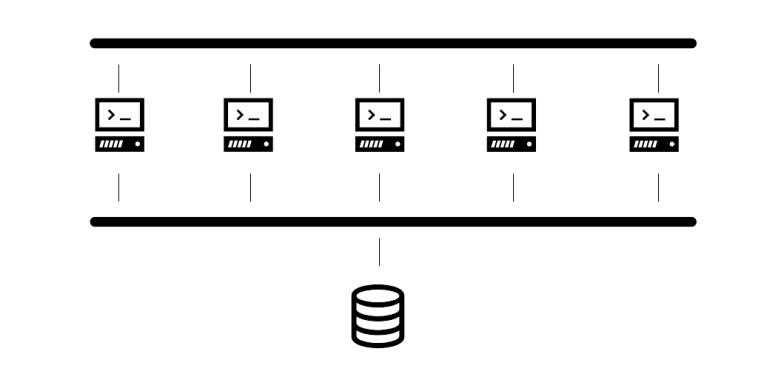
Now imagine a data center in which there is a large number of servers, each of which being equipped with a direct attached storage device.

DASD

The servers might be connected by a network, but each disk (or other storage device like tape or a removable media drive) is only connected to one server. This setup is simple, but has a couple of drawbacks. First, if there is some space available on a disk, it cannot easily be made available for other servers, so that the overall utilization is low. Second, topics like availability, redundancy, backups, proper cooling and so forth have to be done individually for each server. And, last but not least, physical maintenance can be difficult if the servers are distributed over several locations.

For those reasons, an alternative architecture has evolved over time, in which storage capacity is centralized. Instead of having one disk attached to each server, most of the storage capacity is moved into a central storage appliance. This appliance is then connected to each server via a (typically dedicated) network, hence the term SAN – storage attached network that describes this sort of architecture (often, each server would still have a small disk as a primary partition for the operating system and booting, but not even this is actually required).

SAN

Of course, the storage in such a scenario is typically not just an ordinary disk, but an entire array of disks, combined into a RAID array for better performance and redundancy, and often equipped with some additional capabilities like de-duplication, instant copy, a management interface and so forth.

Very often, storage networks are not based on Ethernet and IP, but on the FibreChannel network protocol stack. However, there is also a protocol called iSCSI which can be used to run SCSI on top of TCP/IP, so that a SAN can be leveraging existing IP-based networks and technologies – more on this in the next section.

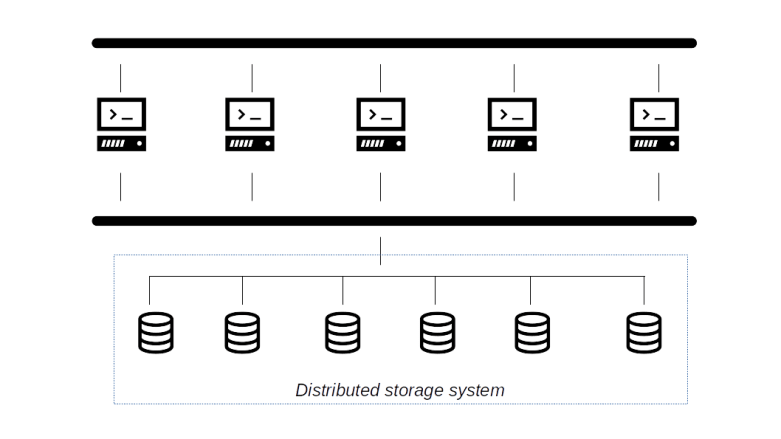
Finally, there is a third possible architecture (which we do not discuss in detail in this post), which is becoming increasingly popular in the context of cloud and container platforms – distributed storage systems. With this approach, storage is still separated from the compute capacity and connected using a network, but instead of having a small number of large storage appliances that pool the available storage capacity, these solutions take a comparatively large number of smaller nodes, often commodity hardware, which distribute and replicate data to form a large, highly available virtual storage system. Examples for this type of solutions are the HDFS file system used by Hadoop, Ceph or GlusterFS.

DistributedStorage

The iSCSI protocol

Let us now take a closer look at the iSCSI protocol. This protocol, standardized in RFC 7143 (which is replacing earlier RFCs), is a transport protocol for SCSI which can be used to build storage networks utilizing SCSI capable devices based on an underlying IP network.

In an iSCSI setup, an iSCSI initiator talks to an iSCSI target using one or more TCP/IP connections. The combination of all active sessions between an initiator and a target is called a session, and is roughly equivalent to what is known as I_T nexus (initiator – target nexus) in the SCSI protocol. Each session is identified by a session ID, and each connection within a session has a connection ID. Logically, a session describes an ongoing communication between an initiator and a target, but the traffic can be spread across several TCP/IP connections to support redundancy and failover.

Both, the initiator and the target, are identified by a unique name. The RFC defines several ways to build iSCSI names. One approach is to use a combination of

  • The qualifier iqn to mark the name as an iSCSI qualified name
  • a (reversed) domain name which is supposed to be owned by whoever assigns the name so that the resulting name will be unique
  • a date (yyyy-mm) between the leading iqn and the domain name which is a date at which the domain ownership was valid (to be able to deal with changing domain name ownerships)
  • A colon followed by a postfix to make the name unique within the domain

As I own the domain leftasexercise.com since 2018, an example for a iSCSI name that I could use would be

iqn.2018-12.com.leftasexercise:foo

To establish a session, an initiator has to perform a login operation on the iSCSI target. During login, features are negotiated and authentication is performed. The standard allows for the use of Kerberos, CHAP and Secure remote password (SRP), but the only protocol that all implementations must support is CHAP (more on this below when we actually try this out). Once a login has completed, the session enters the full feature phase. A session can also be a discovery session in which only the functionality to discover valid target names is available to the initiator.

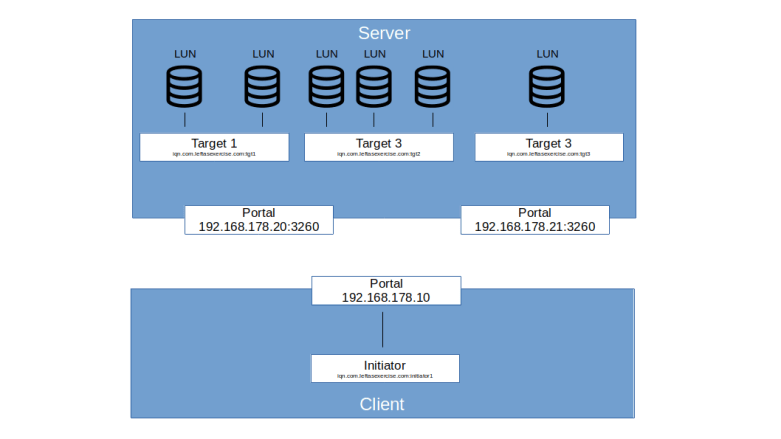
Note that the iSCSI protocol decouples the iSCSI node name from the network name. The node names that we have discussed above do typically not resolve to an IP address under which a target would be reachable. Instead, the network connection layer is modeled by the concept of a network portal. For a server, the network portal is the combination of an IP address and a port number (which defaults to 3260). On the client side, a network portal is simply the IP address. Thus there is an n-m relation between portals and nodes (targets and initiators).

Suppose, for example, that we are running a software (some sort of daemon) that can emulate one or more iSCSI targets (as we will do it below). Suppose further that this daemon is listening on two different IP addresses on the server on which it is running. Then, each IP address would be one portal. Our daemon could manage an unlimited number of targets, each of which in turn offers one or more LUNs to initiators. Depending on the configuration, each target could be reachable via each IP address, i.e. portal. So our setup would be as follows.

iSCSIEntities

Portals can also be combined into portal groups, so that different connections within one session can be run across different portals in the same group.

Lab11: implementing iSCSI nodes on Linux

Of course, Linux is able to act as an iSCSI initiator or target, and there are several implementations for the required functionality available.

One tool which we will use in this lab is Open-iSCSI, which is an iSCSI initiator consisting of several kernel drivers and a user-space part. To run an iSCSI target, Linux also offers several options like the LIO iSCSI target or the Linux SCSI target framework TGT. As it is also used by Cinder, we will play with TGT today.

As usual, we will run our lab on virtual machines managed by Vagrant. To start the environment, enter the following commands from a terminal on your lab PC.

git clone https://github.com/christianb93/openstack-labs
cd openstack-labs/Lab11
vagrant up

This will bring up two virtual machines called client and server. Both machines will be connected to a virtual network, with the client IP address being 192.168.1.12 and the server IP address being 192.168.1.11. On the server, our Vagrantfile attaches an additional disk to the virtual SCSI controller of the VirtualBox instance, which is visible from the OS level as /dev/sdc. You can use lsscsi, lsblk -O or blockdev --report to get a list of the SCSI devices attached to both client and server.

Now let us start the configuration of TGT on the server. There are two ways to do this. We will use the tool tgtadm to submit our commands one by one. Alternatively, there is also tgt-admin which is a Perl script that translates a configuration (typically stored in /etc/tgt/target.conf) into calls to tgtadm which makes it easier to re-create a configuration at boot time.

The target daemon itself is started by systemctl at boot time and is both listening on port 3260 on all interfaces and on a Unix domain socket in /var/run/tgt/. This socket is called the control port and used by the tgtadm tool to talk to the daemon.

TGT is able to use different drivers to send and receive SCSI commands. In addition to iSCSI, the second protocol currently supported is iSER which is a transport protocol for SCSI using remote direct memory access (RDMA). So most tgtadm commands start with the switch –lld iscsi to select the iSCSI driver. Next, there is typically a switch that indicates the type of object that the command operates on, plus some operation like new, delete and so forth. To see this in action, let us first create a new target and then list all existing targets on the server.

vagrant ssh server
sudo tgtadm \
    --lld iscsi \
    --mode target \
    --op new \
    --tid 1 \
    --targetname iqn.2018-12.com.leftasexercise:tgt1
sudo tgtadm \
    --lld iscsi \
    --mode target \
    --op show

Here the target name is the iSCSI node name that our target will receive, and the target ID (tid) is the TGT internal ID under which the target will be managed. From the output of the last command, we see that the target is existing and ready, but there is no active session (I_T nexus) yet and there is only one LUN, which is a default LUN added by TGT automatically (in fact, the SCSI-3 standard mandates that there is always a LUN 0 and that (SCSI Architecture model, section 4.9.2), All SCSI devices shall accept LUN 0 as a valid address. For SCSI devices that support the hierarchical addressing model the LUN 0 shall be the logical unit that an application client addresses to determine information about the SCSI target device and the logical units contained within the SCSI target device.

Now let us create an actual logical unit and add it to our target. The tgt daemon is able to expose either an entire device as a SCSI LUN or a flat file. We will create two LUNs, to try out both alternatives. We start by adding our raw block device /dev/sdc to the newly created target.

sudo tgtadm \
    --lld iscsi \
    --mode logicalunit \
    --op new \
    --tid 1 \
    --lun 1 \
    --backing-store /dev/sdc

Next, we create a disk image with a size of 512 MB and add that disk image as LUN 2 to our target.

tgtimg \
  --op new \
  --device-type disk \
  --size=512 \
  --type=disk \
  --file=/home/vagrant/disk.img
sudo tgtadm \
    --lld iscsi \
    --mode logicalunit \
    --op new \
    --tid 1 \
    --lun 2 \
    --backing-store /home/vagrant/disk.img

Note that the backing store needs to be an absolute path name, otherwise the request will fail (which makes sense, as it needs to be evaluated by the target daemon).

When we now display our target once more, we see that two LUNs have been added, LUN 1 corresponding to /dev/sdc and LUN 2 corresponding to our flat file. To make this target usable for a client, however, one last step is missing – we need to populate the access control list (ACL) of the target, which determines which initiators are permitted to access the target. We can specify either an IP address range (CIDR range), an individual IP address or the keyword ALL. Alternatively, we could also allow access for a specific initiator, identified by its iSCSI name. Here we allow access from our private subnet.

sudo tgtadm \
    --lld iscsi \
    --mode target \
    --op bind \
    --tid 1 \
    -I 192.168.1.0/24

Now we are ready to connect a client to our iSCSI target. For that purpose, open a second terminal window and enter the following commands.

vagrant ssh client
sudo iscsiadm \
  -m discovery \
  -t sendtargets \
  -p 192.168.1.11:3260

Here we SSH into the client and use the Open-iSCSI command line client to run a discovery session against the portal 192.168.1.11:3260, asking the server to provide a list of all targets available on that portal. The output will be a list of all targets (only one in our case), i.e. in our case we expect

192.168.1.11:3260,1 iqn.2018-12.com.leftasexercise:tgt1

We see the portal (IP address and portal), the portal group, and the fully qualified name of the target. We can now login to this target, which will actually start a session and make our LUNs available on the client.

sudo iscsiadm \
  -m node \
  -T iqn.2018-12.com.leftasexercise:tgt1 \
  --login

Note that Open-iSCSI uses the term node differently from the iSCSI RFC to refer to the actual server, not to an initiator or target. Let us now print some details on the active sessions and our block devices.

sudo iscsiadm \
  -m session \
  -P 3
lsblk

We find that the login has created two new block devices on our client machine, /dev/sdc and /dev/sdd. These two devices correspond to the two LUNs that we export. We can now handle these devices as any other block device. To try this out, let us partition /dev/sdc, add a file system (BE CAREFUL – if you accidentally run this on your PC instead of in the virtual machine, you know what the consequences will be – loss of all data on one of your hard drives!), mount it, add some test file and unmount again.

sudo fdisk /dev/sdc
# Enter n, p and confirm the defaults, then type w to write partition table
sudo mkfs -t ext4 /dev/sdc1
sudo mkdir -p /mnt/scsi
sudo mount  /dev/sdc1 /mnt/scsi
echo "test" | sudo tee -a /mnt/scsi/test 
sudo  umount /mnt/scsi

Once this has been done, let us verify that the write operation did really go all the way to the server. We first close our session on the client again

sudo iscsiadm \
  -m node \
  -T iqn.2018-12.com.leftasexercise:tgt1 \
  --logout

and then mount our block device on the server and see what is contains. To make the OS on the server aware of the changed partition table, you will have to run fdisk on /dev/sd once and exit immediately again.

vagrant ssh server
sudo fdisk /dev/sdc
# hit p to print table and exit
sudo mkdir -p /mnt/scsi
sudo mount  /dev/sdc1 /mnt/scsi

You should now see the newly written file, demonstrating that we did really write to the disk attached to our server.

CHAP authentication with iSCSI

As mentioned above, the iSCSI standard mandates CHAP as the only authentication protocol that all implementations should understand. Let us now modify our setup and add authentication to our target. First, we need to create a user on the server. This is again done using tgtadm

sudo tgtadm \
    --lld iscsi \
    --mode account \
    --op new \
    --user christianb93 \
    --password secret

Once this user has been created, it can now be bound to our target. This operation is similar to binding an IP address or initiator to the ACL.

sudo tgtadm \
    --lld iscsi \
    --mode account \
    --op bind \
    --tid 1 \
    --user christianb93 

If you now switch back to the client and try to login again, this will fail, as we did not yet provide any credentials. How do we tell Open-iSCSI to use credentials for this node?

It turns out that Open-iSCSI maintains a database of known nodes, which is stored as a hierarchy of flat files in /etc/iscsi/nodes. There is one file for each combination of portal and target, which also stores information on the authentication method required for a specific target. We could update these files manually, but we can also use the “update” functionality of iscsiadm to do this. For our target, we have to set three fields – the authentication method, the username and the password. Here are the commands to do this.

sudo iscsiadm \
  -m node \
  -T iqn.2018-12.com.leftasexercise:tgt1 \
  -p 192.168.1.11,3060 \
  --op=update \
  --name=node.session.auth.authmethod \
  --value=CHAP
sudo iscsiadm \
  -m node \
  -T iqn.2018-12.com.leftasexercise:tgt1 \
  -p 192.168.1.11,3060 \
  --op=update \
  --name=node.session.auth.username \
  --value=christianb93
sudo iscsiadm \
  -m node \
  -T iqn.2018-12.com.leftasexercise:tgt1 \
  -p 192.168.1.11,3060 \
  --op=update \
  --name=node.session.auth.password \
  --value=secret

If you repeat the login attempt now, the login should work again and the virtual block devices should again be visible.

There is much more that we could add – for instance, pass-through devices, removable media, virtual tapes, creating new portals and adding them to targets or using the iSNS naming protocol. However, this is not a series on storage technology, but a series on OpenStack. In the next post, we will therefore investigate another core technology used by OpenStack Cinder – the Linux logical volume manager LVM.

OpenStack Neutron – handling instance metadata

Not all cloud instances are born equal. When a cloud instance boots, it is usually necessary to customize the instance to some extent, for instance by adding specific SSH keys or by running startup scripts. Most cloud platforms offer a mechanism called instance metadata, and the implementation of this feature in OpenStack is our topic today.

The EC2 metadata and userdata protocol

Before describing how instance metadata works, let us first try to understand the problem which this mechanism solves. Suppose you want to run a large number of Ubuntu Linux instances in a cloud environment. Most of the configuration that an instance needs will be part of the image that you use. A few configuration items, however, are typically specific for a certain machine. Standard data use cases are

  • Getting the exact version of the image running
  • SSH keys which need to be injected into the instances at boot time so that an administrator (or a tool like Ansible) can work with the machine
  • correctly setting the hostname of the instance
  • retrieving information of the IP address of the instance to be able to properly configure the network stack
  • Defining scripts and command that are executed at boot time

In 2009, AWS introduced a metadata service for its EC2 platform which was able to provide this data to a running instance. The idea is simple – an instance can query metadata by making a HTTP GET request to a special URL. Since then, all major cloud providers have come up with a similar mechanism. All these mechanisms differ in details and use different URLs, but follow the same basic principles. As it has evolved into a de-facto standard which is also used by OpenStack, we will discuss the EC2 metadata service here.

The special URL that EC2 (and OpenStack) use is http://169.254.169.254. Note that this is in the address range which has been reserved in RFC3927 for link-local addresses, i.e. addresses which are only valid with one broadcast domain. When an instance connects to this address, it is presented with a list of version numbers and subsequently with a list of items retrievable under this address.

Let us try this out. Head over to the AWS console, bring up an instance, wait until it has booted, SSH into it and then type

curl http://169.254.169.254/

The result should be a list of version numbers, with 1.0 typically being the first version number. So let us repeat our request, but add 1.0 to the URL

curl http://169.254.169.254/1.0

This time we get again a list of relative URLs to which we can navigate from here. Typically there are only two entries: meta-data and user-data. So let us follow this path.

curl http://169.254.169.254/1.0/meta-data

We now get a list of items that we could retrieve. To get, for instance, the public SSH key that the owner of the machine has specified when starting the instance, use a query like

curl http://169.254.169.254/1.0/meta-data/public-keys/0/openssh-key

In contrast to metadata, userdata is data that a user has defined when starting the machine. To see an example, go back to the EC2 console, stop your instance, select Actions –> Instance settings –> View/change user data, enter some text and restart the instance again. When you connect back to it and enter

curl http://169.254.169.254/1.0/user-data

you will see exactly the text that you typed.

Who is consuming the metadata? Most OS images that are meant to run in a cloud contain a piece of software called cloud-init which will run certain initialization steps at boot-time (as a sequence of systemd services). Meta-data and user-data can be used to configure this process, up to the point that arbitrary commands can be executed at start-up. Cloud-init comes with a large number of modules that can be used to tailor the boot process and has evolved into a de-facto standard which is present in most cloud images (with cirros being an interesting exception which uses a custom init mechanism)

Metadata implementation in OpenStack

Let us now try to understand how the metadata service of OpenStack works. To do this, let us run an example configuration (we will use the configuration of Lab 10) and SSH into one of the demo instances in our VXLAN network (this is an important detail, the behavior for instances on the flat network is different, see below).

git clone https://github.com/christianb93/openstack-labs
cd openstack-labs/Lab10
vagrant up 
ansible-playbook -i hosts.ini site.yaml
ansible-playbook -i hosts.ini demo.yaml
vagrant ssh network
source demo-openrc
openstack server ssh \
   --identity demo-key  \
   --public \
   --login cirros \
   demo-instance-1
curl http://169.254.169.254/1.0/meta-data

This should give you an output very similar to the one that you have seen on EC2, and in fact, OpenStack implements the EC2 metadata protocol (it also implements its own protocol, more on this in a later section).

At this point, we could just accept that this works, be happy and relax, but if you have followed my posts, you will know that simply accepting that it works is not the idea of this blog – why does it work?

The first thing that comes to ones mind when trying to understand how this request leaves the instance and where it is answered is to check the routing on the instance by running route -n. We find that there is in fact a static route to the IP address 160.254.169.254 which points to the gateway address 172.18.0.1, i.e. to our virtual router. In fact, this route is provided by the DHCP service, as you will easily be able to confirm when you have read my recent post on this topic.

So the request goes to the router. We know that in OpenStack, a router is realized as a namespace on the node on which the L3 agent is running, i.e. on the network node in our case. Let us now peep inside this namespace and try to see which processes are running within it and how its network is configured. Back on the network node, run

router_id=$(openstack router show \
  demo-router  \
  -f value\
   -c id)
ns_id="qrouter-$router_id"
sudo ip netns exec $ns_id  iptables -S -t nat
pid=$(sudo ip netns pid $ns_id)
ps fw -p $pid 

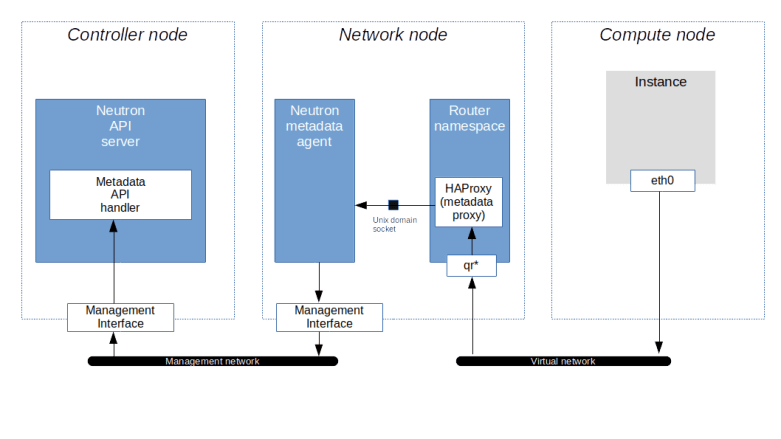
From the output, we learn two things. First, we find that in the router namespace, there is an iptables rule that redirects traffic targeted towards the IP address 169.254.169.254:80 to port 9697 on the local machine. Second, there is an instance of the HAProxy reverse proxy running in this namespace. The command line with which this proxy was started points us to its configuration file, which in turn will tell us that the HAProxy is listening on exactly this port and redirecting the request to a Unix domain socket /var/lib/neutron/metadata_proxy.

If we use sudo netstat -a -p to find out who is listening on this socket, we will see that the socket is owned by an instance of the Neutron metadata agent which essentially forwards the request.

The IP address and port to which the request is forwarded are taken from the configuration file /etc/neutron/metadata_agent.ini of the Neutron metadata agent. When we look up these values, we find, however, that the (default) port 8775 is not the usual API endpoint of the Nova server. which is listening in port 8774. So the request is not yet going to the API. Instead, port 8775 is used by the Nova metadata API handler, which is technically a part of the Nova API server. This service will accept the incoming request, retrieve the instance and its metadata from the database and send the reply, which then goes all the way back to the instance. Thus the following picture emerges from our discussion.

NeutronNovaMetadataServer

Now clearly there is a part of the story that we have not yet discussed, as some points are still a bit mysterious. How, for instance, does the Nova API server know for which instance the metadata is requested? And how is the request authorized without a Keystone token?

To answer these questions, it is useful to dump a request across the chain using tcpdump sessions on the router interface and the management interface on the controller. For the first session, SSH into the network node and run

source demo-openrc
router_id=$(openstack router show \
  demo-router  \
  -f value\
   -c id)
ns_id="qrouter-$router_id"
interface_id=$(sudo ip netns exec \
  $ns_id tcpdump -D \
  | grep "qr" | awk -F "." '{print $1}')
sudo ip netns \
  exec $ns_id tcpdump \
  -i $interface_id \
  -e -vv port not 22

Then, open a second terminal and SSH into the controller node. On the controller node, start a tcpdump session on the management interface to listen for traffic targeted to the port 8775.

sudo tcpdump -i enp0s8 -e -vv -A port 8775

Finally, connect to the instance demo-instance-1 using SSH, run

curl http://169.254.169.254/1.0/meta-data

and enjoy the output of the tcpdump processes. When you read this output, you will see the original GET request showing up on the router interface. On the interface of the controller, however, you will see that the Neutron agent has added some headers to the request. Specifically, we see the following headers.

  • X-Forwarded-For contains the IP address of the instance that made the request and is added to the request by the HAProxy
  • X-Instance-ID contains the UUID of the instance and is determined by the Neutron agent by looking up the port to which the IP address belongs
  • X-Tenant-ID contains the ID of the project to which the instance belongs
  • X-Instance-ID-Signature contains a signature of the instance ID

The instance ID and the project ID in the header are used by the Nova metadata handler to look up the instance in the database and to verify that the instance really belongs to the project in the request header. The signature of the instance ID is used to authorize the request. In fact, the Neutron metadata agent uses a shared secret that is contained in the configuration of the agent and the Nova server as (metadata_proxy_shared_secret) to sign the instance ID (using the HMAC signature specified in RFC 2104) and the Nova server uses the same secret to verify the signature. If this verification fails, the request is rejected. This mechanism replaces the usual token based authorization method used for the main Nova API.

Metadata requests on isolated networks

We can now understand how the metadata request is served. The request leaves the instance via the virtual network, reaches the router, is picked up by the HAProxy, forwarded to the agent and … but wait .. what if there is no router on the network?

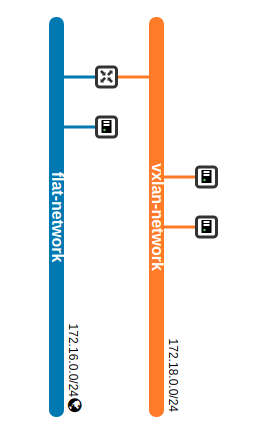
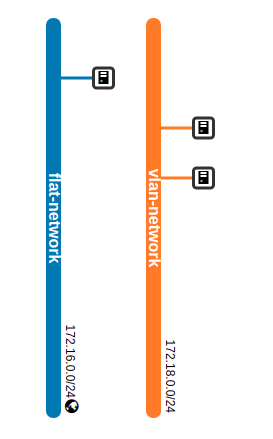
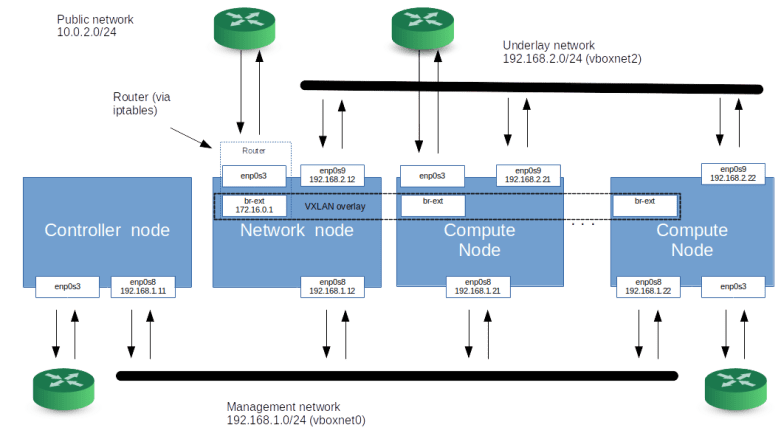
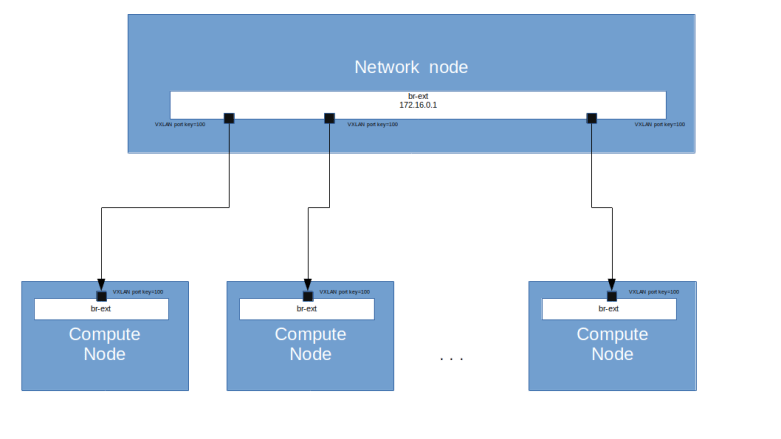
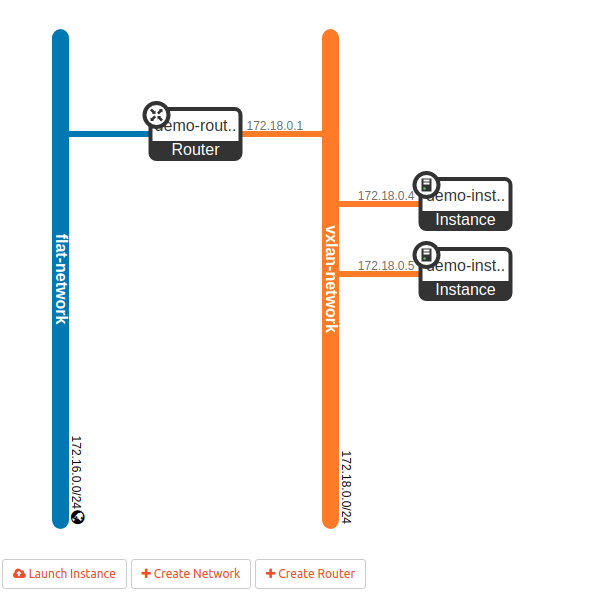
Recall that in our test configuration, there are two virtual networks, one flat network (which is connected to the external bridge br-ext on each compute node and the network node) and one VXLAN network.

DedicatedNetworkNodeVirtualTopology

So far, we have been submitting metadata requests from an instance connected to the VXLAN network. On this network, a router exists and serves as a gateway, so the mechanism outlined above works. In the flat network, however, the gateway is an external (from the point of view of Neutron) router and cannot handle metadata requests for us.

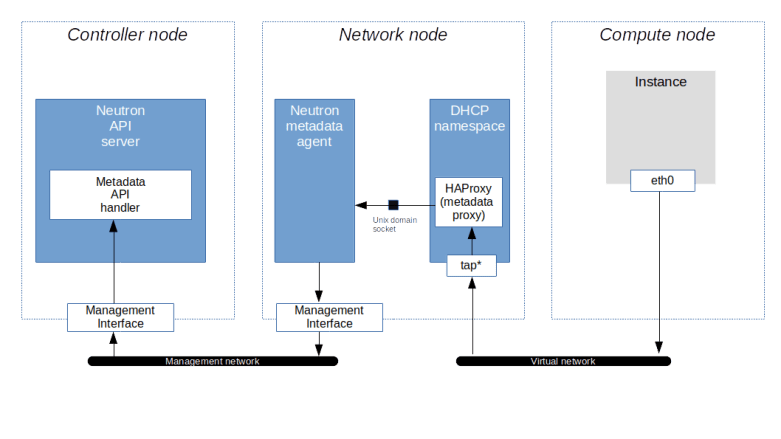
To solve this issue, Neutron has the ability to let the DHCP server forward metadata requests. This option is activated with the flag enable_isolated_metadata in the configuration of the DHCP agent. When this flag is set and the agent detects that it is running in an isolated network (i.e. a network whose gateways is not a Neutron provided virtual router), it will do two things. First, it will, as part of a DHCPOFFER message, use the DHCP option 121 to ask the client to set a static route to 169.254.169.254 pointing to its own IP address. Then, it will spawn an instance of HAProxy in its own namespace and add the IP address 169.254.169.254 as second IP address to its own interface (I will not go into the detailed analysis to verify these claims, but if you have followed this post up to this point and read my last post on Neutron DHCP server, you should be able to run the diagnosis to see this yourself). The HAProxy will then again use a Unix domain socket to forward the request to the Neutron metadata agent.

NeutronNovaMetadataServerIsolated

We could even ask the DHCP agent to provide metadata services for all networks by setting the flag force_metadata to true in the configuration of the DHCP agent.

The OpenStack metadata protocol

So far we have made our sample metadata requests using the EC2 protocol. In addition to this protocol, the Nova Metadata handler is also able to serve requests that use the OpenStack specific protocol which is available under the URL http://169.254.169.254/openstack/latest. This offers you several data structures, one of them being the entire instance metadata as a JSON structure. To test this, SSH into an arbitrary test instance and run

curl http://169.254.169.254/openstack/latest/meta_data.json

Here is a redacted version of the output, piped through jq to increase readability.

{
  "uuid": "74e3dc71-1acc-4a38-82dc-a268cf5f8f41",
  "public_keys": {
    "demo-key": "ssh-rsa REDACTED"
  },
  "keys": [
    {
      "name": "demo-key",
      "type": "ssh",
      "data": "ssh-rsa REDACTED"
    }
  ],
  "hostname": "demo-instance-3.novalocal",
  "name": "demo-instance-3",
  "launch_index": 0,
  "availability_zone": "nova",
  "random_seed": "IS3w...",
  "project_id": "5ce6e231b4cd483f9c35cd6f90ba5fa8",
  "devices": []
}

We see that the data includes the SSH keys associated with the instance, the hostname, availability zone and the ID of the project to which the instance belongs. Another interesting structure is obtained if we replace meta_data.json by network_data.json

{
  "links": [
    {
      "id": "tapb21a530c-59",
      "vif_id": "b21a530c-599c-4275-bda2-6644cf55ed23",
      "type": "ovs",
      "mtu": 1450,
      "ethernet_mac_address": "fa:16:3e:c0:a9:89"
    }
  ],
  "networks": [
    {
      "id": "network0",
      "type": "ipv4_dhcp",
      "link": "tapb21a530c-59",
      "network_id": "78440978-9f8f-4c59-a254-99289dad3c81"
    }
  ],
  "services": []
}

We see that we get a list of network interfaces and networks attached to the machine, which contains useful information like the MAC addresses, the MTU and even the interface type (OVS internal device in our case).

Working with user data

So far we have discussed instance metadata, i.e. data provided by OpenStack. In addition, like most other cloud platforms, OpenStack allows you to attach user data to an instance, i.e. user defined data which can then be retrieved from inside the instance using exactly the same way. To see this in action, let us first delete our demo instance and re-create it (OpenStack allows you to specify user data at instance creation time). Log into the network node and run the following commands.

source demo-openrc
echo "test" > test.data
openstack server delete demo-instance-3
openstack server create \
   --network flat-network \
   --key demo-key \
   --image cirros \
   --flavor m1.nano \
   --user-data test.data demo-instance-3 
status=""
until [ "$status" == "ACTIVE" ]; do
  status=$(openstack server show \
    demo-instance-3  \
    -f shell \
    | awk -F "=" '/status/ { print $2}' \
    | sed s/\"//g)
  sleep 3
done
sleep 3
openstack server ssh \
   --login cirros\
   --private \
   --option StrictHostKeyChecking=no \
   --identity demo-key demo-instance-3

Here we first create a file with some test content. Then, we delete the server demo-instance-3 and re-create it, this time passing the file that we have just created as user data. We then wait until the instance is active, wait for a few seconds to allow the SSH daemon in the instance to come up, and then SSH into the server. When you now run

curl 169.254.169.254/1.0/user-data

inside the instance, you should see the contents of the file test.data.

This is nice, but to be really useful, we need some process in the instance which reads and processes the user data. Enter cloud-init. As already mentioned above, the cirros image that we have used so far does not contain cloud-init. So to play with it, download and install the Ubuntu cloud image as described in my earlier post on Glance. As the size of the image exceeds the resources of the flavor that we have used so far, we also have to create a new flavor as admin user.

source admin-openrc
openstack flavor create \
  --disk 5 \
  --ram 1024 \
  --vcpus 1 m1.tiny

Next, we will create a file holding the user data in a format that cloud-init is able to process. This could be a file starting with

#!/bin/bash

to indicate that this is a shell script that should be run via bash, or a cloud-init configuration file starting with

#cloud-config

Let us try the latter. Using the editor of your choice, create a file called cloud-init-config on the network node with the following content which will instruct cloud-init to create a file called /tmp/foo with content bar.

#cloud-config
write_files:
-   content: bar
    path: /tmp/foo
    permissions: '0644'

Note the indentation – this needs to be valid YAML syntax. Once done, let us recreate our instance using the new image.

source demo-openrc
openstack server delete demo-instance-3
openstack server create \
   --network flat-network \
   --key demo-key \
   --image ubuntu-bionic \
   --flavor m1.tiny \
   --user-data cloud-init-config demo-instance-3 
status=""
until [ "$status" == "ACTIVE" ]; do
  status=$(openstack server show \
    demo-instance-3  \
    -f shell \
    | awk -F "=" '/status/ { print $2}' \
    | sed s/\"//g)
  sleep 3
done
sleep 120
openstack server ssh \
   --login ubuntu\
   --private \
   --option StrictHostKeyChecking=no \
   --identity demo-key demo-instance-3

When using this image in our environment with nested virtualization, it can take as long as one or two minutes until the SSH daemon is ready and we can log into our instance. When you are logged in, you should see a new file /tmp/foo which contains the string bar, as expected.

Of course this is still a trivial example, and there is much more that you can do with cloud-init: creating new users (be careful, this will overwrite the standard user – add the default user to avoid this), installing packages, running arbitrary scripts, configuring the network and so forth. But this is a post on the metadata mechanism provided by OpenStack, and not on cloud-init, so we will leave that topic for now.

This post also concludes – at least for the time being – our series focussing on Neutron. We will now turn to block storage – how block storage is provisioned and used on the OpenStack platform, how Cinder is installed and works under the hood and how all this relates to standards like iSCSI and the Linux logical volume manager LVM.

OpenStack Neutron – DHCP and DNS

In a cloud environment, a virtual instance typically uses a DHCP server to receive its assigned IP address and DNS services to resolve IP addresses. In this post, we will look at how these services are realized in our OpenStack playground environment.

DHCP basics

To understand what follows, it is helpful to quickly recap the basis mechanisms behind the DHCP protocol. Historically, the DHCP protocol originated from the earlier BOOTP protocol, which was developed by Sun Microsystems (my first employer, back in the good old days, sigh…) to support diskless workstations which, at boot time, need to retrieve their network configuration, the name of a kernel image (which could subsequently be retrieved using TFTP) and an NFS share to be used for the root partition. The DHCP protocol builds on the BOOTP standard and extends BOOTP, for instance by adding the ability to deliver more configuration options than BOOTP is capable of.

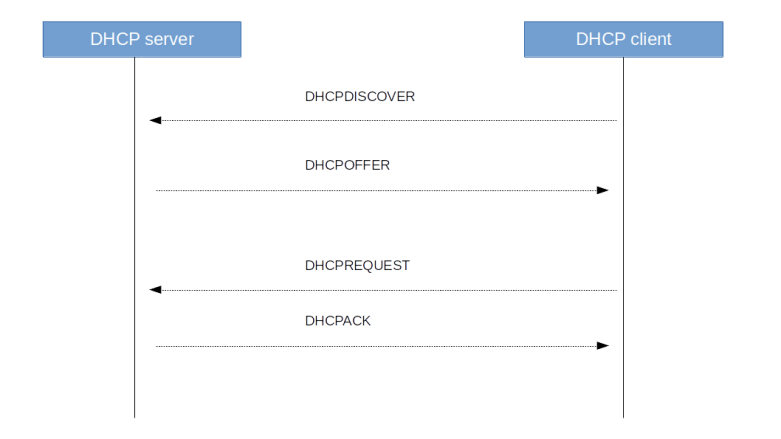
DHCP is a client-server protocol using UDP with the standardized ports 67 (server) and 68 (client). At boot time, a client sends a DHCPDISCOVER message to request configuration data. In reply, the server sends a DHCPOFFER message to the client, offering configuration data including an IP address. More than one server can answer a discovery message, and thus a client might receive more than one offer. The DCHCP client then sends a DHCPREQUEST to all servers, containing the ID of an offer that the client wishes to accept. The server from which that offer originates then replies with a DHCPACK to complete the handshake, all other servers simply record the fact that the IP address that they have offered is again available. Finally, a DHCP client can release an IP address again sending the DHCPRELEASE message.

There are a few additional message types like DHCPINFORM which a client can use to only request configuration parameters if it already has an IP address, or a DHCPDECLINE message that a client sends to a server if it determines (using ARP) that a message offered by the server is already in use, but these message types do usually not take part in a standard bootstrap sequence which is summarized in the diagram below.

DHCPBootstrap

We have said that DHCP is using UDP which again is sitting on top of the IP protocol. This raises an interesting chicken-egg problem – how can a client use DHCP to talk to a server if is does not yet have an IP address?

The answer is of course to use broadcasts. Initially, a client sends a DHCP request to the IP broadcast address 255.255.255.255 and the Ethernet broadcast address ff:ff:ff:ff:ff:ff. The IP source address of this request is 0.0.0.0.

Then, the server responds with a DHCPOFFER directed towards the MAC address of the client and using the offered IP address as IP target address. The DHCPREQUEST is again a broadcast (this is required as it needs to go to all DHCP servers on the subnet), and the acknowledge message is again a unicast packet.

This process assumes that the client is able to receive an IP message directed to an IP address which is not (yet) the IP address of one of its interfaces. As most Unix-like operating systems (including Linux) do not allow this, DHCP clients typically use a raw socket to receive all incoming IP traffic (see for instance the relevant code of the udhcp client which is part of BusyBox which uses a so-called packet socket initially and only switches to an ordinary socket once the interface is fully configured). Alternatively, there is a flag that a client can set to indicate that it cannot deal with unicast packets before the interface is fully configured, in which case the server will also use broadcasting for its reply messages.

Note that, as specified in RFC 922, a router will not forward IP broadcasts directed to the broadcast address 255.255.255.255. Therefore, without further precautions, a DHCP exchange cannot pass a router, which implies that a DHCP server must be present on every subnet. It is, however, possible to run a so-called DHCP relay which forwards DHCP requests to a DHCP server in a different network. Neutron will, by default, start a DHCP server for each individual virtual network (unless DHCP is disabled for all subnets in the network).

One of the reasons why the DHCP protocol is more powerful than the older BOOTP protocol is that the DHCP protocol is designed to provide a basically unlimited number of configuration items to a client using so-called DHCP options. The allowed options are defined in various RFCs (see this page for an overview maintained by the IANA organisation). A few notable options which are relevant for us are

  • Option 1: subnet mask, used to inform the client about the subnet in which the provided IP address is valid
  • Option 3: list of routers, where the first router is typically used as gateway by the client
  • Option 6: DNS server to use
  • Option 28: broadcast address for the clients subnet
  • Option 121: classless static routes (replaces the older option 33) that are transmitted from the server to the client and supposed to be added to the routing table by the client

DHCP implementation in OpenStack

After this general introduction, let us now try to understand how all this is implemented in OpenStack. To be able to play around and observe the system behavior, let us bring up the configuration of Lab 10 once more.

git clone https://github.com/christianb93/openstack-labs
cd openstack-labs/Lab10
vagrant up
ansible-playbook -i hosts.ini site.yaml
ansible-playbook -i hosts.ini demo.yaml

This will install OpenStack with a separate network node, create two networks and bring up instances on each of these networks.

Now, for each virtual network, Neutron will create a network namespace on the network node (or, more precisely, on the node on which the DHCP agent is running) and spawn a separate DHCP server process in each of these namespaces. To verify this, run

sudo ip netns list

on the network node. You should see three namespaces, two of them starting with “qdhcp-“, followed by the ID of one of the two networks that we have created. Let us focus our investigation on the flat network, and figure out which processes this namespace contains. The following sequence of commands will determine the network ID, derive the name of the namespace and list all processes running in this namespace.

source demo-openrc
network_id=$(openstack network show \
    flat-network \
    -f yaml | egrep "^id: " | awk '{ print $2}')
ns_id="qdhcp-$network_id"
pids=$(sudo ip netns pid $ns_id)
for pid in $pids; do
  ps --no-headers -f --pid $pid
done

We see that there are two processes running inside the namespace – an instance of the lightweight DHCP server and DNS forwarder dnsmasq and a HA proxy process (which handles metadata requests, more on this in a separate post). It is interesting to look at the full command line which has been used to start the dnsmasq process. Among the long list of options, you will find two options that are especially relevant.

First, the process is started using the --no-hosts flag. Usually, dnsmasq will read the content of the local /etc/hosts file and return the name resolutions defined there. Here, this is disabled, as otherwise an instance could retrieve the IP addresses of the OpenStack nodes. The process is also started with –no-resolv to skip reading of the local resolver configuration on the network node.

Second, the dnsmasq instance is started with the --dhcp-host-file option, which, in combination with the static keyword in the --dhcp-range option, restricts the address allocations that the DHCP server will hand out to those defined in the provided file. This file is maintained by the DHCP agent process. Thus the DHCP server will not actually perform address allocations, but is only a way to communicate the address allocations that Neutron has already prepared to a client.

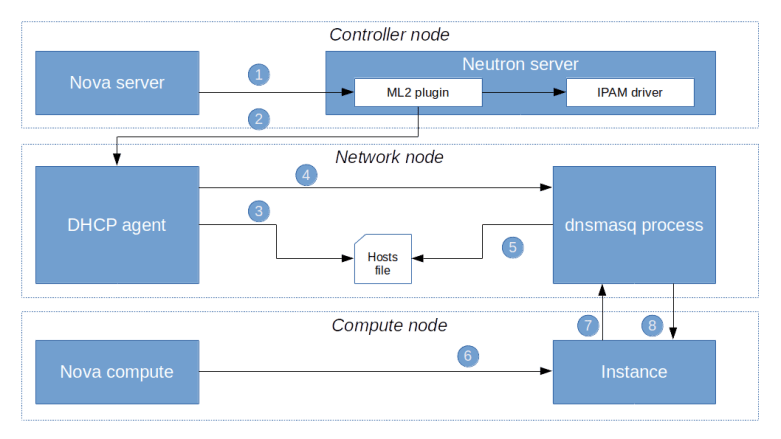
To better understand how this actually works, let us go through the process of starting a virtual machine and allocating an IP address in a bit more detail. Here is a summary of what happens.

IPAddressAllocation

First, when a user requests the creation of a virtual machine, Nova will ask Neutron to create a port (1). This request will eventually hit the create_port method of the ML2 plugin. The plugin will then create the port as a database object and, in the course of doing this, reach out to the configured IPAM driver to obtain an IP address for this port.

Once the port has been created, an RPC message is sent to the DHCP agent (2). The agent will then invoke the responsible DHCP driver (which in our case is the Linux DHCP driver) to re-build the hosts file and send a SIGHUP signal to the actual dnsmasq process in order to reload the changed file (5)

At some later point in the provisioning process, the Nova compute agent will create the VM (6) which will start its boot process. As part of the boot process, a DHCP discover broadcast will be sent out to the network (7). The dnsmasq process will pick up this request, consult the hosts file, read the pre-determined IP address and send a corresponding DHCP offer to the VM. The VM will usually accept this offer and configure its network interface accordingly.

Network setup

We have now understood how the DHCP server handles address allocations. Let us now try to figure out how the DHCP server is attached to the virtual network which it server.

To examine the setup, log into the network node again and repeat the above commands to again populate the environment variable ns_id with the ID of the namespace in which the DHCP server is running. Then, run the following commands to gather information on the network setup within the namespace.

sudo ip netns exec $ns_id ip link show

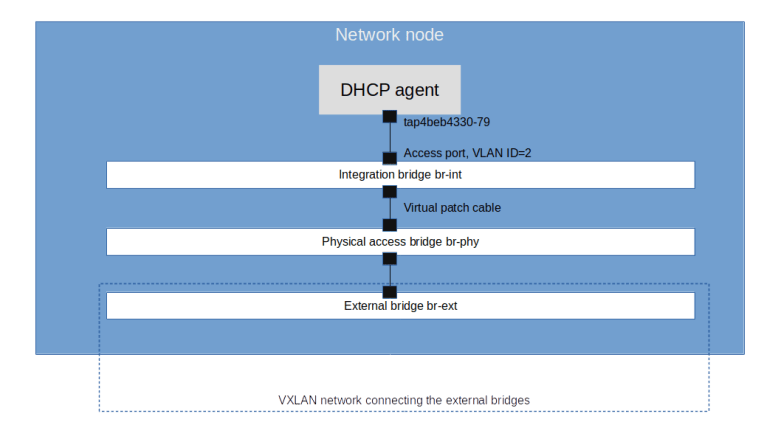
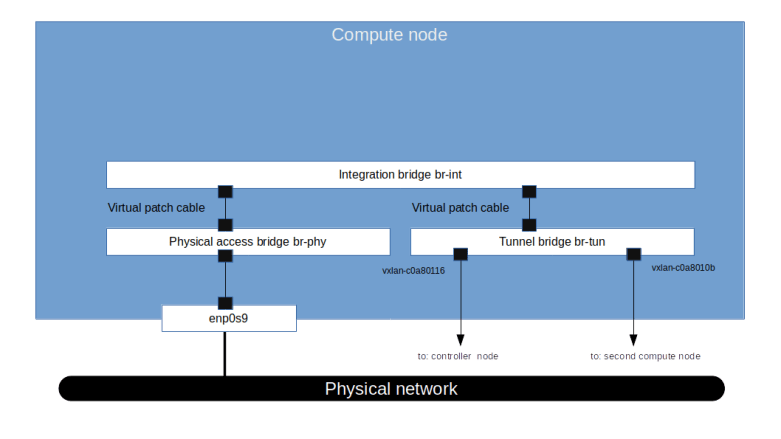
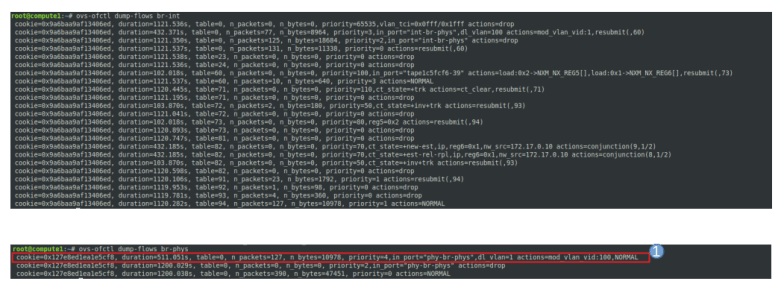
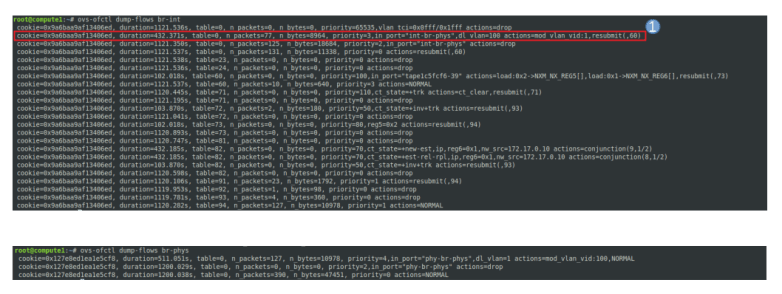
We see that apart from the loopback device, the DHCP namespace has one device with a name composed of the fixed part tap followed by a unique identifier (the first few characters of the ID of the corresponding port). When you run sudo ovs-vsctl show on the network node, you will see that this device (which is actually an OVS created device) is attached to the integration bridge br-int as an access port. When you dump the OpenFlow rules on the integration bridge and the physical bridge, you will see that for packets with this VLAN ID, the VLAN tag is stripped off at the physical bridge and the packet eventually reaches the external bridge br-ext, confirming that the DHCP agent is actually connected to the flat network that we have created (based on our VXLAN network that we have built outside of OpenStack).

DHCPAgentNetworkSetup

Also note that in our case, the interface used by the DHCP server has actually two IP addresses assigned, one being the second IP address on the subnet (172.16.0.2), and the second one being the address of the metadata server (which might seem a bit strange, but again this will be the topic of the next post).

If you want to see the DHCP protocol in action, you can install dhcpdump on the network node, attach to the network namespace and run a dump on the interface while bringing up an instance on the network. Here is a sequence of commands that will start a dump.

source admin-openrc
sudo apt-get install dhcpdump
port_id=$(openstack port list \
  --device-owner network:dhcp \
  --network flat-network \
  -f value | awk '{ print $1}')
interface="tap$port_id"
interface=${interface:0:14}
source demo-openrc
network_id=$(openstack network show \
    flat-network \
    -f yaml | egrep "^id: " | awk '{ print $2}')
ns_id="qdhcp-$network_id"
sudo ip netns exec $ns_id dhcpdump -i $interface

In a separate window (either on the network node or any other node), enter the following commands to bring up an additional instance

source demo-openrc
openstack server create \
  --flavor m1.nano \
  --network flat-network \
  --key demo-key \
  --image cirros demo-instance-4

You should now see the sequence of DHCP messages displayed in the diagram above, starting with the DHCPDISCOVER sent by the newly created machine and completed by the DHCPACK.

Configuration of the DHCP agent

Let us now go through some of the configuration options that we have for the DHCP agent in the file /etc/neutron/dhcp_agent.ini. First, there is the interface_driver which we have set to openvswitch. This is the driver that the DHCP agent will use to set up and wire up the interface in the DHCP server namespace. Then, there is the dhcp_driver which points to the driver class used by the DHCP agent to control the DHCP server process (dnsmasq).

Let us also discuss a few options which are relevant for the name resolution process. Recall that dnsmasq is not only a DHCP server, but can also act as DNS forwarder, and these settings control this functionality.

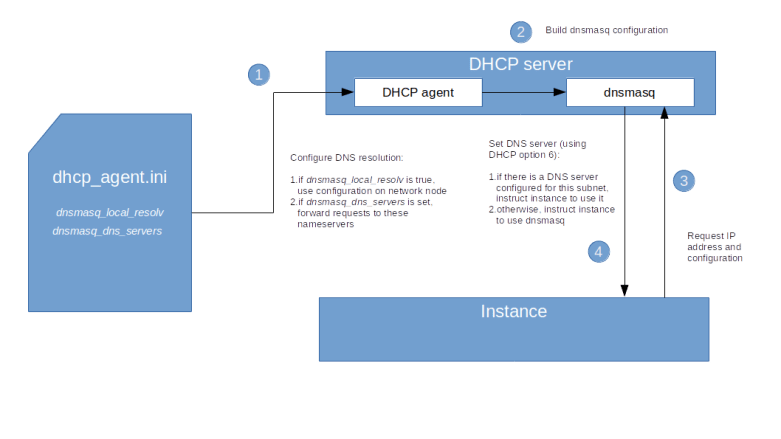
  • We have seen above that the dnsmasq process is started with the –no-resolv option in order to skip the evaluation of the /etc/resolv.conf file on the network node. If we set the configuration option dnsmasq_local_resolv to true, then dnsmasq will read this configuration and effectively be able to use the DNS configuration of the network node to provide DNS services to instances.
  • A similar settting is dnsmasq_dns_servers. This configuration item can be used to provide a list of DNS servers to which dnsmasq will forward name resolution requests

DNS configuration options for OpenStack

The configuration items above give us a few options that we have to control the DNS resolution offered to the instances.

First, we can set dnsmasq_local_resolv to true. When you do this and restart the DHCP agent, all dnsmasq processes will be restarted without the –no-resolv option. The DHCP server will then instruct instances to use its own IP address as the address of a DNS server, and will leverage the resolver configuration on the network node to forward requests. Note, however, that this will only work if the nameserver in /etc/resolv.conf on the network node is set to a server which can be reached from within the DHCP namespace, which will typically not be the case (on a typical Ubuntu system, name resolution is done using systemd-resolved which will listen on a loopback interface on the network node which cannot be reached from within that namespace).

The second option that we have is to put one or more DNS servers which are reachable from the virtual network into the configuration item dnsmasq_dns_servers. This will instruct the DHCP agent to start the dnsmasq processes with the –server flag, thus specifying a name server to which dnsmasq is supposed to forward requests. Assuming that this server is reachable from the network namespace in which dnsmasq is running (i.e. from the virtual network to which the DHCP server is attached), this will provide name resolution services using this nameserver for all instances on this network.

As the configuration file of the DHCP agent is applied for all networks, using this option implies that all instances will be using this DNS server, regardless of the network to which they are attached. In more complex settings, this is sometimes not possible. For these situations, Neutron offers a third option to configure DNS resolution – defining a DNS server per subnet. In fact, a list of DNS servers is an attribute of each subnet. To set the DNS server 8.8.8.8 for our flat subnet, use

source admin-openrc 
openstack subnet set \
  --dns-nameserver 8.8.8.8 flat-subnet
source demo-openrc

When you now restart the DHCP agent, you will see that the DHCP agent has added a line to the options file for the dnsmasq process which sets the DNS server for this specific subnet to 8.8.8.8.

Note that this third option works differently from the first two options in that it really sets the DNS server in the instances. In fact, this option does not govern the resolution process when using dnsmasq as a nameserver, but determines the nameserver that will be provided to the instances at boot time via DHCP, so that the instances will directly contact this nameserver. Our first two configuration did work differently, as in both options, the nameserver known to the instance will be the DHCP server, and the DHCP server will then forward the request to the configured name server. The diagram below summarizes this mechanism.

DNSConfigurationOptions

Of course you can combine these settings – use dnsmasq_dns_servers to enable the dnsmasq process to serve and forward DNS requests, and, if needed, override this using a subnet specific DNS server for individual subnets.

This completes our investigation of DHCP and DNS handling on OpenStack. In the next post, we will turn to a topic that we have already touched upon several times – instance metadata.


OpenStack Neutron – building virtual routers

In a previous post, we have set up an environment with a flat network (connected to the outside world, in this case to our lab host). In a typical environment, such a network is combined with several internal virtual networks, connected by a router. Today, we will see how an OpenStack router can be used to realize such a setup.

Installing and setting up the L3 agent

OpenStack offers different models to operate a virtual router. The model that we discuss in this post is sometimes called a “legacy router”, and is realized by a router running on one of the controller hosts, which implies that the routing functionality is no longer available when this host goes down. In addition, Neutron offers more advanced models like a distributed virtual router (DVR), but this is beyond the scope of todays post.

To make the routing functionality available, we have to install respectively enable two additional pieces of software:

  • The Routing API is provided by an extension which needs to be loaded by the Neutron server upon startup. To achieve this, this extension needs to be added to the service_plugins list in the Neutron configuration file neutron.conf
  • The routing functionality itself is provided by an agent, the L3 agent, which needs to be installed on the controller node

In addition to installing these two components, there are a few changes to the configuration we need to make. First, of course, the L3 agent comes with its own configuration file that we need to adapt. Specifically, there are two changes that we make for this lab. First, we set the interface driver to openvswitch, and second, we ask the L3 agent not to provide a route to the metadata proxy by setting enable_metadata_proxy to false, as we use the mechanism provided by the DHCP agent.

In addition, we change the configuration of the Horizon dashboard to make the L3 functionality available in the GUI as well (this is done by setting the flag horizon_enable_router in the configuration to “True”).

All this can again be done in our lab environment by running the scripts for Lab 8. In addition, we run the demo playbook which will set up a VLAN network with VLAN ID 100 and two instances attached to it (demo-instance-1 and demo-instance 3) and a flat, external network with one instance (demo-instance-3).

git clone https://github.com/christianb93/openstack-labs
cd Lab8
vagrant up
ansible-playbook -i hosts.ini site.yaml
ansible-playbook -i hosts.ini demo.yaml

Setting up our first router

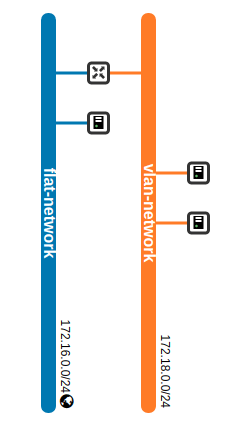
Before setting up our first router, let us inspect the network topology that we have created. The Horizon dashboard has a nice graphical representation of the network topology.

Networks

We see that we have two virtual Ethernet networks, carrying one IP network each. The network on the left – marked as external – is the flat network, with an IP subnet with CIDR 172.18.0.0/24. The network on the right is the VLAN network, with IP range 172.16.0.0./24.

Now let us create and set up the router. This happens in several steps. First, we create the router itself. This is done using the credentials of the demo user, so that the router will be part of the demo project.

vagrant ssh controller
source demo-openrc
openstack router create demo-router

At this point, the router exists as an object, and there is an entry for it in the Neutron database (table routers). However, the router is not yet connected to any network. Let us do this next.

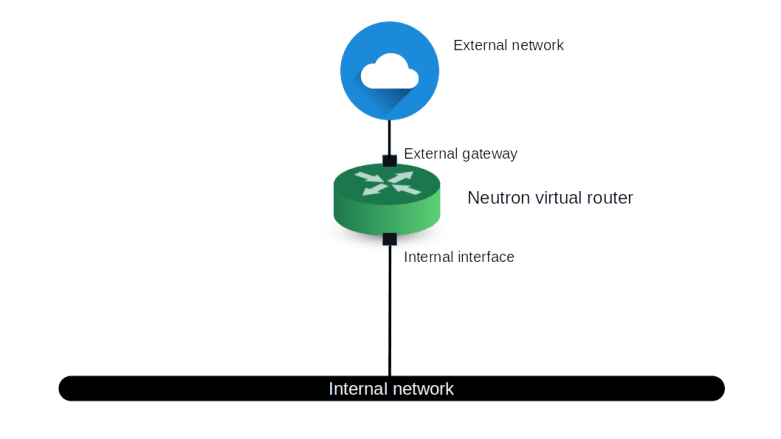
It is important to understand that, similar to a physical router, a Neutron virtual router has two interfaces connected to two different networks, and, again as in the physical network world, the setup is not symmetric. Instead, there is one network which is considered external and one internal network. By default, the router will allow for traffic from the internal network to the external network, but will not allow any incoming connections from the external network into the internal networks, very similar to the cable modem that you might have at home to connect to this WordPress site.

NeutronRouter

Correspondingly, the way how the external network and the internal network are attached to the router differ. Let us start with the external network. The connection to the external network is called the external gateway of the router and can be assigned using the set command on the router.

openstack router set \
   --external-gateway=flat-network\
   demo-router

When you run this command and inspect the database once more, you will see that the column gw_port_id has been populated. In addition, listing the ports will demonstrate that OpenStack has created a port which is attached to the router (this port is visible in the database but not via the CLI as the demo user, as the port is not owned by this user) and has received an IP address on the external network.

To complete the setup of the router, we now have to connect the router to an internal network. Note that this needs to be done by the administrator, so we first have to source the credentials of the admin user.

source admin-openrc
openstack router add subnet demo-router vlan-subnet

When we now log into the Horizon GUI as the demo user and ask Horizon to display the network topology, we get the following result.

NetworkWithRouter

We can reach the flat network (and the lab host) from the internal network, but not the other way around. You can verify this by logging into demo-instance-1 via the Horizon VNC console and trying to ping demo-instance-3.

Now let us try to understand how the router actually works. Of course, somewhere behind the scenes, Linux routing mechanisms and iptables are used. One could try to implement a router by manipulating the network stack on the controller node, but this would be difficult as the configuration for different routers might conflict. To avoid this, Neutron creates a dedicated network namespace for each router on the node on which the L3 agent is running.

The name of this namespace is qrouter-, followed by the ID of the virtual router (here “q” stands for “Quantum” which was the name of what is now known as Neutron some years ago). To analyze the network stack within this namespace, let us retrieve its ID and spawn a shell inside the namespace.

netns=$(ip netns list \
        | grep "qrouter" \
        | awk '{print $1'})
sudo ip netns exec $netns /bin/bash

Running ifconfig -a and route -n shows that, as expected, the router has two virtual interfaces (both created by OVS). One interface starting with “qg” is the external gateway, the second one starting with “qr” is connected to the internal network. There are two routes defined, corresponding to the two subnets to which the respective interfaces are assigned.

Let us now inspect the iptables configuration. Running iptables -S -t nat reveals that Neutron has added an SNAT (source network address translation) rule that applies to traffic coming from the internal interface. This rule will replace the source IP address of the outgoing traffic by the IP address of the router on the external network.

To understand how the router is attached to the virtual network infrastructure, leave the namespace again and display the bridge configuration using sudo ovs-vsctl show. This will show you that the two router interfaces are both attached to the integration bridge.

NeutronRouterEgress

Let us now see how traffic from a VM on the internal network flows through the stack. Suppose an application inside the VM tries to reach the external network. As inside the VM, the default route goes to 172.18.0.1, the routing mechanism inside the VM targets the packet towards the qr-interface of the router. The packet leaves the VM through the tap interface (1). The packet enters the bridge via the access port and receives a local VLAN tag (2), then travels across the bridge to the port to which the qr-interface is attached. This port is an access port with the same local VLAN tag as the virtual machine, so it leaves the bridge as untagged traffic and enters the router (3).

Within the router, SNAT takes place (4) and the packet is forwarded to the qg-interface. This interface is attached to the integration bridge as access port with local VLAN ID 2. The packet then travels to the physical bridge (5), where the VLAN tag is stripped off and the packet hits the physical networks as part of the native network corresponding to the flat network.

As the IP source address is the address of the router on the external network, the response will be directed towards the qg-interface. It will enter the integration bridge coming from the physical bridge as untagged traffic, receive local VLAN ID 2 and end up at the qg-access port. The packet then flows back through the router, is leaving it again at the qr interface, appears with local VLAN tag 1 on the integration bridge and eventually reaches the VM.

There is one more detail that deserves being mentioned. When you inspect the iptables rules in the mangle table of the router namespace, you will see some rules that add marks to incoming packets, which are later evaluated in the nat and filter tables. These marks are used to implement a feature called address scopes. Essentially, address scopes are reflecting routing domains in OpenStack, the idea being that two networks that belong to the same address scope are supposed to have compatible, non-overlapping IP address ranges so that no NATing is needed when crossing the boundary between these two networks, while a direct connection between two different address scopes should not be possible.

Floating IPs

So far, we have set up a router which performs a classical SNAT to allow traffic from the internal network to appear on the external network as if it came from the router. To be able to establish a connection from the external network into the internal network, however, we need more.

In a physical infrastructure, you would use DNAT (destination netting) to achieve this. In OpenStack, this is realized via a floating IP. This is an IP address on the external network for which DNAT will be performed to pass traffic targeted to this IP address to a VM on the internal network.

To see how this works, let us first create a floating IP, store the ID of the floating IP that we create in a variable and display the details of the floating IP.

source demo-openrc
out=$(openstack floating ip create \
         -f shell \
         --subnet flat-subnet\
           flat-network)
floatingIP=$(eval $out ; echo $id)
openstack floating ip show $floatingIP

When you display the details of the floating IP, you will see that Neutron has assigned an IP from the external network (the flat network), more precisely from the network and subnet that we have specified during creation.

This floating IP is still fully “floating”, i.e. not yet attached to any actual instance. Let us now retrieve the port of the server demo-instance-1 and attach the floating IP to this port.

port=$(openstack port list \
         --server demo-instance-1 \
         -f value \
         | awk {'print $1}')
openstack floating ip set --port $port $floatingIP

When we now display the floating IP again, we see that floating IP is now associated with the fixed IP address of the instance demo-instance-1.

Now leave the controller node again. Back on the lab host, you should now be able to ping the floating IP (using the IP on the external network, i.e. from the 172.16.0.0/24 network) and to use it to SSH into the instance.

Let us now try to understand how the configuration of the router has changed. For that purpose, enter the namespace again as above and run ip addr. This will show you that now, the external gateway interface (the qg interface) has now two IP addresses on the external network – the IP address of the router and the floating IP. Thus, this interface will respond to ARP requests for the floating IP with its MAC address. When we now inspect the NAT tables again, we see that there are two new rules. First, there is an additional source NAT rule which replaces the source IP address by the floating IP for traffic coming from the VM. Second, there is now – as expected – a destination NAT rule. This rule applies to traffic directed to the floating IP and replaces the target address with the VM IP address, i.e. with the corresponding fixed IP on the internal network.

We can now understand how a ping from the lab host to the floating IP flows through the stack. On the lab host, the packet is routed to the vboxnet1 interface and shows up at enp0s9 on the controller node. From there, it travels through the physical bridge up to the integration bridge and into the router. There, the DNAT processing takes place, and the target IP address is replaced by that of the VM. The packet leaves the router at the internal qr-interface, travels across the integration bridge and eventually reaches the VM.

Direct access to the internal network

We have seen that in order to connect to our VMs using SSH, we first need to build a router to establish connectivity and assign a floating IP address. Things can go wrong, and if that operation fails for whatever reason or the machines are still not reachable, you might want to find a different way to get access to the instances. Of course there is the noVNC client built into Horizon, but it is more convenient to get a direct SSH connection without relying on the router. Here is an approach how this can be done.

Recall that on the physical bridge on the controller node, the internal network has the VLAN segmentation ID 100. Thus to access the VM (or any other port on the internal network), we need to tag our traffic with the VLAN tag 100 and direct it towards the bridge.

The easiest way to do this is to add another access port to the physical bridge, to assign an IP address to it which is part of the subnet on the internal network and to establish a route to the internal network from this device.

vagrant ssh controller
sudo ovs-vsctl add-port br-phys vlan100 tag=100 \
     -- set interface vlan100 type=internal 
sudo ip addr add 172.18.0.100/24 dev vlan100
sudo ip link set vlan100 up

Now you should to be able to ping any instance on the internal VLAN network and SSH into it as usual from the controller node.

Why does this work? The upshot of our discussion above is that the interaction of local VLAN tagging, global VLAN tagging and the integration bridge flow rules effectively attach all virtual machines in our internal network via access ports with tagging 100 to the physical network infrastructure, so that they all communicate via VLAN 100. What we have done is to simply create another network device called vlan100 which is also connected to this VLAN. Therefore, it is effectively on one Ethernet segment with our first two demo instances. We can therefore assign an IP address to it and then use it to reach these instances. Essentially, this adds an interface to the controller which is connected to the virtual VLAN network so that we can reach each port on this network from the controller node (be it on the controller node or a compute node).

There is much more we could say about routers in OpenStack, but we leave that topic for the time being and move on to the next post, in which we will discuss overlay networks using VXLAN.

OpenStack Neutron – running Neutron with a separate network node

So far, our OpenStack control plane setup was rather simple – we had a couple of compute nodes, and all other services were running on the same controller node. In practice, this does not only create a single point of failure, but also a fairly high traffic on the network interfaces. In this post, we will move towards a more distributed setup with a dedicated network node.

OpenStack nodes and their roles

Before we plan our new topology, let us quickly try to understand what nodes we have used so far. Recall that each node has an Ansible hostname which is the name returned by the Ansible variable inventory_hostname and defined in the inventory file. In addition, each node has a DNS name, and during our installation procedure, we adapt the /etc/hosts file on each node so that DNS names and Ansible hostnames are identical. A host called, for instance, controller in the Ansible inventory will therefore be reachable under this name across the cluster.

The following table lists the types of nodes (defined by the services running on them) and the Ansible hostnames used so far.

Node type Description Hostname
api_node Node on which all APIs are exposed. This will typically be the controller node, but could also be a load balancer in a HA setup controller
db_node Node on which the database is running controller
mq_node Node on which the Rabbit MQ service is running controller
memcached_node Node on which the memcached service is running controller
ntp_node Node on which the NTP service is running controller
network_node Node on which DHCP agent and the L3 agent (and thus routers) are running controller
horizon_node Node on which Horizon is running controller
compute_node Compute nodes compute*

Now we can start to split out some of the nodes and distribute the functionality across several machines. It is rather obvious how to do this for e.g. the database node or the RabbitMQ node – simply start MariaDB or the RabbitMQ service on a different node and update all URLs in the configuration accordingly. In this post, we will instead introduce a dedicated network node that will hold all our Neutron agents. Thus the new distribution of functionality to hosts will be as follows.

Node type Description Hostname
api_node Node on which all APIs are exposed. This will typically be the controller node, but could also be a load balancer in a HA setup controller
db_node Node on which the database is running controller
mq_node Node on which the Rabbit MQ service is running controller
memcached_node Node on which the memcached service is running controller
ntp_node Node on which the NTP service is running controller
network_node Node on which DHCP agent and the L3 agent (and thus routers) are running network
horizon_node Node on which Horizon is running controller
compute_node Compute nodes compute*

Here is a diagram that summarizes our new distribution of components to the various VirtualBox instances.

NewNodeSetup

In addition, we will make a second change to our network topology. So far, we have used a setup where all machines are directly connected on layer 2, i.e. are part of a common Ethernet network. This did allow us to use flat networks and VLAN networks to connect our different nodes. In reality, however, an OpenStack cluster will might sometimes be operated on top of an IP fabric so that layer 3 connectivity between all nodes is guaranteed, but we cannot assume layer 2 connectivity. Also, broadcast and multicast traffic might be restricted – an example could be an existing bare-metal cloud environment on top of which we want to install OpenStack. To be prepared for this situation, we will change our setup to avoid direct layer 2 connectivity. Here is our new network topology implementing these changes.

NetworkTopologySeparateNetworkNode

This is a bit more complicated than what we used in the past, so let us stop for a moment and discuss the setup. First, each node (i.e. each VirtualBox instance) will still be directly connected to the network on our lab host by a VirtualBox NAT interface with IP 10.0.2.15, and – for the time being – we continue to use this interface to access our machines via SSH and to download packages and images (this is something which we will change in an upcoming post as well). Then, there is still a management network with IP range 192.168.1.0/24.

The network that we did call the provider network in our previous posts is now called the underlay network. This network is reserved for traffic between virtual machines (and OpenStack routers) realized as a VXLAN virtual OpenStack network. As we use this network for VXLAN traffic, the network interfaces connected to it are now numbered.

All compute nodes are connected to the underlay network and to the management network. The same is true for the network node, on which all Neutron agents (the DHCP agent, the L3 agent and the metadata agent) will be running. The controller node, however, is not connected to the underlay network any more.

But we need a bit more than this to allow our instances to connect to the outside world. In our previous posts, we did build a flat network that was directly connected to the physical infrastructure to provide access to the public network. In our setup, where direct layer 2 connectivity between the machines can no longer be assumed, we realize this differently. On the network node and on each compute node, we bring up an additional OVS bridge called the external bridge br-ext. This bridge will essentially act as an additional virtual Ethernet device that is used to realize a flat network. All external bridges will be connected with each other by a VXLAN that is not managed by OpenStack, but by our Ansible scripts. For this VXLAN, we use a segmentation ID which is different from the segmentation IDs of the tenant networks (as all VXLAN connections will use the underlay network IP addresses and the standard port 4789, this isolation is required).

VXLANNetworkNodesComputeNodes

Essentially, we use the network node as a virtual bridge connecting all compute nodes with the network node and with each other. For Neutron, the external bridges will look like a physical interface building a physical network, and we can use this network as supporting provider network for a Neutron flat network to which we can attach routers and virtual machines.

This setup also avoids the use of multicast traffic, as we connect every bridge to the bridge running on the network node directly. Note that we also need to adjust the MTU of the bridge on the network node to account for the overhead of the VXLAN header.

On the network node, the external bridge will be numbered with IP address 172.16.0.1. It can therefore, as in the previously created flat networks, be used as a gateway. To establish connectivity from our instances and routers to the outside world, the network node will be configured as a router connecting the external bridge to the device enp0s3 so that traffic can leave the flat network and reach the lab host (and from there, the public internet).

MTU settings in Neutron

This is a good point in time to briefly discuss how Neutron handles MTUs. In Neutron, the MTU is an attribute of each virtual network. When a network is created, the ML2 plugin determines the MTU of the network and stores it in the Neutron database (in the networks table).

When a network is created, the ML2 plugin asks the type driver to calculate the MTU by calling its method get_mtu. For a VXLAN network, the VXLAN type driver first determines the MTU of the underlay network as the minimum of two values:

  1. the globally defined MTU set by the administrator using the parameter global_physnet_mtu in the neutron.conf configuration file (which defaults to 1500)
  2. the path MTU, defined by the parameter path_mtu in the ML2 configuration

Then, 50 bytes are subtracted from this value to account for the VXLAN overhead. Here 20 bytes are for the IPv4 header (so Neutron assumes that no options are used) and 30 bytes are for the remaining VXLAN overhead, assuming no inner VLAN tagging (you might want to consult this post to understand the math behind this). Therefore, with the default value of 1500 for the global MTU and no path MTU set, this results in 1450 bytes.

For flat networks, the logic is a bit different. Here, the type driver uses the minimum of the globally defined global_physnet_mtu and a network specific MTU which can be defined for each physical network by setting the parameter physical_network_mtus in the ML2 configuration. Thus, there are in total three parameters that determine the MTU of a VXLAN or flat network.

  1. The globally defined global_physnet_mtu in the Neutron configuration
  2. The per-network MTU defined in physical_network_mtus in the ML2 configuration which can be used to overwrite the global MTU for a specific flat network
  3. The path MTU in the ML2 configuration which can be used to overwrite the global MTU of the underlay network for VXLAN networks

What does this imply in our case? In the standard configuration, the VirtualBox network interfaces have an MTU of 1500, which is the standard Ethernet MTU. Thus we set the global MTU to 1500 and leave the path MTU undefined. With these settings, Neutron will correctly derive the MTU 1450 for interfaces attached to a Neutron managed VXLAN network.

Our own VXLAN network joining the external bridges is used as supporting network for a Neutron flat network. To tell Neutron that the MTU of this network is only 1450 (the 1500 of the underlying VirtualBox network minus 50 bytes for the encapsulation overhead), we can set the MTU for this network explicitly in the physical_network_mtus configuration item.

Implementation and tests

Let us now take a closer look at how our setup needs to change to make this work. First, obviously, we need to adapt our Vagrantfile to bring up an additional node and to reflect the changed network configuration.

Next, we need to bring up the external bridge br-ext on the network node and on the compute nodes. On each compute node, we create a VXLAN port pointing to the network node, and on the network node, we create a corresponding VXLAN port for each compute node. All VXLAN ports will be assigned to the VXLAN ID 100 (using the option:key= option of OVS). We then add a flow table entry to the bridge which defines NORMAL processing for all packets, i.e. forwarding like an ordinary switch.

We also need to make sure that the external bridge interface on the network node is up and that it has an IP address assigned, which will automatically create a route on the network node as well.

The next step is to configure the network node as a router. After having set the famous flag in /proc/sys/net/ipv4/ip_forward to 1 to enable forwarding, we need to set up the necessary rules in iptables. Here is a sample iptables-save file that demonstrates this setup.

# Set policies for raw table to accept
*raw
:PREROUTING ACCEPT [0:0]
:OUTPUT ACCEPT [0:0]
COMMIT
# Set policies for NAT table to ACCEPT and 
# add SNAT rule for traffic going out via the public interface
# Generated by iptables-save v1.6.1 on Mon Dec 16 08:50:33 2019
*nat
:PREROUTING ACCEPT [0:0]
:INPUT ACCEPT [0:0]
:OUTPUT ACCEPT [0:0]
:POSTROUTING ACCEPT [0:0]
-A POSTROUTING -o enp0s3 -j MASQUERADE
COMMIT
# Set policies in mangle table to ACCEPT
*mangle
:PREROUTING ACCEPT [0:0]
:INPUT ACCEPT [0:0]
:FORWARD ACCEPT [0:0]
:OUTPUT ACCEPT [0:0]
:POSTROUTING ACCEPT [0:0]
COMMIT
# Set policy for forwarded traffic in filter table to DROP, but allow
# forwarding for traffic coming from br-ext and established connections
# Also block incoming traffic on the public interface except SSH traffic 
# and reply to connected traffic
# Do not set the INPUT policy to DROP, as this would also drop all traffic
# on the management and underlay networks
*filter
:INPUT ACCEPT [0:0]
:FORWARD DROP [0:0]
:OUTPUT ACCEPT [0:0]
-A FORWARD -i br-ext -j ACCEPT
-A FORWARD -i enp0s3 -m conntrack --ctstate RELATED,ESTABLISHED -j ACCEPT
-A INPUT -i enp0s3 -p tcp --destination-port 22 -j ACCEPT
-A INPUT -i enp0s3 -m conntrack --ctstate RELATED,ESTABLISHED -j ACCEPT
-A INPUT -i enp0s3 -j DROP
-A INPUT -i br-ext -m conntrack --ctstate RELATED,ESTABLISHED -j ACCEPT
-A INPUT -i br-ext -p icmp -j ACCEPT
-A INPUT -i br-ext -j DROP
COMMIT

Let us quickly discuss these rules. In the NAT table, we set up a rule to apply IP masquerading to all traffic that goes out on the public interface. Thus, the source IP address will be replaced by the IP address of enp0s3 so that the reply traffic is correctly routed. In the filter table, we set the default policy in the FORWARD chain to DROP. We then explicitly allow forwarding for all traffic coming from br-ext and for all traffic coming from enp0s3 which belongs to an already established connection. This is the firewall part of the rules – all traffic not matching one of these rules cannot reach the OpenStack networks. Finally, we need some rules in the INPUT table to protect the network node itself from unwanted traffic from the external bridge (to avoid attacks from an instance) and from the public interface and only allow reply traffic and SSH connections. Note that we make an exception for ICMP traffic so that we can ping 172.16.0.1 from the flat network – this is helpful to avoid confusion during debugging.

In addition, we use an OVS patch-port to connect our external bridge to the bridge br-phys, as we would do it for a physical device. We can then proceed to set up OpenStack as before, with the only difference that we install the Neutron agents on our network node, not on the controller node. If you want to try this out, run

git clone https://github.com/christianb93/openstack-labs
cd openstack-labs/Lab10
vagrant up
ansible-playbook -i hosts.ini site.yaml
ansible-playbook -i hosts.ini demo.yaml

The playbook demo.yaml will again create two networks, one VXLAN network and one flat network, and will start one instance (demo-instance-3) on the flat network and two instances on the VXLAN network. It will also install a router connecting these two networks, and assign a floating IP address to the first instance on the VXLAN network.

As before, we can still reach Horizon from the lab host via the management network on 192.168.1.11. If we navigate to the network topology page, we see the same pattern that we have already seen in the previous post.

DedicatedNetworkNodeVirtualTopology

Let us now try out a few things. First, let us try to reach the instance demo-instance-3 from the network node. To do this, log into the network node and ssh into the machine from there (replacing 172.16.0.9 with the IP address of demo-instance-3 on the flat network, which might be different in your case).

vagrant ssh network
ssh -i demo-key cirros@172.16.0.9

Note that we can no longer reach the machine from the lab host, as we are not using the VirtualBox network vboxnet1 any more. We can, however, SSH directly from the lab host (!) into this machine using the network node as a jump host.

ssh -i ~/.os_credentials/demo-key \
    -o StrictHostKeyChecking=no \
    -o "ProxyCommand ssh -i .vagrant/machines/network/virtualbox/private_key \
      -o StrictHostKeyChecking=no \
      -o UserKnownHostsFile=/dev/null \
      -p 2200 -q \
      -W 172.16.0.9:22 \
      vagrant@127.0.0.1" \
    cirros@172.16.0.9 

What about the instances on the VXLAN network? Our demo playbook has created a floating IP for one of the instances which you can either take from the output of the playbook or from the Horizon GUI. In my case, this is 172.16.0.4, and we can therefore reach this machine similarly.

ssh -i ~/.os_credentials/demo-key \
    -o StrictHostKeyChecking=no \
    -o "ProxyCommand ssh -i .vagrant/machines/network/virtualbox/private_key \
      -o StrictHostKeyChecking=no \
      -o UserKnownHostsFile=/dev/null \
      -p 2200 -q \
      -W 172.16.0.4:22 \
      vagrant@127.0.0.1" \
    cirros@172.16.0.4 

Now let us try to reach a few target IP addresses from this instance. First, you should be able to ping the machine on the flat network, i.e. 172.16.0.9 in this case. This is not surprising, as we have created a virtual router connecting the VXLAN network to the flat network. However, thanks to the routing functionality on the network node, we should now also be able to reach our lab host and other machines in the network of the lab host. In my case, for instance, the lab host is connected to a cable modem router with IP address 192.168.178.1, and in fact pinging this IP address from demo-instance-1 work just fine. You should even be able to SSH into the lab host from this instance!

It is interesting to reflect on the path that this ping request takes through the network.

  • First, the request is routed to the default gateway 172.18.0.1 network interface eth0 on the instance
  • From there, the packet travels all the way down via the integration bridge to the tunnel bridge on the compute node, via VXLAN to the tunnel bridge on the network node, to the integration bridge on the network node and to the internal port of the router
  • In the virtual OpenStack router, the packet is forwarded to the gateway interface and reaches the integration bridge again
  • As we are now on the flat network, the packet travels from the integration bridge to the physical bridge br-phys and from there to our external bridge br-ext. In the OpenStack router, a first NAT’ing takes place which replaces the source IP address of the packet by 172.18.0.1
  • The packet is received by the network node, and our iptables rules become effective. Thus, a second NAT’ing happens, the IP source address is set to that of enp0s3 and the packet is forwarded to enp0s3
  • This device is a VirtualBox NAT device. Therefore VirtualBox now opens a connection to the target, replaces the source IP address with that of the outgoing lab host interface via which this target can be reached and sends the packet to target host

If we log into the instance demo-instance-3 which is directly attached to the flat network, we are of course also able to reach our lab host and other machines to which it is directly connected, essentially via the same mechanism with the only difference that the first three steps are not necessary.

There is, however, still one issue: DNS resolution inside the instances does not work. To fix this, we will have to set up our DHCP agent, and this agent and how it works will be the topic of our next post.

OpenStack Neutron – building VXLAN overlay networks with OVS

In this post, we will learn how to set up VXLAN overlay networks as tenant networks in Neutron and explore the resulting configuration on our compute nodes.

Tenant networks

The networks that we have used so far have been provider networks – they have been created by an administrator, specifying the link to the physical network resource (physical network, VLAN ID) manually. As already indicated in our introduction to Neutron, OpenStack also allows us to create tenant networks, i.e. networks that a tenant, using a non-privileged user, can create using either the CLI or the GUI.

To make this work, Neutron needs to understand which resources, i.e. VLAN IDs in the case of VLANs or VXLAN IDs in the case of VXLANs, it can use when a tenant requests the creation of a network without getting in conflict with the physical network infrastructure. To achieve this, the configuration of the ML2 plugin allows us to specify ranges for VLANs and VXLANs which act as pools from which Neutron can allocate resources to tenant networks. In the case of VLANs, these ranges can be specified in the item network_vlan_ranges that we have already seen. Instead of just specifying the name of a physical network, we could use an expression like

physnet:100:200

to tell Neutron that the VLAN ids between 100 and 200 can be freely allocated for tenant networks. A similar range can be specified for VXLANs, here the configuration item is called vni_ranges. In addition, the ML2 configuration contains the item tenant_network_types which is an ordered list of network types which are offered as tenant networks.

When a user requests the creation of a tenant network, Neutron will go through this list in the specified order. For each network type, it will try to find a free segmentation ID. The first segmentation ID found determines the type of the network. If, for instance, all configured VLAN ids are already in use, but there is still a free VXLAN id, the tenant network will be created as a VXLAN network.

Setting up VXLAN networks in Neutron

After this theoretical discussion, let us now configure our playground to offer VXLAN networks as tenant networks. Here are the configuration changes that we need to enable VXLAN tenant networks.

  • add vxlan to the list type_drivers in the ML plugin configuration file ml2_conf.ini so that VXLAN networks are enabled
  • add vxlan to tenant_network_types in the same file
  • navigate to the ml2_type_vxlan section and edit vni_ranges to specify VXLAN IDs available for tenant networks
  • Set the local_ip in the configuration of OVS agent, which is the ID on which the agent will listen for VXLAN connections. Here we use the IP address of the management network (which is something you would probably not do in a real world situation as it is preferred to use separate network interfaces for management and VM traffic, but in our setup, the interface connected to the provider network is unnumbered)
  • In the same file, add vxlan to the key tunnel_types
  • In the Horizon configuration, add vxlan to the item horizon_supported_network_types

Instead of doing all this manually, you can of course once more use one of the Labs that I have created for you. To do this, run

git clone https://github.com/christianb93/openstack-labs
cd Lab9
vagrant up
ansible-playbook -i hosts.ini site.yaml
ansible-playbook -i hosts.ini demo_base.yaml

Note that the second playbook that we run will create a demo project and a demo user as in our previous projects as well as the m1.nano flavor. This playbook will also modify the default security groups to allow incoming ICMP and SSH traffic.

Let us now inspect the state of the compute nodes by logging into the compute node and executing the usual commands to check our network configuration.

vagrant ssh compute1
ifconfig -a
sudo ovs-vsctl show

The first major difference that we see compared to the previous setup with a pure VLAN based network separation is that an additional OVS bridge has been created by Neutron called the tunnel bridge br-tun. This bridge is connected to the integration bridge by a virtual patch cable. Attached to this bridge, there are two VXLAN peer-to-peer ports that connect the tunnel bridge on the compute node compute1 to the tunnel bridges on the second compute node and the controller node.

VXLANTunnelBridgeInitial

Let us now inspect the flows defined for the tunnel bridge. At this point in time, with no virtual machines created, the rules are rather simple – all packets are currently dropped.

TunnelBridgeFlowsInitial

Let us now verify that, as promised, a non-admin user can use the Horizon GUI to create virtual networks. So let us log into the Horizon GUI (reachable from the lab host via http://192.168.1.11/horizon as the demo user (use the demo password from /.os_credentials/credentials.yaml) and navigate to the “Networks” page. Now click on “Create Network” at the top right corner of the page. Fill in all three tabs to create a network with the following attributes.

  • Name: vxlan-network
  • Subnet name: vxlan-subnet
  • Network address: 172.18.0.0/24
  • Gateway IP: 172.18.0.1
  • Allocation Pools: 172.18.0.2,172.18.0.10 (make sure that there is no space after the comma separating the start and end address of the allocation pool)

It is interesting to note that the GUI does not ask us to specify a network type. This is in line with our discussion above on the mechanism that Neutron uses to assign tenant networks – we have only specified one tenant network type, namely VXLAN, and even if we had specified more than one, Neutron would pick the next available combination of segmentation ID and type for us automatically.

If everything worked, you should now be able to navigate to the “Network topology” page and see the following, very simple network layout.

NetworkTopologyVXLANNetworkOnly

Now use the button “Launch Instance” to create two instances demo-instance-1 and demo-instance-2 attached to the VXLAN network that we have just created. When we now navigate back to the network topology overview, the image should look similar to the one below.

NetworkTopologyVXLANInstances

Using the noVNC console, you should now be able to log into your instances and ping the first instance from the second one and the other way around. When we now re-investigate the network setup on the compute node, we see that a few things have changed.

First, as you would probably guess from what we have learned in the previous post, an additional tap port has been created which connects the integration bridge to the virtual machine instance on the compute node. This port is an access port with VLAN tag 1, which is again the local VLAN ID.

VXLANTunnelBridgeWithInstances

The second change that we find is that additional rules have been created on the tunnel bridge.Ethernet unicast traffic coming from the integration bridge is processed by table 20. In this table, we have one rule for each peer which directs traffic tagged with VLAN ID 1 for this peer to the respective VXLAN port. Note that the MAC destination address used here is the address of the tap port of the respective other VM. Outgoing Ethernet multicast traffic with VLAN ID 1 is copied to all VXLAN ports (“flooding rule”). Traffic with unknown VLAN IDs is dropped.

For ingress traffic, the VXLAN ID is mapped to VLAN IDs in table 4 and the packets are forwarded to table 10. In this table, we find a learning rule that will make sure that MAC addresses from which traffic is received are considered as targets in table 20. Typically, the packet triggering this learning rule is an ARP reply or an ARP request, so that the table is populated automatically when two machines establish an IP based communication. Then the packet is forwarded to the integration bridge.

TunnelBridgeFlowsWithInstances

At this point, we have two instances which can talk to each other, but there is still no way to connect these instances to the outside world. To do this, let us now add an external network and a router.

The external network will be a flat network, i.e. a provider network, and therefore needs to be added as admin user. We do this using the CLI on the controller node.

vagrant ssh controller
source admin-openrc
openstack network create \
  --share \
  --external \
  --provider-network-type flat \
  --provider-physical-network physnet \
  flat-network
openstack subnet create \
  --dhcp  \
  --subnet-range 172.16.0.0/24 \
  --network flat-network \
  --allocation-pool start=172.16.0.2,end=172.16.0.10 \
  flat-subnet

Back in the Horizon GUI (where we are logged in as the user demo), let us now create a router demo-router with the flat network that we just created as the external network. When you inspect the newly created router in the GUI, you will find that Neutron has assigned one of the IP addresses on the flat network to the external interface of the router. On the “Interfaces” tab, we can now create an internal interface connected to the VXLAN network. When we verify our work so far in the network topology overview, the displayed image should look similar to the one below.

NetworkTopologyVXLANInstancesRouter

Finally, to be able to reach our instances from the flat network (and from the lab host), we need to assign a floating IP. We will create it using the CLI as the demo user.

vagrant ssh controller
source demo-openrc
openstack floating ip create \
  --subnet flat-subnet \
  flat-network

Now switch back to the GUI and navigate to the compute instance to which you want to attach the floating IP, say demo-instance-1. From the instance overview page, select “Associate floating IP”, pick the IP address of the floating IP that we have just created and complete the association. At this point, you should be able to ping your instance and SSH into it from the lab host.

Concluding remarks

Before closing this post, let us quickly discuss several aspects of VXLAN networks in OpenStack that we have not yet touched upon.

First, it is worth mentioning that the MTU settings turn out to be an issue that comes up frequently when working with VXLANs. Recall that VXLAN technology encapsulates Ethernet frames in UDP packets. This implies a certain overhead – to a given Ethernet frame, we need to add a VXLAN header, a UDP header, an IP header and another Ethernet header. This overhead increases the size of a packet compared to the size of the payload.

Now, in an Ethernet network, every interface has an MTU (minimum transmission unit) which defines the maximum payload size of a frame which can be processed by this interface without fragmentation. A typical MTU for Ethernet is 1500 bytes, which (adding 14 bytes for the Ethernet header and 4 bytes for the checksum) corresponds to an Ethernet frame of 1518 bytes. However, if the MTU of the physical device on the host used to transmit the VXLAN packets is 1500 bytes, the MTU available to the virtual device is smaller, as the packet transmitted by the physical device is composed of the packet transmitted by the virtual device plus the overhead.

As discussed in RFC 4459, there are several possible solutions for this issue which essentially boil down to two alternatives. First, we could of course simply allow fragmentation so that packets exceeding the MTU are fragmented, either by the encapsulator (i.e. fragment the outer packet) or by the virtual interface (i.e. fragment the inner packet). Second, we could adjust the MTU of the underlying network infrastructure, for instance by jusing Jumbo frames with a size of 9000 bytes. The long and interesting discussion of the pros and cons of both approaches in the RFC comes to the conclusion that no clean and easy solution for this problem exists. The approach that OpenStack takes by default is to reduce the MTU of the virtual network interfaces (see the comments of the parameter global_physnet_mtu in the Neutron configuration file). In addition, the ML2 plugin can also be configured with specific MTUs for physical devices and a path MTU, see this page for a short discussion of the options.

The second challenge that the usage of VXLAN can create is the overhead generated by broadcast traffic. As OVS does not support the use of VXLAN in combination with multicast IP groups, Neutron needs to handle broadcast and multicast traffic differently. We have already seen that Neutron will install OpenFlow rules on the tunnel bridge (if you want to know all nitty-gritty details, the method tunnel_sync in the OVS agent is a good starting point), which implies that all broadcast traffic like ARP requests go to all nodes, even those on which no VMs in the same virtual network are hosted (and, as remarked above, the reply typically creates a learned OpenFlow rule used for further communication).

To avoid the unnecessary overhead of this type of broadcast traffic, the L2 population driver was introduced. This driver uses a proxy ARP mechanism to intercept ARP requests coming from the virtual machines on the bridge. The ARP requests are then answered locally, using an OpenFlow rule, and the request never leaves the local machine. As therefore the ARP reply can no longer be used to learn the MAC addresses of the peers, forwarding rules are created directly by the agent to send traffic to the correct VXLAN endpoint (see here for an entry point into the code).

OpenStack Neutron – deep dive into flat and VLAN networks

Having installed Neutron in my last post, we will now analyze flat networks and VLAN networks in detail and see how Neutron actually realizes virtual Ethernet networks. This will also provide the basic understanding that we need for more complex network types in future posts.

Setup

To follow this post, I recommend to repeat the setup from the previous post, so that we have two virtual machines running which are connected by a flat virtual network. Instead of going through the setup again manually, you can also use the Ansible scripts for Lab5 and combine them with the demo playbook from Lab6.

git clone https://github.com/christianb93/openstack-labs
cd openstack-labs/Lab5
vagrant up
ansible-playbook -i hosts.ini site.yaml
ansible-playbook -i hosts.ini ../Lab6/demo.yaml

This will install a demo project and a demo user, import an SSH key pair, create a flavor and a flat network and bring up two instances connected to this network, one on each compute node.

Analyzing the virtual devices

Once all instances are running, let us SSH into the first compute node and list all network interfaces present on the node.

vagrant ssh compute1
ifconfig -a

The output is long and a bit daunting. Here is the output from my setup, where I have marked the most relevant sections in red.

FlatNetworkIfconfig

The first interface that we see at the top is the integration bridge br-int which is created automatically by Neutron (in fact, by the Neutron OVS agent). The second bridge is the bridge that we have created during the installation process and that is used to connect the integration bridge to the physical network infrastructure – in our case to the interface enp0s9 which we use for VM traffic. The name of the physical bridge is known to Neutron from our configuration file, more precisely from the mapping of logical network names (physnet in our case) to bridge devices.

The full output also contains two devices (virbr0 and virbr0-nic) that are created by the libvirt daemon but not used.

We also see a tap device, tapd5fc1881-09 in our case. This tap device is realizing the port of our demo instance. To see this, source the credentials of the demo user and run openstack port list to see all ports. You will see two ports, one corresponding to each instance. The second part of the name of the tap device matches the first part of the UUID of the corresponding port (and we can use ethtool -i to get the driver managing this interface and see that it is really a tap device).

The virtual machine is listening on the tap device and using it to provide the virtual NIC to its guest. To verify that QEMU is really listening on this tap device, you can use the following commands (run this and all following commands as root).

# Figure out the PID of QEMU
pid=$(ps --no-headers \
      -C qemu-system-x86_64 \
      | awk '{ print $1}')
# Search file descriptors in /proc/*/fdinfo 
grep "tap" /proc/$pid/fdinfo/*

This should show you that one of the file descriptors is connected to the tap device. Let us now see how this tap device is attached to the integration bridge by running ovs-vsctl show. The output should look similar to the following sample output.

4629e2ce-b4d9-40b1-a362-5a1ba7f79e12
    Manager "ptcp:6640:127.0.0.1"
        is_connected: true
    Bridge br-phys
        Controller "tcp:127.0.0.1:6633"
            is_connected: true
        fail_mode: secure
        Port phy-br-phys
            Interface phy-br-phys
                type: patch
                options: {peer=int-br-phys}
        Port "enp0s9"
            Interface "enp0s9"
        Port br-phys
            Interface br-phys
                type: internal
    Bridge br-int
        Controller "tcp:127.0.0.1:6633"
            is_connected: true
        fail_mode: secure
        Port "tapd5fc1881-09"
            tag: 1
            Interface "tapd5fc1881-09"
        Port int-br-phys
            Interface int-br-phys
                type: patch
                options: {peer=phy-br-phys}
        Port br-int
            Interface br-int
                type: internal
    ovs_version: "2.11.0"

Here we see that both OVS bridges are connected to a controller listening on port 6633, which is actually the Neutron OVS agent (the manager in the second line is the OVSDB server). The integration bridge has three ports. First, there is a port connected to the tap device, which is an access port with VLAN tag 1. This tagging is used to separate traffic on the integration bridge belonging to two different virtual networks. The VLAN ID here is called the local VLAN ID and is only valid per node. Then, there is a patch port connecting the integration bridge to the physical bridge, and there is the usual internal port.

The physical bridge has also three ports – the other side of the patch port connecting it to the integration bridge, the internal port and finally the physical network interface enp0s9. Thus the following picture emerges.

FlatNetworkTopology

So we get a first idea of how traffic flows. When the guest sends a packet to the virtual interface in the VM, it shows up on the tap device and goes to the integration bridge. It is then forwarded to the physical bridge and from there to the physical interface. The packet travels across the physical network connecting the two compute nodes and there again hits the physical bridge, travels along the virtual patch cable to the integration bridge and finally arrives at the tap interface.

At this point, it is important that the physical network interface enp0s9 is in promiscuous mode. In fact, it needs to pick up traffic directed to the MAC address of the virtual instance, not to its own MAC address. Effectively this interface itself is not visible and only part of a virtual Ethernet cable connecting the two physical bridges.

OpenFlow rules on the bridges

We now have a rough understanding of the flow, but there is still a bit of a twist – the VLAN tagging. Recall that the port to which the tap interface is connected is an access port, so traffic arriving there will receive a VLAN tag. If you run tcpdump on the physical interface, however, you will see that the traffic is untagged. So at some point, the VLAN tag is stripped of.

To figure out where this happens, we need to inspect the OpenFlow rules on the bridges. To simplify this process, we will first remove the security groups (i.e. disable firewall rules) and turn off port security for the attached port to get rid off the rules realizing this. For simplicity, we do this for all ports (needless to say that this is not a good idea in a production environment).

source /home/vagrant/admin-openrc
ports=$(openstack port list \
       | grep "ACTIVE" \
       | awk '{print $2}')
for port in $ports; do 
  openstack port set --no-security-group $port
  openstack port set --disable-port-security $port
done

Now let us dump the flows on the integration bridge using ovs-ofctl dump-flows br-int. In the following image, I have marked those rules that are relevant for traffic coming from the instance.

IntegrationBridgeOutgoingRules

The first rule drops all traffic for which the VLAN TCI, masked with 0x1fff (i.e. the last 13 bits) is equal to 0x0fff, i.e. for which the VLAN ID is the reserved value 0xfff. These packets are assumed to be irregular and are dropped. The second rule directs all traffic coming from the tap device, i.e. from the virtual machine, to table 60.

In table 60, the traffic coming from the tap device, i.e. egress traffic, is marked by loading the registers 5 and 6, and resubmitted to table 73, where it is again resubmitted to table 94. In table 94, the packet is handed over to the ordinary switch processing using the NORMAL target.

When we dump the rules on the physical bridge br-phys, the result is much shorter and displayed in the lower part of the image above. Here, the first rule will pick up the traffic, strip off the VLAN tag (as expected) and hand it over to normal processing, so that the untagged package is forwarded to the physical network.

Let us now turn to the analysis of ingress traffic. If a packet arrives at br-phys, it is simply forwarded to br-int. Here, it is picked up by the second rule (unless it has a reserved VLAN ID) which adds a VLAN tag with ID 1 and resubmits to table 60. In this table, NORMAL processing is applied and the packet is forwarded to all ports. As the port connected to the tap device is an access port for VLAN 1, the packet is accepted by this port, the VLAN tag is stripped off again and the packet appears in the tap device and therefore in the virtual interface in the instance.

IntegrationBridgeIncomingRules

All this is a bit confusing but becomes clearer when we study the meaning of the various tables in the Neutron source code. The relevant source files are br_int.py and br_phys.py. Here is an extract of the relevant tables for the integration bridge from the code.

Table Name
0 Local switching table
23 Canary table
24 ARP spoofing table
25 MAC spoofing table
60 Transient table
71,72 Firewall for egress traffic
73,81,82 Firewall for accepted and ingress traffic
91 Accepted egress traffic
92 Accepted ingress traffic
93 Dropped traffic
94 Normal processing

Let us go through the meaning of some of these tables. The canary table (23) is simply used to verify that OVS is up and running (whence the name). The MAC spoofing and ARP spoofing tables (24, 25) are not populated in our example as we have disabled the port protection feature. Similarly, the firewall tables (71 , 72, 73, 81, 82) only contain a minimal setup. Table 91 (accepted egress traffic) simply routes to table 94 (normal processing), tables 92 and 93 are not used and table 94 simply hands over the packets to normal processing.

In our setup, the local switching table (table 0) and the transient table (table 60) are actually the most relevant tables. Together, these two tables realize the local VLANs on the compute node. We will see later that on each node, a local VLAN is built for each global virtual network. The method provision_local_vlan installs a rule into the local switching table for each local VLAN which adds the corresponding VLAN ID to ingress traffic coming from the corresponding global virtual and then resubmits to the transient table.

Here is the corresponding table for the physical bridge.

Table Name
0 Local switching table
2 Local VLAN translation

In our setup, only the local switching table is used which simply strips off the local VLAN tags for egress traffic.

You might ask yourself how we can reach the instances from the compute node. The answer is that a ping (or an SSH connection) to the instance running on the compute node actually travels via the default gateway, as there is no direct route to 172.16.0.0 on the compute node. In our setup, the gateway is 10.0.2.2 on the enp0s3 device which is the NAT-network provided by Virtualbox. From there, the connection travels via the lab host where we have configured the virtual network device vboxnet1 as a gateway for 172.16.0.0, so that the traffic enters the virtual network again via this gateway and eventually reaches enp0s9 from there.

We could now turn on port protection and security groups again and study the resulting rules, but this would go far beyond the scope of this post (and far beyond my understanding of OpenFlow rules). If you want to get into this, I recommend this summary of the firewall rules. Instead, we move on to a more complex setup using VLANs to separate virtual networks.

Adding a VLAN network

Let us now adjust our configuration so that we are able to provision a VLAN based virtual network. To do this, there are two configuration items that we have to change and that both appear in the configuration of the ML2 plugin.

The first item is type_drivers. Here, we need to add vlan as an additional value so that the VLAN type driver is loaded.

When starting up, this plugin loads the second parameter that we need to change – network_vlan_ranges. Here, we need to specify a list of physical network labels that can be used for VLAN based networks. In our case, we set this to physnet to use our only physical network that is connected via the br-phys bridge.

You can of course make these changes yourself (do not forget to restart the Neutron server) or you can use the Ansible scripts of lab 7. The demo script that is part of this lab will also create a virtual network based on VLAN ID 100 and attach two instances to it.

git clone https://github.com/christianb93/openstack-labs
cd openstack-labs/Lab7
vagrant up
ansible-playbook -i hosts.ini site.yaml
ansible-playbook -i hosts.ini demo.yaml

Once the instances are up, log again into the compute node and, as above, turn off port security for all ports. We can now go through the exercise above again and see what has changed.

First, ifconfig -a shows that the basic setup is the same as before. We have still our integration bridge connected to the tap device and connected to the physical bridge. Again, the port to which the tap device is attached is an access port, tagged with the VLAN ID 1. This is the local VLAN corresponding to our virtual network.

When we analyze the OpenFlow rules in the two bridges, however, a difference to our flat network is visible. Let us start again with egress traffic.

In the integration bridge, the flow is the same as before. As the port to which the VM is attached is an access port, traffic originating from the VM is tagged with VLAN ID 1, processed by the various tables and eventually forwarded via the virtual patch cable to br-phys.

Here, however, the handling is different. The first rule for this bridge matches, and the VLAN ID 1 is rewritten to become VLAN ID 100. Then, normal processing takes over, and the packet leaves the bridge and travels via enp0s9 to the physical network. Thus, traffic which the VLAN ID on the integration bridge shows up with VLAN ID 100 on the physical network. This is the mapping between local VLAN ID (which represents a virtual network on the node) and global VLAN ID (which represents a virtual VLAN network on the physical network infrastructure connecting the nodes).

IntegrationBridgeOutgoingRulesVLAN

For ingress traffic, the reverse mapping applies. A packet travels from the physical bridge to the integration bridge. Here, the second rule for table 0 matches for packets that are tagged with VLAN 100, the global VLAN ID of our virtual network, and rewrites the VLAN ID to 1, the local VLAN ID. This packet is then processed as before and eventually reaches the access port connecting the bridge with the tap device. There, the VLAN tagging is stripped off and the untagged traffic reaches the VM.

IntegrationBridgeIncomingRulesVLAN

The diagram below summarizes our findings. We see that on the same physical infrastructure, two virtual networks are realized. There is still the flat network corresponding to untagged traffic, and the newly created virtual network corresponding to VLAN ID 100.

VLANNetworkTopology

It is interesting to note how the OpenFlow rules change if we bring up an additional instance on this compute node which is attached to the flat network. Then, an additional local VLAN ID (2 in our case) will appear corresponding to the flat network. On the physical bridge, the VLAN tag will be stripped off for egress traffic with this local VLAN ID, so that it appears untagged on the physical network. Similarly, on the integration bridge, untagged ingress traffic will no longer be dropped but will receive VLAN ID 2.

Note that this setup implies that we can no longer easily reach the machines connected to a VLAN network via SSH from the lab host or the compute node itself. In fact, even if we would set up a route to the vboxnet1 interface on the lab host, our traffic would come in untagged and would not reach the virtual machine. This is the reason why our lab 7 comes with a fully installed Horizon GUI which allows you to use the noVNC console to log into our instances.

This is very similar to a physical setup where a machine is connected to a switch via an access port, but the connection to the external network is on a different VLAN or on the untagged, native VLAN. In this situation, one would typically use a router to connect the two networks. Of course, Neutron offers virtual routers to connect two virtual networks. In the next post, we will see how this works and re-establish SSH connectivity to our instances.

OpenStack Neutron installation – basic setup and our first instances

In this post, we will go through the installation of Neutron for flat networks and get to know the basic configuration options for the various Neutron components, thus completing our first fully working OpenStack installation. If you have not already read my previous post describing some of the key concepts behind Neutron, I advise you to do this to be able to better follow todays post.

Installing Neutron on the controller node

The setup of Neutron on the controller node follows a similar logic to the installation of Nova or other OpenStack components that we have already seen. We create database tables and database users, add users, services and endpoints to Keystone, install the required packages, update the configuration and sync the database.

NeutronInstallation

As the first few steps are rather standard, let us focus on the configuration. There are

  • the Neutron server configuration file /etc/neutron.conf
  • the configuration of the ML2 plugin /etc/neutron/plugins/ml2/ml2_conf.ini
  • the configuration of the DHCP agent /etc/neutron/dhcp_agent.ini
  • the configuration of the DHCP agent /etc/neutron/metadata_agent.ini

Let us now discuss each of these configuration files in a bit more detail.

The Neutron configuration file on the controller node

The first group of options that we need to configure is familiar – the authorization strategy (keystone) and the related configuration for the Keystone authtoken middleware, the URL of the RabbitMQ server and the database connection as well as a directory for lock files.

The second change is the list of service plugins. Here we set this to an empty string, so that no additional service plugins beyond the core ML2 plugin will be loaded. At this point, we could configure additional services like Firewall-as-a-service which act as an extension.

Next we set the options notify_nova_on_port_status_changes and notify_nova_on_port_data_changes which instruct Neutron to inform Nova about status changes, for instance when the creation of a port fails.

To send these notifications, the external events REST API of Nova is used, and therefore Neutron needs credentials for the Nova service which need to be present in a section [nova] in the configuration file (loaded here).

The Neutron ML2 plugin configuration file

As you might almost guess from the presentation of Neutrons high-level architecture in the previous post, the ML2 plugin configuration file contains the information which type drivers and which mechanism drivers are loaded. The corresponding configuration items (type_drivers and mechanism_drivers) are both comma-separated lists. For our initial setup, we load the type drivers for a local network and a flat network, and we use the openvswitch mechanism driver.

In this file, we also configure the list of network types that are available as tenant networks. Here, we leave this list empty as we only offer a flat provider network.

In addition, we can configure so-called extension drivers. These are additional drivers that can be loaded by the ML2 plugin. In our case, the only driver that we load at this point in time is the port_security driver which allows us to disable the built-in port protection mechanisms and eases debugging.

In addition to the main [ml2] section, the configuration file also contains one section for each network type. As we only provide flat networks so far, we only have to populate this section. The parameter that we need is a list of flat networks. These networks are physical networks, but are not specified by the name of an actual physical interface, but by a logical network name which will later be mapped to an actual network device. Here, we choose the name physnet for our physical network.

The configuration of the metadata agent

We will talk in more detail about the metadata agent in a later post, and only briefly discuss it here. The metadata agent is an agent that allows instances to read metadata like the name of an SSH key using the de-facto standard provided by EC2s metadata service.

Nova provides a metadata API service that typically runs on a controller node. To allow access from within an instance, Neutron provides a proxy service which is protected by a secret shared between Nova and Neutron. In the configuration, we therefore need to provide the IP address (or DNS name) of the node on which the Nova metadata service is running and the shared secret.

The configuration of the DHCP agent

The configuration file for the DHCP agent requires only a few changes. First, we need to define the driver that the DHCP agent uses to connect itself to the virtual networks, which in our case is the openvswitch driver. Then, we need to specify the driver for the DHCP server itself. Here, we use the dnsmasq driver which actually spawns a dnsmasq process. We will learn more about DHCP agents in Neutron in a later post.

There is another feature that we enable in our configuration file. Our initial setup does not contain any router. Usually, routers are used to provide connectivity between an instance and the metadata service. To still allow the instances to access the metadata agent, the DHCP agent can be configured to add a static route to each instance pointing to the DHCP service. We enable this feature by setting the flag enable_isolated_metadata to true.

Installing Neutron on the compute nodes

We are now done with the setup of Neutron on the controller nodes and can turn our attention to the compute nodes. First, we need to install Open vSwitch and the neutron OVS agent on each compute node. Then, we need to create an OVS bridge on each compute node.

This is actually the point where I have been cheating in my previous post on Neutrons architecture. As mentioned there, Neutron does not connect the integration bridge directly to the network interface of the compute node. Instead, Neutron expects the presence of an additional OVS bridge that has to be provided by the adminstrator. We will simply let Neutron known what the name of this bridge is, and Neutron will attach it to the integration bridge and add a few OpenFlow rules. Everything else, i.e. how this bridge is connected to the actual physical network infrastructure, is up to the administrator. To create the bridge on the compute node, simply run (unless you are using my Ansible scripts, of course – see below)

ovs-vsctl  add-br br-int \
  -- set bridge br-int fail-mode=secure
ovs-vsctl add-port br-phys enp0s9

Once this is done, we now we need to adapt our configuration files as follows. In the item bridge_mappings, we need to provide the mapping from the physical network names to bridges. In our example, we have used the name physnet for our physical network. We now map this name to the device just created by setting

bridge_mappings = physnet:br-phys

We then need to define the driver that the Neutron agent uses to provide firewall functionality. This should of course be compatible with the chosen L2 driver, so we set this to openvswitch. We also enable security groups.

Once all configuration files have been updated, we should now restart the Neutron OVS agent on each compute node and all services on the controller nodes.

Installation using Ansible scripts

As always, I have put the exact steps to replicate this deployment into a set of Ansible scripts and roles. To run them, use (assuming, as always, that you did go through the basic setup described in an earlier post)

git clone https://github.com/christianb93/openstack-labs
cd openstack-labs/Lab5
vagrant up
ansible-playbook -i hosts.ini site.yaml

Let us now finally test our installation. We will create a project and a user, a virtual network, bring up two virtual machines, SSH into them and test connectivity.

First, we SSH into the controller node and source the OpenStack credentials for the admin user. We then create a demo project, assign the generated password for the demo user from demo-openrc, create the demo user with the corresponding password and assign the member role in the demo project to this user.

vagrant ssh controller
source admin-openrc
openstack project create demo
password=$(awk -F '=' '/OS_PASSWORD=/ { print $2}' demo-openrc)
openstack user create \
   --domain default\
   --project demo\
   --project-domain default\
   --password $password\
   demo
openstack role add \
   --user demo\
   --project demo\
   --project-domain default\
   --user-domain default member

Let us now create our network. This will be a flat network (the only type we have so far), based on the physical network physnet, and we will call this network demo-network.

openstack network create \
--share \
--external \
--provider-physical-network physnet \
--provider-network-type flat \
demo-network

Next, we create a subnet attached to this network with an IP range from 172.16.0.2 to 172.16.0.10.

openstack subnet create --network demo-network \
  --allocation-pool start=172.16.0.2,end=172.16.0.10 \
  --gateway 172.16.0.1 \
  --subnet-range 172.16.0.0/12 demo-subnet

Now we need to create a flavor. A flavor is a bit like a template for a virtual machines and defines the machine size.

openstack flavor create\
  --disk 1\
  --vcpus 1\
  --ram 512 m1.nano

To complete the preparations, we now have to adjust the firewall rules in the default security group to allow for ICMP and SSH traffic and to import the SSH key that we want to use. We execute these commands as the demo user.

source demo-openrc
openstack security group rule create --proto icmp default
openstack security group rule create --proto tcp --dst-port 22 default
openstack keypair create --public-key /home/vagrant/demo-key.pub demo-key

We are now ready to create our first instances. We will bring up two instances, called demo-instance-1 and demo-instance-2, both being attached to our demo network.

source demo-openrc
net_id=$(openstack network show -f value -c id demo-network)
openstack server create \
--flavor m1.nano \
--image cirros \
--nic net-id=$net_id \
--security-group default \
--key-name demo-key \
demo-instance-1
openstack server create \
--flavor m1.nano \
--image cirros \
--nic net-id=$net_id \
--security-group default \
--key-name demo-key \
demo-instance-2

To inspect the status of the instances, use openstack server list, which will also give you the IP address of the instances. To determine the IP address of the first demo instance and verify connectivity using ping, run

ip=$(openstack server show demo-instance-1 \
  -f value -c addresses \
  | awk -F "=" '{print $2}')
ping $ip

Finally, you should be able to SSH into your instances as follows.

ssh -i demo-key cirros@$ip

You can now ping the second instance and verify that the instance is in the ARP cache, demonstrating that there is a direct layer 2 connectivity between the instances.

We have now successfully completed a full OpenStack installation. In the next post, we will analyse the network setup that Neutron uses on the compute nodes in more detail. Until then, enjoy your running OpenStack playground!

OpenStack Neutron – architecture and overview

In this post, which is part of our series on OpenStack, we will start to investigate OpenStack Neutron – the OpenStack component which provides virtual networking services.

Network types and some terms

Before getting into the actual Neutron architecture, let us try to understand how Neutron provides virtual networking capabilities to compute instances. First, it is important to understand that in contrast to some container networking technologies like Calico, Neutron provides actual layer 2 connectivity to compute instances. Networks in Neutron are layer 2 networks, and if two compute instances are assigned to the same virtual network, they are connected to an actual virtual Ethernet segment and can reach each other on the Ethernet level.

What technologies do we have available to realize this? In a first step, let us focus on connecting two different virtual machines running on the same host. So assume that we are given two virtual machines, call them VM1 and VM2, on the same physical compute node. Our hypervisor will attach a virtual interface (VIF) to each of these virtual machines. In a physical network, you would simply connect these two interfaces to ports of a switch to connect the instances. In our case, we can use a virtual switch / bridge to achieve this.

OpenStack is able to leverage several bridging technologies. First, OpenStack can of course use the Linux bridge driver to build and configure virtual switches. In addition, Neutron comes with a driver that uses Open vSwitch (OVS). Throughout this series, I will focus on the use of OVS as a virtual switch.

So, to connect the VMs running on the same host, Neutron could use (and it actually does) an OVS bridge to which the virtual machine networking interfaces are attached. This bridge is called the integration bridge. We will see later that, as in a typical physical network, this bridge is also connected to a DHCP agent, routers and so forth.

NeutronNetworkingStepI

But even for the simple case of VMs on the same host, we are not yet done. In reality, to operate a cloud at scale, you will need some approach to isolate networks. If, for instance, the two VMs belong to different tenants, you do not want them to be on the same network. To do this, Neutron uses VLANs. So the ports connecting the integration bridge to the individual VMs are tagged, and there is one VLAN for each Neutron network.

This networking type is called a local network in Neutron. It is possible to set up Neutron to only use this type of network, but in reality, this is of course not really useful. Instead, we need to move on and connect the VMs that are attached to the same network on different hosts. To do this, we will have to use some virtual networking technology to connect the integration bridges on the different hosts.

NeutronNetworkingStepII

At this point, the above diagram is – on purpose – a bit vague, as there are several technologies available to achieve this (and I am cheating a bit and ignoring the fact that the integration bridge is not actually connected to a physical network interface but to a second bridge which in turn is connected to the network interface). First, we could simply connect each integration bridge to a physical network device which in turn is connected to the physical network. With this setup, called a flat network in Neutron, all virtual machines are effectively connected to the same Ethernet segment. Consequently, there can only be one flat network per deployment.

The second option we have is to use VLANs to partition the physical network according to the virtual networks that we wish to establish. In this approach, Neutron would assign a global VLAN ID to each virtual network (which in general is different from the VLAN ID used on the integration bridge) and tag the traffic within each virtual network with the corresponding VLAN ID before handing it over to the physical network infrastructure.

Finally, we could use tunnels to connect the integration bridges across the hosts. Neutron supports the most commonly used tunneling protocols (VXLAN, GRE, Geneve).

Regardless of the network type used, Neutron networks can be external or internal. External networks are networks that allow for connectivity to networks outside of the OpenStack deployment, like the Internet, whereas internal networks are isolated. Technically, Neutron does not really know whether a network has connectivity to the outside world, therefore “external network” is essentially a flag attached to a network which becomes relevant when we discuss IP routers in a later post.

Finally, Neutron deployment guides often use the terms provider network and tenant networks. To understand what this means, suppose you wanted to establish a network using e.g. VLAN tagging for separation. When defining this network, you would have to assign a VLAN tag to this virtual network. Of course, you need to make sure that there are no collisions with other Neutron networks or other reserved VLAN IDs on the physical networks. To achieve this, there are two options.

First, an administrator who has a certain understanding of the underlying physical network structure could determine an available VLAN ID and assign it. This implies that an administrator needs to define the network, and thus, from the point of view of a tenant using the platform, the network is created by the platform provider. Therefore, these networks are called provider networks.

Alternatively, an administrator could, initially, when installing Neutron, define a pool of available VLAN IDs. Using this pool, Neutron would then be able to automatically assing a VLAN ID when a tenant uses, say, the Horizon GUI to create a network. With this mechanism in place, tenants can define their own networks without having to rely on an administrator. Therefore, these networks are called tenant networks.

Neutron architecture

Armed with this basic understanding of how Neutron realizes virtual networks, let us now take a closer look at the architecture of Neutron.

NeutronArchitecture

The diagram above displays a very rough high-level overview of the components that make up Neutron. First, there is the Neutron server on the left hand side that provides the Neutron API endpoint. Then, there are the components that provide the actual functionality behind the API. The core functionality of Neutron is provided by a plugin called the core plugin. At the time of writing, there is one plugin – the ML2 plugin – which is provided by the Neutron team, but there are also other plugins available which are provided by third parties, like the Contrail plugin. Technically, a plugin is simply a Python class implementing the methods of the NeutronPluginBaseV2 class.

The Neutron API can be extended by API extensions. These extensions (which are again Python classes which are stored in a special directory and loaded upon startup) can be action extensions (which provide additional actions on existing resources), resource extensions (which provide new API resources) or request extensions that add new fields to existing requests.

Now let us take a closer look at the ML2 plugin. This plugin again utilizes pluggable modules called drivers. There are two types of drivers. First, there are type drivers which provide functionality for a specific network type, like a flat network, a VXLAN network, a VLAN network and so forth. Second, there are mechanism drivers that contain the logic specific to an implementation, like OVS or Linux bridging. Typically, the mechanism driver will in turn communicate with an L2 agent like the OVS agent running on the compute nodes.

On the right hand side of the diagram, we see several agents. Neutron comes with agents for additional functionality like DHCP, a metadata server or IP routing. In addition, there are agents running on the compute node to manipulate the network stack there, like the OVS agent or the Linux bridging agent, which correspond to the chosen mechanism drivers.

Basic Neutron objects

To close this post, let us take a closer look at same of the objects that Neutron manages. First, there are networks. As mentioned above, these are virtual layer 2 networks to which a virtual machine can attach. The point where the machine attaches is called a port. Each port belongs to a network and has a MAC address. A port contains a reference to the device to which it is attached. This can be a Nova managed instance, but also be another network device like a DHCP agent or a router. In addition, an IP address can be assigned to a port, either directly when the port is created (this is often called a fixed IP address) or dynamically.

In addition to layer 2 networks, Neutron has the concept of a subnet. A subnet is attached to a network and describes an IP network on top of this Ethernet network. Thus, a subnet has a CIDR and a gateway IP address.

Of course, this list is far from complete – there are routers, floating IP addresses, DNS servers and so forth. We will touch upon some of these objects in later posts in this series. In the next post, we will learn more about the components making up Neutron and how they are installed.