Virtual networking labs – VirtualBox internal networks and bridges

So far, we have been playing with virtual networking for one virtual machine, connected to the host. Now let us see how we can establish virtual networks connecting more than one machine.

Lab3: Virtualbox host-only networking with more than one machine

In this lab, we will connect two virtual machines that both use host-only networking. To run the example, you can again clone my repository and use the prepared Vagrantfile.

git clone https://github.com/christianb93/networking-samples
cd lab3
vagrant up

This will bring up two virtual machines, boxA and boxB. When both of them are running, use vagrant ssh boxA and vagrant ssh boxB to connect to them.

When we inspect the network on the host, we see nothing which is really unexpected. Again, there is the virtual device vboxnet0 which has an IP address assigned to it, and there is a new entry in the routing table which sends all traffic for the network 192.168.50.0 to this device.

In each virtual machine, the situation is as in the last post. There is a virtual network interface enp0s3 which is connected to the NAT device, and there is a virtual interface enp0s8 which is connected to vboxnet0 via the mechanisms discussed in the previous post. However, the trick is that both machines are actually connected to the same virtual device, as in the following diagram.

HostOnlyNetworkingTwoNodes

So we should expect that the machines can talk to each other via this device, and in fact they can. You should be able to ping boxB as 192.168.50.5 from boxA and similary boxA as 192.168.50.4 from boxB.

When you run ifconfig -a to get the MAC addresses of the enp0s8 interfaces on both machines and also run arp -n to display the ARP cache, you will see that the MAC address of boxA is known on boxB and vice versa. This demonstrates that the machines can see each other on the Ethernet level, i.e. on layer 2, not only layer 3, as if they were connected to the same Ethernet segment.

ARPResolution

Again, the virtual device has a MAC and an IP address and can be reached from the host. Via the route for the network 192.168.50.0 pointing to it, we can also reach both virtual machines from the host as in the case of an individual machine as before. So we could summarize the host-only network as a virtual network to which the machines are attached and which is also connected to the host networking stack.

Lab4: VirtualBox internal networking

This is very useful for many purposes, but sometimes, you want a virtual network that is completely separated from the host network.

This networking option does not require the virtual device vboxnet0, and to verify this, let us first remove it. To do this, open the VirtualBox GUI by running virtualbox, navigate to “Global Tools -> Host Network Manager”, locate vboxnet0 in the list and remove it.

Now let us bring up the virtual machines using Vagrant. If you have not yet done so, run vagrant destroy to complete lab3. Then switch to lab4, start Vagrant there and open two additional terminals with SSH sessions on the machines.

cd ../lab4
vagrant up
gnome-terminal -e 'vagrant ssh boxA' ;   gnome-terminal -e 'vagrant ssh boxB'

When you inspect the virtual machines, the situation is very similar to what we have seen in lab3, when we connected two machines with a host-only network.

  • Each machine has two interfaces, enp0s3 (the NAT interface) and enp0s8 (the internal networking interface)
  • Each machine has a route for the network 192.168.50.0 pointing to enp0s8
  • The machines can see each other as 192.168.50.4 and 192.168.50.4
  • If you ping the machines and then inspect the ARP cache, you will again find that the MAC address of the respective other machine is stored in the cache, indicating that the machines appear to be on the same Ethernet network

There is, however, a difference on the host. There is no additional virtual networking device being created, and there is no additional routing table entry on the host (nor any local routing table entry). Thus, the new network to which the machines are attached is actually completely isolated from the host network.

VirtualBoxInternalNetworking

We have now considered host-only networking, NAT networking and internal networking in some detail. However, VirtualBox offers a couple of additional networking models. A model which is used similarly by other hypervisors like KVM is bridged networking. To get a feeling for this, we will first study Linux bridging in some detail before starting to see how VirtualBox applies this.

Lab 5: Linux bridging basics

In this lab, we will use a Linux bridge to connect two Ethernet networks and gain a basic understand of bridges.

A Linux bridge is essentially the virtual equivalent of a classical, physical Ethernet bridge. Recall that a bridge connects Ethernet networks on the link layer level. A bridge device has several ports, and is able to direct Ethernet frames entering in one port to the correct outgoing port to forward the packet into the part of the network where the target address is located. Most bridges are able to learn which MAC addresses are behind which port in order to operate efficiently.

Linux bridges are similar. They are virtual network devices to which you can attach other devices. They will then pick up traffic flowing into the bridge from one of these devices, evaluate the Ethernet address of the target and forward the packet to the respective target device (assuming that this is attached as well).

Let us see this in action. For this lab, I have created a configuration which has three virtual machines. Two of them are connected to a private network myNetworkA, two of them are connected to private network myNetworkB, and they all have a NAT device for SSH access.

Lab5Setup

Now, in this configuration, there is no way how boxC can reach boxA, because the networks myNetworkA and myNetworkB are completely isolated. Let us now set up a bridge to change this. Before we do this, however, we need to change a setting within VirtualBox. VirtualBox allows us to specify per network interface whether switching this device into the promiscuous mode should be allowed. For a bridge, we need this, because the Ethernet devices attached to the bridge should receive packets which are directed towards any other port on the bridge. If the VirtualBox setting is not changed, putting the devices into the promiscuous on the OS level will silently fail, and the bridge will not work (I had a bit of a hard time figuring this out, until I found this post in the VirtualBox forum). To change this setting, run the following commands on the host machine.

vm=$(vboxmanage list vms | grep "boxB" | awk '{print $1}' | sed s/\"//g)
vboxmanage controlvm $vm nicpromisc2 allow-all
vboxmanage controlvm $vm nicpromisc3 allow-all

Now we set up the actual bridge on box B. Switch into boxB and enter the following commands

sudo apt-get update
sudo apt-get install bridge-utils
sudo brctl addbr myBridge
sudo ifconfig enp0s8 promisc 0.0.0.0
sudo ifconfig enp0s9 promisc 0.0.0.0
sudo brctl addif myBridge enp0s8
sudo brctl addif myBridge enp0s9
sudo ifconfig myBridge up
# check that interfaces are in promiscuous mode
ifconfig -a

On boxA, run

sudo ifconfig enp0s8 netmask 255.255.0.0 192.168.50.4

And finally, enter the following commands on boxC:

sudo ifconfig enp0s8 netmask 255.255.0.0 192.168.60.4
ping 192.168.50.4

Let us see the bridge in action by dumping the traffic on the bridge device on boxB. To do this, switch to boxB and enter

sudo tcpdump -e -vvv -i myBridge

Then, in either boxA or boxC, try to ping the other machine. You should see the ICMP packages moving forth and back along the bridge. When you run arp -n on boxA and boxC, you will also see that each host knows the other host on the Ethernet level, i.e. the bridge did actually implement a connection on layer 2 (as opposed to an IP-based router which operates on layer 3). Thus with the bridge in place, the network now looks as follows.

Bridge

To summarize, a virtual Linux bridge does exactly what a traditional switch in hardware does – it connects two Ethernet networks transparently on the Ethernet layer. But there is more to it, and in the next post, we will dig a bit deeper into how this works and how it can be applied in the context of virtualization.
Docker internals: networking part II

In this post, we will look in more detail at networking with Docker if communication between a Docker container and either the host or the outside world is involved.

It turns out that in these cases, the Linux Netfilter/iptables facility comes into play. This post is not meant to be an introduction into iptables, and I will assume that the reader is aware of the basics (for more information, I found the tutorial on frozentux and the overview on digitalozean very helpful).

Setup and basics

To simplify the setup, we will only use one container in this post. So let us again designate a terminal to be the container terminal and in this terminal, enter

$ docker run --rm -d --name "container1" httpd:alpine
$ docker exec -it container1 "/bin/sh"

You should now see a shell prompt inside the container. When you run netstat -a from that prompt, you should see a listening socket being bound to port 80 within the container.

Now let us print out the iptables configuration on the host system.

$ sudo iptables -S
-P INPUT ACCEPT
-P FORWARD DROP
-P OUTPUT ACCEPT
-N DOCKER
-N DOCKER-ISOLATION
-N DOCKER-USER
-A FORWARD -j DOCKER-USER
-A FORWARD -j DOCKER-ISOLATION
-A FORWARD -o docker0 -m conntrack --ctstate RELATED,ESTABLISHED -j ACCEPT
-A FORWARD -o docker0 -j DOCKER
-A FORWARD -i docker0 ! -o docker0 -j ACCEPT
-A FORWARD -i docker0 -o docker0 -j ACCEPT
-A DOCKER-ISOLATION -j RETURN
-A DOCKER-USER -j RETURN

Here we see that Docker has added three new chains and a couple of rules. The first chain that Docker has added is the DOCKER chain. In our configuration, that chain is empty, we will see later that this will change once we expose ports to the outside world.

The second chain that we see is the DOCKER-ISOLATION chain. I have not been able to find out much about this chain so far, but it appears that Docker uses this chain to add rules that isolate containers when you do not use the default bridge device but connect your containers to user defined bridges.

Finally, there is the chain DOCKER-USER that Docker adds, but otherwise leaves alone, so that firewall rules can be added by an administrator with a bit less conflict of clashing with the manipulations that Docker performs.

All these chains are empty or just consist of a RETURN statement, so we can safely ignore them for the time being.

Host-to-container traffic

As a first use case, let us now try to understand what happens when an application (curl in our case) in the host namespace wants to talk to the web server running in our container. To be able to better see what is going on, let us add two logging rules to the iptables configuration to log traffic coming in via the docker0 bridge and going out via the docker0 bridge.

$ sudo iptables -A INPUT -i docker0 -j LOG --log-prefix "IN: " --log-level 3
$ sudo iptables -A OUTPUT -o docker0 -j LOG --log-prefix "OUT: " --log-level 3

With these rules in place, let us now create some traffic. In the host terminal, enter

$ curl 172.17.0.2

We can now inspect the content of /var/log/syslog to see what happened. The first two entries should like like this (stripping of host name and time stamps):

OUT: IN= OUT=docker0 SRC=172.17.0.1 DST=172.17.0.2 LEN=60 TOS=0x00 PREC=0x00 TTL=64 ID=3460 DF PROTO=TCP SPT=34322 DPT=80 WINDOW=29200 RES=0x00 SYN URGP=0 
IN: IN=docker0 OUT= PHYSIN=veth376d25c MAC=02:42:25:b7:e5:38:02:42:ac:11:00:02:08:00 SRC=172.17.0.2 DST=172.17.0.1 LEN=60 TOS=0x00 PREC=0x00 TTL=64 ID=0 DF PROTO=TCP SPT=80 DPT=34322 WINDOW=28960 RES=0x00 ACK SYN URGP=0 

So we see that the first logging rule that has been triggered is the rule in the OUTPUT chain. Let us try to understand in detail how this log entry was created.

When curl asks the kernel to establish a connection with 17.17.0.2, i.e. to send a TCP SYN request, a TCP packet will be generated and handed over to the kernel. The kernel will consult its routing table, find the route via docker0 and send the packet to the bridge device.

At this point, the packet leaves the namespace for which this set of iptables rules is responsible, so the OUTPUT chain is traversed and our log entry is created.

What happens next? The packet is picked up by the container namespace, processed and the answer goes back. We can see the answer coming in again, this time triggering the logging in the INPUT rule – this is the second line, the SYN ACK packet.

Except our logging rule, no other rules are defined in the INPUT and OUTPUT chains, so the default policies apply for our packets. As both policies are set to ACCEPT, netfilter will allow our packets to pass and the connection works.

Getting out of the container

The story is a bit different if we are trying to talk to a web server on the host or on the LAN from within the container. Thus, from the kernels point of view, we are now dealing with traffic involving more than one interface, and in addition to the INPUT and OUTPUT chains, the FORWARD chain becomes relevant. To be able to inspect this traffic, let us therefore add two logging rules to the FORWARD chain.

$ sudo iptables -I FORWARD -i docker0 -j LOG --log-prefix "IN_FORWARD: " --log-level 3
$ sudo iptables -I FORWARD -o docker0 -j LOG --log-prefix "OUT_FORWARD: " --log-level 3

Now let us generate some traffic. The first thing that I have tried is to reach my SAN on the same network which is a Synology diskstation listening on port 5000 of 192.168.178.28. So in the container window, I did a

# telnet 192.168.178.28:5000

and entered some nonsens (it does not matter so much what you enter here, it will most likely result in a “bad request” message, but it generates traffic – do not forget to hit return). This will again produce some logging output, the first two lines being

IN_FORWARD: IN=docker0 OUT=enp4s0 PHYSIN=veth376d25c MAC=02:42:25:b7:e5:38:02:42:ac:11:00:02:08:00 SRC=172.17.0.2 DST=192.168.178.28 LEN=60 TOS=0x00 PREC=0x00 TTL=63 ID=28280 DF PROTO=TCP SPT=54062 DPT=5000 WINDOW=29200 RES=0x00 SYN URGP=0 
OUT_FORWARD: IN=enp4s0 OUT=docker0 MAC=1c:6f:65:c0:c9:85:00:11:32:77:fe:46:08:00 SRC=192.168.178.28 DST=172.17.0.2 LEN=60 TOS=0x00 PREC=0x00 TTL=63 ID=0 DF PROTO=TCP SPT=5000 DPT=54062 WINDOW=14480 RES=0x00 ACK SYN URGP=0

Let us again try to understand what happened. An application (telnet in our case) wants to reach the IP address 192.168.178.28. The kernel will first consult the routing table in the namespace of the container and decide to use the default route via the eth0 device. Thus the packet will go to the bridge device docker0. There, it will be picked up by the netfilter chain in the host namespace. As the destination address is not one of the IP addresses of the host, it will be handled by the FORWARD chain, which will trigger our logging rules.

Let us now inspect the other rules in the forward chain once more using iptables -S FORWARD. We see that in addition to the rules pointing to the docker generated subchains and in addition to our own logging rules, there are two rules relevant for our case.

$ sudo iptables  -S  FORWARD
-A FORWARD -o docker0 -m conntrack --ctstate RELATED,ESTABLISHED -j ACCEPT
-A FORWARD -i docker0 ! -o docker0 -j ACCEPT

The first rule will accept all traffic that comes in at any network device and is routed towards the bridge device if that traffic belongs to an already established connection. This allows the answer to our TCP request to travel back from the network interface connected to the local network (enp4s0 in my case) to the container. However, unsolicited requests, i.e. new connection requests targeted towards the bridge device will be left to the default policy of the FORWARD chain and therefore dropped.

The second rule will allow outgoing traffic – all packets coming from the docker0 bridge device targeted towards any other interface will be accepted and hence forwarded. As there is no filter on the connection state, this allows an application inside the container to establish a new connection to the outside world.

However, I have been cheating a bit and skipped one important point. Suppose our SYN request happily leaves our local network adapter and travels through the LAN. The request comes from within the container, so from the IP address 172.17.0.2. If that IP address would still appear in the IP header, the external server (the disk station in my case) would try to send the answer back to this address. However, this address is not known in the LAN, only locally on my machine, and the response would get lost.

To avoid this, Docker will in fact add one more rule to the NAT table. Let us try to locate this rule.

$ sudo iptables  -S -t nat 
-P PREROUTING ACCEPT
-P INPUT ACCEPT
-P OUTPUT ACCEPT
-P POSTROUTING ACCEPT
-N DOCKER
-A PREROUTING -m addrtype --dst-type LOCAL -j DOCKER
-A OUTPUT ! -d 127.0.0.0/8 -m addrtype --dst-type LOCAL -j DOCKER
-A POSTROUTING -s 172.17.0.0/16 ! -o docker0 -j MASQUERADE
-A DOCKER -i docker0 -j RETURN

Again, we see that docker is adding a new chain and some rules pointing to this chain. In addition, there is a rule being added to the POSTROUTING chain which is invoked immediately before a packet leaves the host. This is a so called masquerading rule which will replace the source IP address in the IP header of the outgoing packet by the IP address of the device through which the packet is sent. Thus, from the point of view of my brave diskstation, the packet will look as if it originated from the host and will therefore be sent back to the host. When the response comes in, netfilter will revert the process and forward the packet to the correct destination, in our case the bridge device.

Reaching a server from the outside world

This was already fairly complicated, but now let us try to see what happens if we want to connect to the web server running in our container from the outside world.

Now if I simply ssh into my diskstation and run curl there to reach 172.17.0.2, this will of course fail. The diskstation does not have a route to that destination, and the default gateway cannot help either as this is a private class B network. If I replace the IP address with the IP address of the host, it will not work either – in this case, the request reaches the host, but on the host network address, no process is listening in port 80. So we somehow need to map the port from the container into the host networking system.

If you consult the docker documentation on this case, you will learn that in order to do this, you have to run the container with the -p switch. So let us stop and restart our container and apply that option.

$ docker stop container1
$ docker run --rm -d --name "container1" -p 80:80 httpd:alpine
$ docker exec -it container1 "/bin/sh"

If we now inspect the chains and see what has changed, we can find the following new rule which has been added to the filter table.

A DOCKER -d 172.17.0.2/32 ! -i docker0 -o docker0 -p tcp -m tcp --dport 80 -j ACCEPT

This rule will apply to all incoming traffic that is targeted towards 172.17.0.2:80 and not coming from the bridge device, and accept it. In addition, two new rules have been added to the NAT table.

-A POSTROUTING -s 172.17.0.2/32 -d 172.17.0.2/32 -p tcp -m tcp --dport 80 -j MASQUERADE
-A DOCKER ! -i docker0 -p tcp -m tcp --dport 80 -j DNAT --to-destination 172.17.0.2:80

The first rule will again apply a network address translation (SNAT, i.e. manipulating the source address) as we have already seen it before and applies to traffic within the virtual network to which the bridge belongs. The second rule is more interesting. This rule has been added to the DOCKER chain and requests DNAT (i.e. destination NAT, meaning that the target address is replaced) for all packets that are not coming from the bridge device, but have destination port 80. For these packets, the target address is rewritten to be 172.17.0.2:80, so all traffic directed towards port 80 is now forwarded to the container network.

Let us again go through one example step by step. For that purpose, it is useful to add some more logging rules, this time to the NAT table.

$ sudo iptables -t nat -I PREROUTING  -j LOG --log-prefix "PREROUTING: " --log-level 3
$ sudo iptables -t nat -I POSTROUTING  -j LOG --log-prefix "POSTROUTING: " --log-level 3

When we now submit a request from another machine on the local network directed towards 192.168.178.27:80 (i.e. towards the IP address of the host!), we find the following log entries in /var/syslog.

PREROUTING: IN=enp4s0 OUT= MAC=1c:6f:65:c0:c9:85:00:11:32:77:fe:46:08:00 SRC=192.168.178.28 DST=192.168.178.27 LEN=60 TOS=0x00 PREC=0x00 TTL=64 ID=57720 DF PROTO=TCP SPT=54075 DPT=80 WINDOW=14600 RES=0x00 SYN URGP=0 
OUT_FORWARD: IN=enp4s0 OUT=docker0 MAC=1c:6f:65:c0:c9:85:00:11:32:77:fe:46:08:00 SRC=192.168.178.28 DST=172.17.0.2 LEN=60 TOS=0x00 PREC=0x00 TTL=63 ID=57720 DF PROTO=TCP SPT=54075 DPT=80 WINDOW=14600 RES=0x00 SYN URGP=0 
POSTROUTING: IN= OUT=docker0 SRC=192.168.178.28 DST=172.17.0.2 LEN=60 TOS=0x00 PREC=0x00 TTL=63 ID=57720 DF PROTO=TCP SPT=54075 DPT=80 WINDOW=14600 RES=0x00 SYN URGP=0

Thus the first packet of the connection arrives (note that NAT rules are not evaluated for subsequent packets of a connection any more) and will first be processed by the PREROUTING chain of the NAT table. As we added our logging rule here, we see the log output. We can also see that at this point, the target address is still 192.168.178.27:80.

The next rule – still in the PREROUTING chain – that is being evaluated is the jump to the DOCKER chain. Here, the DNAT rule kicks in and changes the destination address to 172.17.0.2, the IP address of the container.

Then the kernel routing decision is taken based on the new address and the forwarding mechanism starts. The packet will appear in the forward chain. As the routing has already determined the target interface to be docker0, our OUT_FORWARD logging rule applies and the second log entry is produced, also confirming that the new target address is 172.17.0.2:80. Then, the jump to the DOCKER chain matches, and within that chain, the rule is accepted as its target port is 80.

Finally, the POSTROUTING chain in the NAT table is traversed. This produces our third log file entry. However, the SNAT rule does not apply, as the source address does not belong to the network 172.17.0.2/32 – you can use tcpdump on the bridge device to see that when the packet leaves the device, it still has the source IP address belonging to the diskstation. So again, the configuration works and we can reach an application inside the container from the outside world.

There are many other aspects of networking with Docker that I have not even touched upon – user defined bridges, overlay networks or the famous docker-proxy, just to mention a few fo them – but this post is already a bit lengthy, so let us stop here for today. I hope I could provide at least some insight into the internals of networking with Docker – and for me, this was actually a good opportunity to refresh and improve my still very basic knowledge of the Linux networking stack.

Docker internals: networking part I

In this post, we will investigate one of the more complex topics when working with Docker – networking.

We have already seen in the previous post that namespaces can be used to isolate networking resources used by different containers as well as resources used by containers from those used by the host system. However, by nature, networking is not only about isolating but also about connecting – how does this work?

So let us do some tests with the httpd:alpine image. First, get a copy of that image into your local repository:

$ docker pull httpd:alpine

Then open two terminals that we call Container1 and Container2 and attach to them (note that you need to switch to the second terminal after entering the second line).

$ docker run --rm -d  --name="Container1" httpd:alpine
$ docker exec -it Container1 "/bin/sh"

$ docker run --rm -d  --name="Container2" httpd:alpine
$ docker exec -it Container2 "/bin/sh"

Next, make curl available in both containers using apk update followed by apk add curl. Now let us switch to cointainer 1 and inspect the network configuration.

/usr/local/apache2 # ifconfig
eth0      Link encap:Ethernet  HWaddr 02:42:AC:11:00:02  
          inet addr:172.17.0.2  Bcast:172.17.255.255  Mask:255.255.0.0
          UP BROADCAST RUNNING MULTICAST  MTU:1500  Metric:1
          RX packets:1867 errors:0 dropped:0 overruns:0 frame:0
          TX packets:1017 errors:0 dropped:0 overruns:0 carrier:0
          collisions:0 txqueuelen:0 
          RX bytes:1831738 (1.7 MiB)  TX bytes:68475 (66.8 KiB)

lo        Link encap:Local Loopback  
          inet addr:127.0.0.1  Mask:255.0.0.0
          UP LOOPBACK RUNNING  MTU:65536  Metric:1
          RX packets:0 errors:0 dropped:0 overruns:0 frame:0
          TX packets:0 errors:0 dropped:0 overruns:0 carrier:0
          collisions:0 txqueuelen:1 
          RX bytes:0 (0.0 B)  TX bytes:0 (0.0 B)

We see that there is an ethernet interface eth0 with IP address 172.17.0.2. If you do the same in the second container, you should see a similar output with a different IP address, say 172.17.0.3.

Now let us make a few connection tests. First, go to the terminal running inside container 1 and enter

curl 172.17.0.3

You should now see a short HTML snippet containing the text “It works!”. So apparently we can reach container 2 from container 1 – and similarly, you should be able to reach container 1 from container 2. Finally, try the same from a terminal attached to the host – you should be able to reach both containers from there. Finally, if you also have a web server or a similar server running on the host, you will see that you can also reach that from within the containers. In my case, I have a running tomcat being bound to 0.0.0.0:8080 on my local host, and was able to connect using

curl 192.168.178.27:8080

from within the container. How does this work?

To solve the puzzle, go back to a terminal on the host system and take a look at the routing table.

$ ip route show
default via 192.168.178.1 dev enp4s0  proto static  metric 100 
169.254.0.0/16 dev enp4s0  scope link  metric 1000 
172.17.0.0/16 dev docker0  proto kernel  scope link  src 172.17.0.1 
192.168.178.0/24 dev enp4s0  proto kernel  scope link  src 192.168.178.27  metric 100 

We see that docker has apparently added an additional routing table entry and has created an additional networking device – docker0 – to which all packages with destination in the class B network 172.17.0.0 are sent.

This device is a so called bridge. A (software) bridge is very similar to an ethernet bridge in hardware. It connects two or more devices – each packet that goes to one device is forwarded to all other devices connected to the bridge. The Linux kernel offers the option to establish a bridge in software which does exactly the same thing.

Let us list all existing bridges using the brctl utility.

$ brctl show
bridge name	bridge id		STP enabled	interfaces
docker0		8000.0242fd67b17b	no		veth1f8d78c
							vetha1692e1

Let us compare this with the output of the ifconfig command (again on the host). The corresponding output is

veth1f8d78c Link encap:Ethernet  HWaddr 56:e5:92:e8:77:1e  
          inet6 addr: fe80::54e5:92ff:fee8:771e/64 Scope:Link
          UP BROADCAST RUNNING MULTICAST  MTU:1500  Metric:1
          RX packets:1034 errors:0 dropped:0 overruns:0 frame:0
          TX packets:1964 errors:0 dropped:0 overruns:0 carrier:0
          collisions:0 txqueuelen:0 
          RX bytes:70072 (70.0 KB)  TX bytes:1852757 (1.8 MB)

vetha1692e1 Link encap:Ethernet  HWaddr ca:73:3e:20:36:f7  
          inet6 addr: fe80::c873:3eff:fe20:36f7/64 Scope:Link
          UP BROADCAST RUNNING MULTICAST  MTU:1500  Metric:1
          RX packets:1133 errors:0 dropped:0 overruns:0 frame:0
          TX packets:2033 errors:0 dropped:0 overruns:0 carrier:0
          collisions:0 txqueuelen:0 
          RX bytes:78715 (78.7 KB)  TX bytes:1860499 (1.8 MB)

These two devices are also appearing in the output of brctl show and are two devices that are connected to the bridge. These devices are called a virtual ethernet devices. They are always created in pairs and act like a pipe: traffic flowing in at one of the two devices appears to come out of the second device and vice versa – like a virtual network cable connecting the two devices.

We just said that virtual devices are always created in pairs. We have two containers, and if you start them one by one and look at the output of ifconfig, we see that each of the two containers contributes one device. Can that be correct? After starting the first container we should already see a pair, and after starting the second one we should see four instead of just two devices. So one in each pair is missing. Where did it go?

The answer is that Docker did create it, but move it into the namespace of the container, so that it is no longer visible on the host. To verify this, we can see the connection between the two interfaces as follows. First, enter

ip link

on the host. The output should look similar to the following lines

$ ip link
1: lo:  mtu 65536 qdisc noqueue state UNKNOWN mode DEFAULT group default qlen 1
    link/loopback 00:00:00:00:00:00 brd 00:00:00:00:00:00
2: enp4s0:  mtu 1500 qdisc pfifo_fast state UP mode DEFAULT group default qlen 1000
    link/ether 1c:6f:65:c0:c9:85 brd ff:ff:ff:ff:ff:ff
3: docker0:  mtu 1500 qdisc noqueue state UP mode DEFAULT group default 
    link/ether 02:42:fd:67:b1:7b brd ff:ff:ff:ff:ff:ff
25: vetha1692e1@if24:  mtu 1500 qdisc noqueue master docker0 state UP mode DEFAULT group default 
    link/ether ca:73:3e:20:36:f7 brd ff:ff:ff:ff:ff:ff link-netnsid 0
27: veth1f8d78c@if26:  mtu 1500 qdisc noqueue master docker0 state UP mode DEFAULT group default 
    link/ether 56:e5:92:e8:77:1e brd ff:ff:ff:ff:ff:ff link-netnsid 1

This will show you (the very first number in each line) the so called ifindex which is a unique identifier for each network device within the kernel. In our case, the virtual ethernet devices visible in the host namespace have the indices 25 and 27. After each name, after the “at” symbol, you see a second number – 24 and 26. Now let us execute the same commmand in the first container.

/usr/local/apache2 # ip link
1: lo:  mtu 65536 qdisc noqueue state UNKNOWN qlen 1
    link/loopback 00:00:00:00:00:00 brd 00:00:00:00:00:00
24: eth0@if25:  mtu 1500 qdisc noqueue state UP 
    link/ether 02:42:ac:11:00:02 brd ff:ff:ff:ff:ff:ff

Here suddenly the device with index 24 appears, and we see that it is connected to device if25, which is displayed as vetha1692e1 in the host namespace! Similarly, we find the device if26 inside container two:

/usr/local/apache2 # ip link
1: lo:  mtu 65536 qdisc noqueue state UNKNOWN qlen 1
    link/loopback 00:00:00:00:00:00 brd 00:00:00:00:00:00
26: eth0@if27:  mtu 1500 qdisc noqueue state UP 
    link/ether 02:42:ac:11:00:03 brd ff:ff:ff:ff:ff:ff

This gives us now a rather complete picture of the involved devices. Ignoring the loopback devices for a moment, the following picture emerges.

dockernetworking.png

Now we can understand what happens when an application in container 1 sends a packet to container 2. First, the kernel will inspect the routing table in container 1. This table looks as follows.

/usr/local/apache2 # ip route
default via 172.17.0.1 dev eth0 
172.17.0.0/16 dev eth0  src 172.17.0.2

So the kernel will determine that the packet should be sent to the interface known as eth0 in container 1 – this is the interface with the unique index 24. As this is part of a virtual ethernet device pair, it appears on the other side of the pair, i.e. at the device vetha1692e1. This device in turn is connected to the bridge docker0. Being a bridge, it will distribute the packet to all other attached devices, so it will reach veth1f8d78c. This is now one endpoint of the second virtual ethernet device pair, and so the packet will finally end up at the interface with the unique index 26, i.e. the interface that is called eth0 in container 2. On this interface, the HTTP daemon is listening, receives the message, prepares an answer and that answer goes the same way back to container 1.

Thus, effectively, it appears from inside the containers as if all container network interfaces would be attached to the same network segment. To complete the picture, we can actually follow the trace of a packet going from container 1 to container 2 using arp and traceroute.

/usr/local/apache2 # arp
? (172.17.0.1) at 02:42:fd:67:b1:7b [ether]  on eth0
? (172.17.0.3) at 02:42:ac:11:00:03 [ether]  on eth0
/usr/local/apache2 # traceroute 172.17.0.3
traceroute to 172.17.0.3 (172.17.0.3), 30 hops max, 46 byte packets
 1  172.17.0.3 (172.17.0.3)  0.016 ms  0.013 ms  0.010 ms

We can now understand how applications in different containers can communicate with each other. However, what we have discussed so far is not yet sufficient to explain how an application on the host can access a HTTP server running inside a container, and what additional setup we need to access a HTTP server running in a container from the LAN. This will be the topic of my next post.


Docker internals: process isolation with namespaces and cgroups

A couple of years back, when I first looked into Docker in more detail, I put together a few pages on how Docker is utilizing some Linux kernel technologies to realize process isolation. Recently I have been using Docker again, so I thought it would be a good point in time to dig out some of that and create two or maybe three posts on some Docker internals. Lets get started….

Container versus virtual machines

You probably have seen the image below or a similar image before, but for the sake of completeness let us quickly recap what the main difference between a container like Docker and a virtual machine is.

DockerVsVirtualMachine

On the left hand side, we see a typical stack when full virtualization is used. The exact setup will depend on the virtualization model that is being used, but in many cases (like running VirtualBox on Linux), you will have the actual hardware, a host operating system like Linux that consists of the OS kernel and on top of that a file system, libraries, configuration files etc. On these layers, the virtual machine is executing as an application. Inside the virtual machine, the guest OS is running. This could again be Linux, but could be a different distribution, a different kernel or even a completely different operating system. Inside each virtual machine, we then again have an operating kernel system kernel, all required libraries and finally the applications.

This is great for many purposes, but also introduces some overhead. If you decide to slice and dice your applications into small units like microservices, your actual applications can be rather small. However, for every application, you still need the overhead of a full operating system. In addition, a full virtualization will typically also consume a few resources on the host system. So full virtualization might not always be the perfect solution.

Enter containers. In a container solution, there is only one kernel – in fact, all containers and the applications running in them use the same kernel, namely the kernel of the host OS. At least logically, however, they all have their own root file system, libraries and so on. Thus containers still have the benefit of a certain isolation, i.e. different applications running in different container are still isolated on the file system level, can use networking resources like ports and sockets without conflicting and so forth, while reducing the overhead by sharing the kernel. This makes containers a good choice if you can live with the fact that all applications run one one OS and kernel version.

But how exactly does the isolation work? How does a container create the illusion for a process running inside it that it is the exclusive user of the host operating system? It turns out that Docker uses some technologies built into the Linux kernel to do this. Let us take a closer look at those core technologies one by one.

Core technologies

Let us start with namespaces. If you know one or more programming languages, you have probably heard that term before – variables and other objects are assigned to namespaces so that a module can use a variable x without interfering with a variable of the same name in a different module. So namespaces are about isolation, and that is also their role in the container world.

Let us look at an example to understand this. Suppose you want to run a web server inside a container. Most web servers will try to bind to port 80 on startup. Now at any point in time, only one application can listen on that port (with the same IP address). So if you start two containers that both run a web server, you need a mechanism to make sure that both web servers can – inside their respective container – bind to port 80 without a conflict.

A similar issue exists for process IDs. In the “good old days”, a Linux process was uniquely identified by its process ID, so there was exactly one process with ID 1 – usually the init process. ID 1 is a bit special, for instance when it comes to signal handling, and usually different copies of the user space OS running in different containers will all try to start their own init process and might rely on it having process ID one. So again, there is a clash of resources and we need some magic to separate them between containers.

That is exactly what Linux namespaces can do for you. Citing from the man page,

A namespace wraps a global system resource in an abstraction that makes it appear to the processes within the namespace that they have their own isolated instance of the global resource.

In fact, Linux offers namespaces for different types of resources – networking resources, but also mount points, process trees or the good old System V inter-process communication devices. Individual processes can join a namespace or leave a namespace. If you spawn a new process using the clone system call, you can either ask the kernel to assign the new process to the same namespaces as the parent process, or you can create new namespaces for the child process.

Linux exposes the existing namespaces as symbolic links in the directory /proc/XXXX/ns, where XXXX is the process id of the respective process. Let us try this out. In a terminal, enter (recall that $$ expands to the PID of the current process)

$ ls -l /proc/$$/ns
total 0
lrwxrwxrwx 1 chr chr 0 Apr  9 09:36 cgroup -> cgroup:[4026531835]
lrwxrwxrwx 1 chr chr 0 Apr  9 09:36 ipc -> ipc:[4026531839]
lrwxrwxrwx 1 chr chr 0 Apr  9 09:36 mnt -> mnt:[4026531840]
lrwxrwxrwx 1 chr chr 0 Apr  9 09:36 net -> net:[4026531957]
lrwxrwxrwx 1 chr chr 0 Apr  9 09:36 pid -> pid:[4026531836]
lrwxrwxrwx 1 chr chr 0 Apr  9 09:36 user -> user:[4026531837]
lrwxrwxrwx 1 chr chr 0 Apr  9 09:36 uts -> uts:[4026531838]

Here you see that each namespace to which the process is assigned is represented by a symbolic link in this directory (you could use ls -Li to resolve the link and display the actual inode to which it is pointing). If you compare this with the content of /proc/1/ns (you will need to be root to do this), you will probably find that the inodes are the same, so your shell lives in the same namespace as the init process. We will later see how this changes when you run a shell inside a container.

Namespaces already provide a great deal of isolation. There is one namespace, the mount namespace, which even allows different processes to mount different volumes as root directory, and we will later see how Docker uses this to realize file system isolation. Now, if every container really had its own, fully, independent root file system, this would again introduce a high overhead. If, for instance, you run two containers that both use Ubuntu Linux 16.04, a large part of the root file system will be identical and therefore duplicated.

To be more efficient, Docker therefore uses a so called layered file system or union mount. The idea behind this is to merge different volumes into one logical view. Suppose, for instance, that you have a volume containing a file /fileA and another volume containing a file /fileB. With a traditional mount, you could mount any of these volumes and would then see either file A or file B. With a union mount, you can mount both volumes and would see both files.

That sounds easy, but is in fact quite complex. What happens, for instance, if both volumes contain a file called /fileA? To make this work, you have to add layers, where each layer will overlay files that already exist in lower layers. So your mounts will start to form a stack of layers, and it turns out that this is exactly what we need to efficiently store container images.

To understand this, let us again look at an example. Suppose you run two containers which are both based on the same image. What then essentially happens is that Docker will create two union mounts for you. The lowest layer in both mounts will be identical – it will simply be the common image. The second layer, however, is specific to the respective container. When you now add or modify a file in one container, this operation changes only the layer specific to this container. The files which are not modified in any of the containers continue to be stored in the common base layer. Thus, unless you execute heavy write operations in the container, the specific layers will be comparatively small, reducing the overhead greatly. We will see this in action soon.

Finally, the last ingredient that we need are control groups, abbreviated as cgroups. Essentially, cgroups provide a way to organize Linux processes into hierarchies in order to manage resource limits. Being hierarchies, cgrous are again exposed as part of the file system. On my machine, this looks as follows.

chr:~$ ls /sys/fs/cgroup/
blkio  cpu  cpuacct  cpu,cpuacct  cpuset  devices  freezer  hugetlb  memory  net_cls  net_cls,net_prio  net_prio  perf_event  pids  systemd

We can see that there are several directories, each representing a specific type of resources that we might want to manage. Each of these directories can contain an entire file system tree, where each directory represents a node in the hierarchy. Processed can be assigned to a node by adding their process ID to the file tasks that will find in each of these nodes. Again, the man page turns out to be a helpful resource and explains the meaning of the different entries in the /sys/fs/cgroup directories.

Practice

Let us now see how all this works in practice. For that purpose, let us open two terminals. In one of the terminals – let me call this the container terminal – start a container running the Alpine distribution using

docker run --rm -it alpine

In the second window which I will call the host window, we can now use ps -axf to inspect the process tree and then look at the directories in /proc to browse the namespaces.

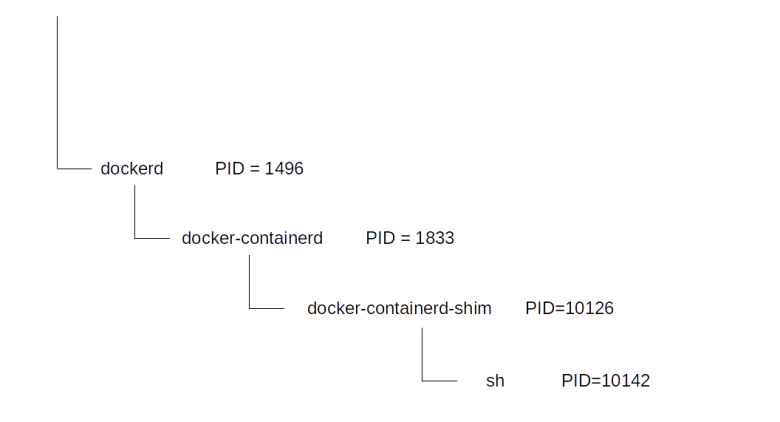
What you will find is that there are three processes involved. First, there is the docker daemon itself, called dockerd. In my case, this process has PID 1496. Then, there is a child process called docker-containerd, which is the actual container runtime within the Docker architecture stack. This process in turn calls a process called docker-containerd-shim (PID 10126) which then spawns the shell (PID 10142 in my case) inside the container.

ProcessTree


Now let us inspect the namespaces associated with these processes first. We start with the shell itself.

$ sudo ls -Lil /proc/10142/ns
total 0
4026531835 -r--r--r-- 1 root root 0 Apr  9 11:20 cgroup
4026532642 -r--r--r-- 1 root root 0 Apr  9 11:20 ipc
4026532640 -r--r--r-- 1 root root 0 Apr  9 11:20 mnt
4026532645 -r--r--r-- 1 root root 0 Apr  9 10:48 net
4026532643 -r--r--r-- 1 root root 0 Apr  9 11:20 pid
4026531837 -r--r--r-- 1 root root 0 Apr  9 11:20 user
4026532641 -r--r--r-- 1 root root 0 Apr  9 11:20 uts

Let us now compare this with the namespaces to which the containerd-shim process is assigned.

$ sudo ls -Lil /proc/10126/ns
total 0
4026531835 -r--r--r-- 1 root root 0 Apr  9 11:21 cgroup
4026531839 -r--r--r-- 1 root root 0 Apr  9 11:21 ipc
4026531840 -r--r--r-- 1 root root 0 Apr  9 11:21 mnt
4026531957 -r--r--r-- 1 root root 0 Apr  9 08:49 net
4026531836 -r--r--r-- 1 root root 0 Apr  9 11:21 pid
4026531837 -r--r--r-- 1 root root 0 Apr  9 11:21 user
4026531838 -r--r--r-- 1 root root 0 Apr  9 11:21 uts

We see that Docker did in fact create new namespaces for almost all possible namespaces (ipc, mnt, net, pid, uts).

Next, let us compare mount points. Inside the cointainer, run mount to see the existing mount points. Usually at the very top of the output, you should see the mount for the root filesystem. In my case, this was

none on / type aufs (rw,relatime,si=e92adf256343919e,dio,dirperm1)

Running the same command on the host system, I got a line like

none on /var/lib/docker/aufs/mnt/a9c5d26a45307d4e168b3936bd65d301c8dd039336083a324ed1a0b7c2bd0c52 type aufs (rw,relatime,si=e92adf256343919e,dio,dirperm1)

The identical si attribute tells you that this is fact the same mount. You also verify this directly. Inside the container, create a file test using touch test. If you then use ls to display the contents of the mount point as seen on the host, you should actually see this file. So the host process and the process inside the container see different mount points – made possible by the namespace technology! You can now access the files from inside the container or from outside the container without having to use docker exec (though I am note sure I would recommend this).

If you want, you can even trace the individual layers of this file system on the host system by using ls /sys/fs/aufs/si_e92adf256343919e/ and printing out the contents of the various files that you will find there – you will find that there are in fact two layers, one of them being a read-only layer and the second on top being a read-write layer.

ls /sys/fs/aufs/si_e92adf256343919e/
br0  br1  br2  brid0  brid1  brid2  xi_path
root:~# cat /sys/fs/aufs/si_e92adf256343919e/xi_path
/dev/shm/aufs.xino
root:~# cat /sys/fs/aufs/si_e92adf256343919e/br0
/var/lib/docker/aufs/diff/a9c5d26a45307d4e168b3936bd65d301c8dd039336083a324ed1a0b7c2bd0c52=rw
root:~# cat /sys/fs/aufs/si_e92adf256343919e/br1
/var/lib/docker/aufs/diff/a9c5d26a45307d4e168b3936bd65d301c8dd039336083a324ed1a0b7c2bd0c52-init=ro+wh

You can even “enter the container” using the nsenter Linux command to manually attach to defined namespaces of a process. To see this, enter

$ sudo nsenter -t 10142 -m -p -u "/bin/sh"
/ # ls
bin    dev    etc    home   lib    media  mnt    proc   root   run    sbin   srv    sys    test   tmp    usr    var
/ #

in a host terminal. This will attach to the mount, PID and user namespaces of the target process specified via the -t parameter, in our case this is the PID of the shell inside the container, and run the specified command /bin/sh. As a result, you will now see the file test created inside the container and see the same filesystem that is also visible inside the container.

Finally, let us take a look at the cgroups docker has created for this container. The easiest way to find them is to search for the first few characters of the container ID that you can figure out using docker ps (I have cut off some lines at the end of the output).

$ docker ps
CONTAINER ID        IMAGE               COMMAND             CREATED             STATUS              PORTS               NAMES
7c0f142bfbfd        alpine              "/bin/sh"           About an hour ago   Up About an hour                        quizzical_jones
$ find /sys/fs/cgroup/ -name "*7c0f142bfbfd*"
/sys/fs/cgroup/pids/docker/7c0f142bfbfdb9320166f92d17ecbf9d462e9c234916632f23ec1b454fb6eb52
/sys/fs/cgroup/pids/system.slice/var-lib-docker-containers-7c0f142bfbfdb9320166f92d17ecbf9d462e9c234916632f23ec1b454fb6eb52-shm.mount
/sys/fs/cgroup/freezer/docker/7c0f142bfbfdb9320166f92d17ecbf9d462e9c234916632f23ec1b454fb6eb52
/sys/fs/cgroup/net_cls,net_prio/docker/7c0f142bfbfdb9320166f92d17ecbf9d462e9c234916632f23ec1b454fb6eb52
/sys/fs/cgroup/cpuset/docker/7c0f142bfbfdb9320166f92d17ecbf9d462e9c234916632f23ec1b454fb6eb52

If you now inspect the task files in each of the newly created directories, you will find the PID of the container shell as seen from the root namespace, i.e. 10142 in this case.

This closes this post which is already a bit lengthy. We have seen how Docker uses union file systems, namespaces and cgroups to manage and isolate container and how we can link the resources as seen from within the container to resources on the host system. In the next posts, we will look in more detail at networking in Docker. Until then, you might want to consult the followings links that contain additional material.

  • J. Pettazone has put slides from a talk online
  • The overview from the official Docker documentation briefly explains the core technologies
  • There are of course already many excellent blog posts on Docker internals, like the one by Julia Evans
  • The post from the Docker Saigon community

In case you are interested in container platforms in general, you also might want to take a look at my series on Kubernetes that I have just started.